1 - 01快速入门
快速入门,文档相当于官网文档的翻译版本
docker compose 部署
cd workdir
mkdir -p ./mytb-data ./mytb-logs
services:
  thingsboard:
    image: thingsboard/tb-postgres
    container_name: thingsboard
    restart: always
    ports:
      - "8080:9090"
      - "7070:7070"
      - "1883:1883"
      - "5683-5688:5683-5688/udp"
    volumes:
      - ./mytb-data:/data
      - ./mytb-logs:/var/log/thingsboard
docker compose pull
docker compose up -d
浏览器访问 http://domain:8080
默认用户名: tenant@thingsboard.org
默认密码: tenant
源码部署
略
添加设备
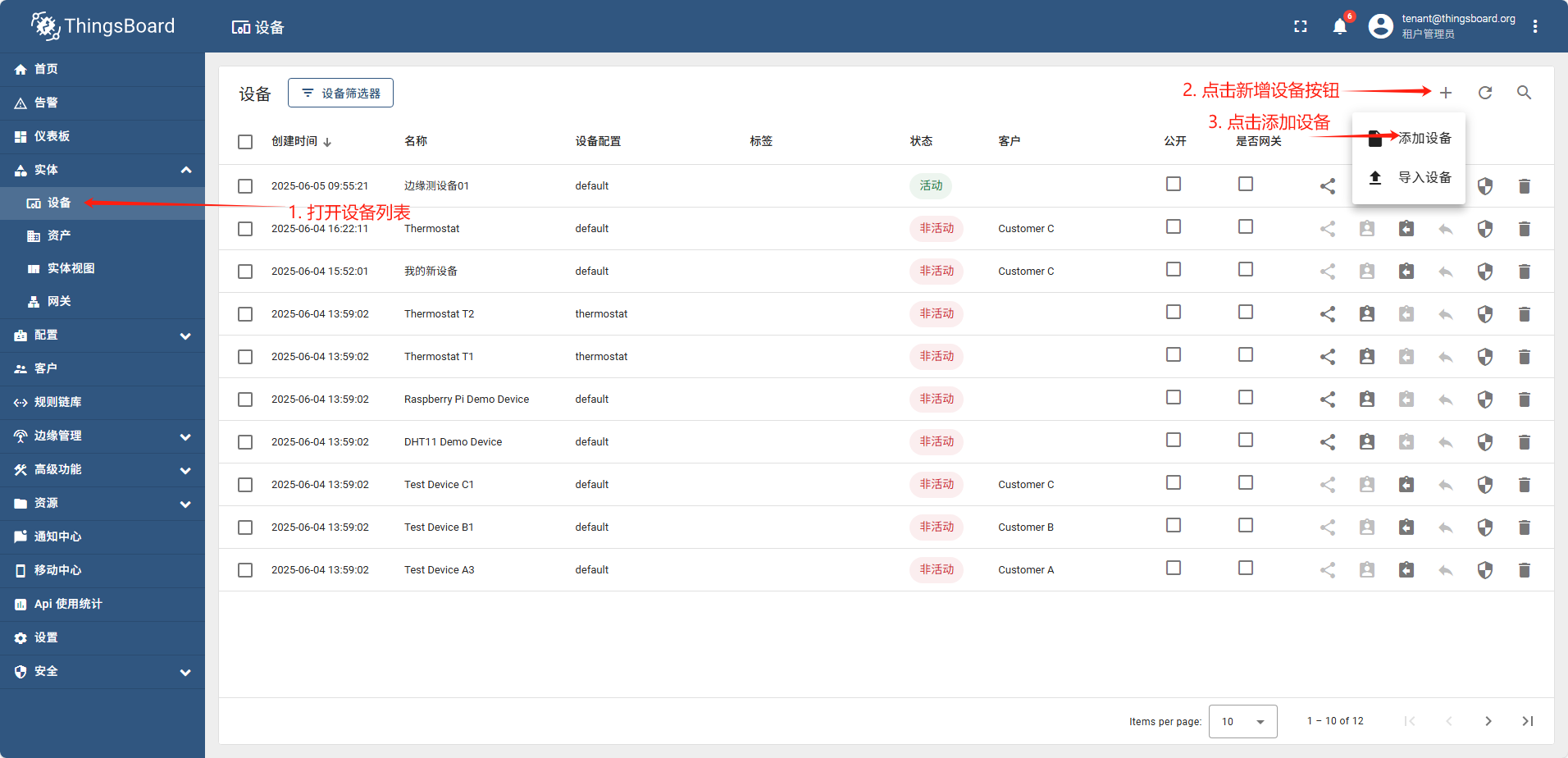
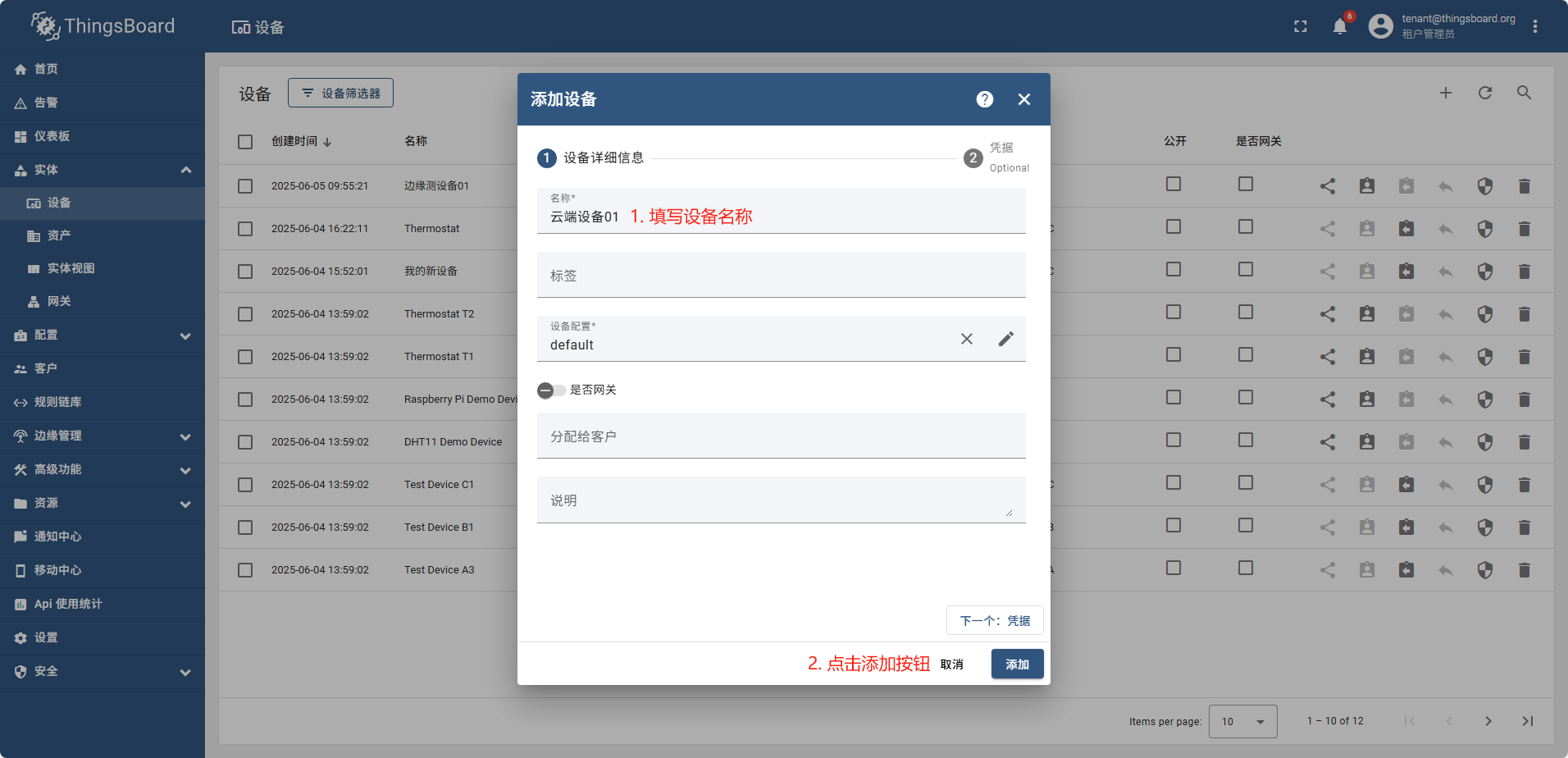
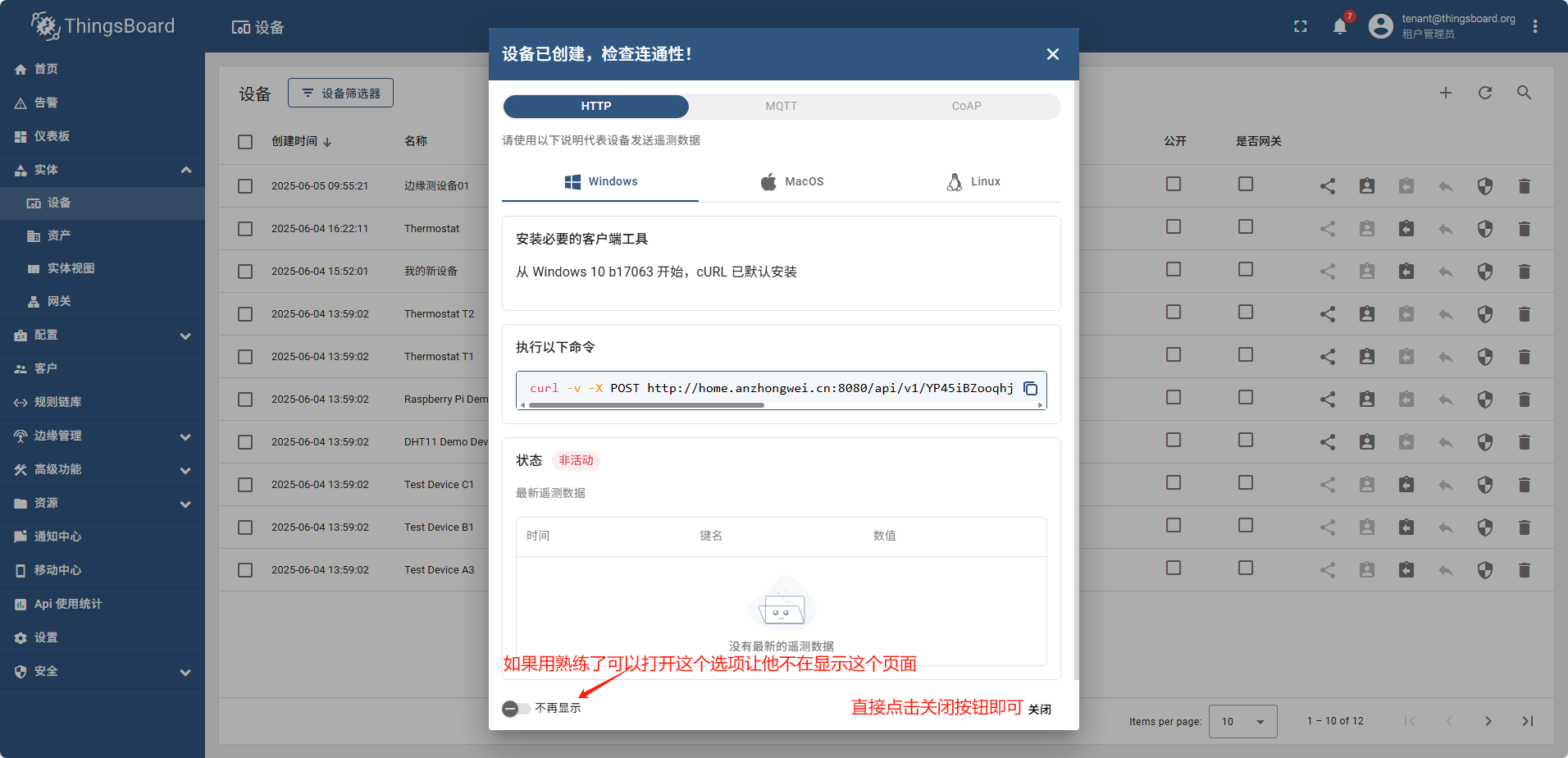
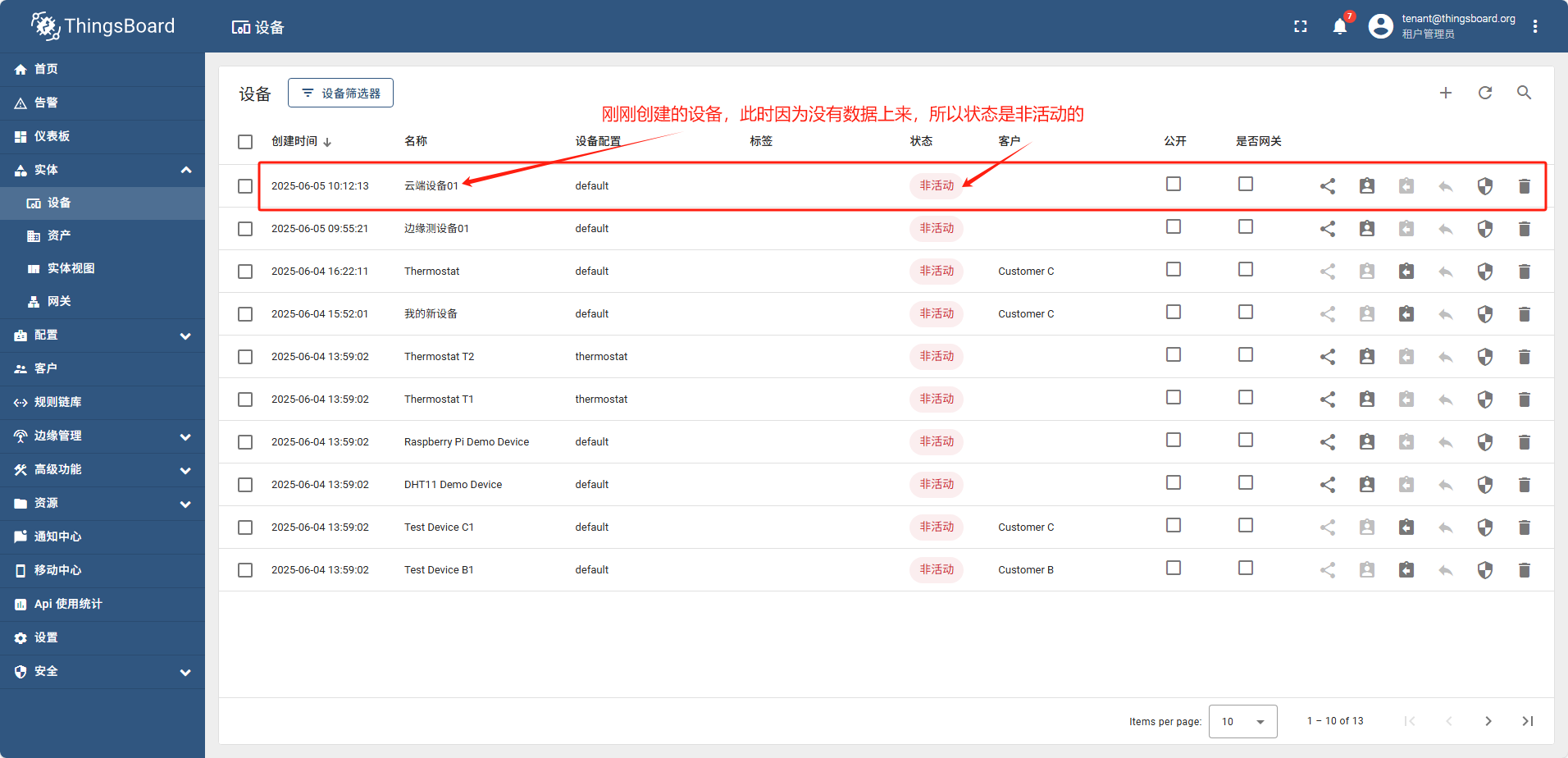
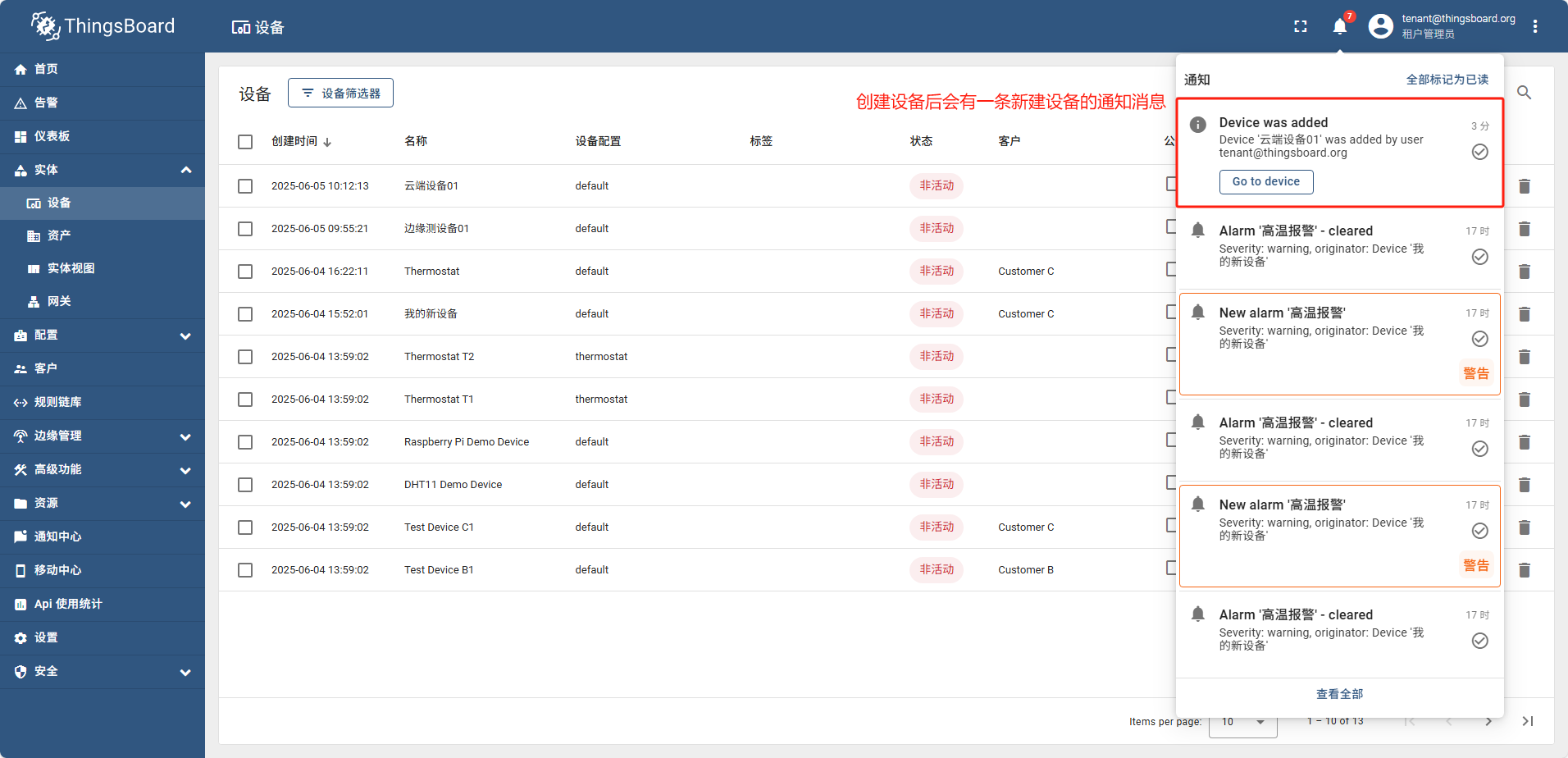
单设备添加
单设备添加完全跟图操作即可
导入设备
准备测试数据: 新建csv文件,内容如下:
name,type,Data1,Data2,Data3,Data4,Data5,Data6,Data7,Data8,Data9,Data10
Device 1,testImport,123,test,TRUE,FALSE,123.55,test,test,test,test,AbfdgrRetGF45
Device 2,testImport,123,test,TRUE,FALSE,123.55,test,test,test,test,AbfdgrRetGF46
Device 3,testImport,123,test,TRUE,FALSE,123.55,test,test,test,test,AbfdgrRetGF47
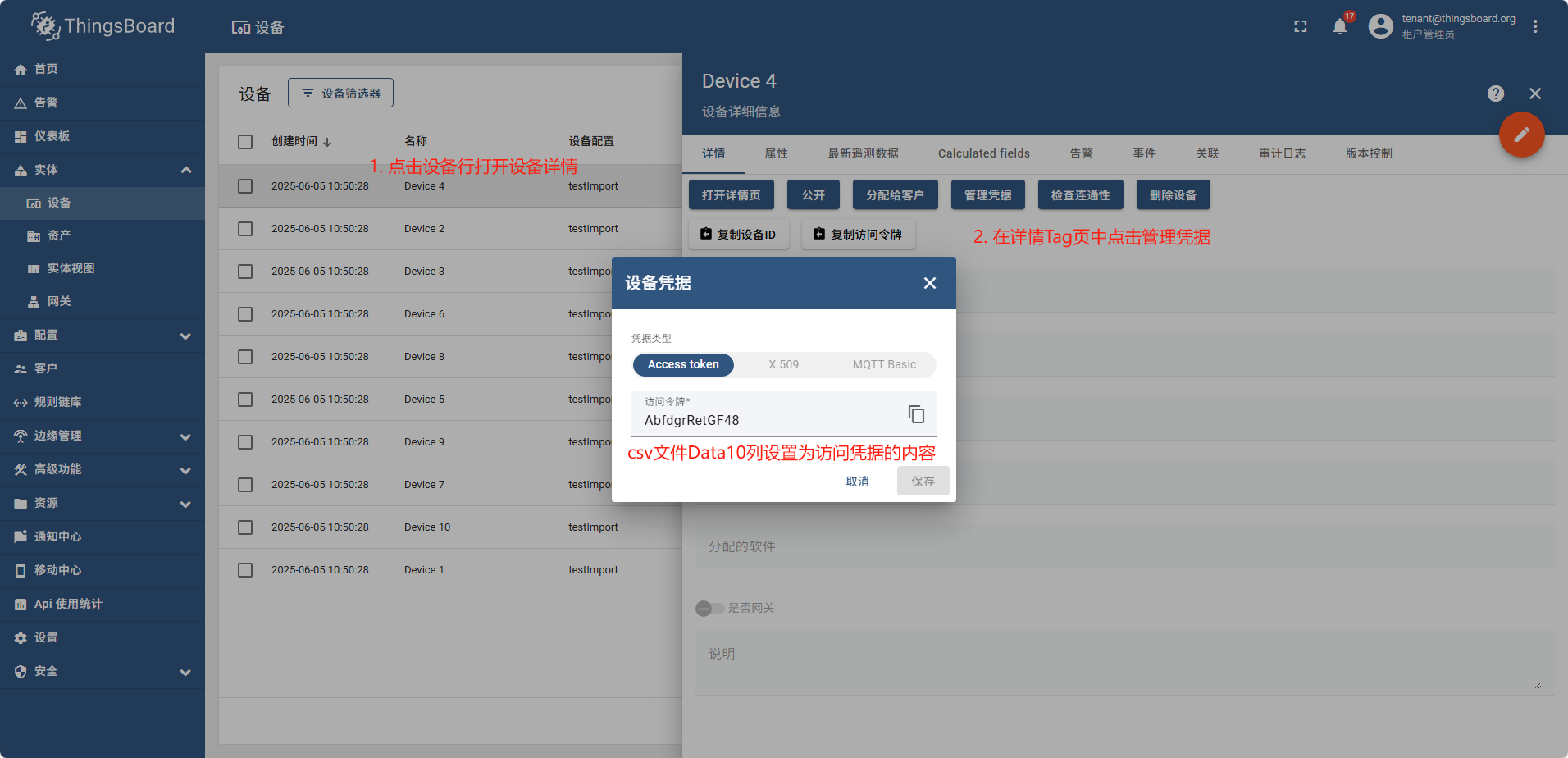
Device 4,testImport,123,test,TRUE,FALSE,123.55,test,test,test,test,AbfdgrRetGF48
Device 5,testImport,123,,TRUE,FALSE,123.55,test,test,test,test,AbfdgrRetGF49
Device 6,testImport,123,test,TRUE,FALSE,123.55,test,test,test,test,AbfdgrRetGF50
Device 7,testImport,123,test,TRUE,FALSE,123.55,test,test,test,test,AbfdgrRetGF51
Device 8,testImport,123,test,TRUE,FALSE,123.55,test,test,test,test,AbfdgrRetGF52
Device 9,testImport,123,test,TRUE,FALSE,123.55,test,test,test,test,AbfdgrRetGF53
Device 10,testImport,123,test,TRUE,FALSE,123.55,test,test,test,test,AbfdgrRetGF54
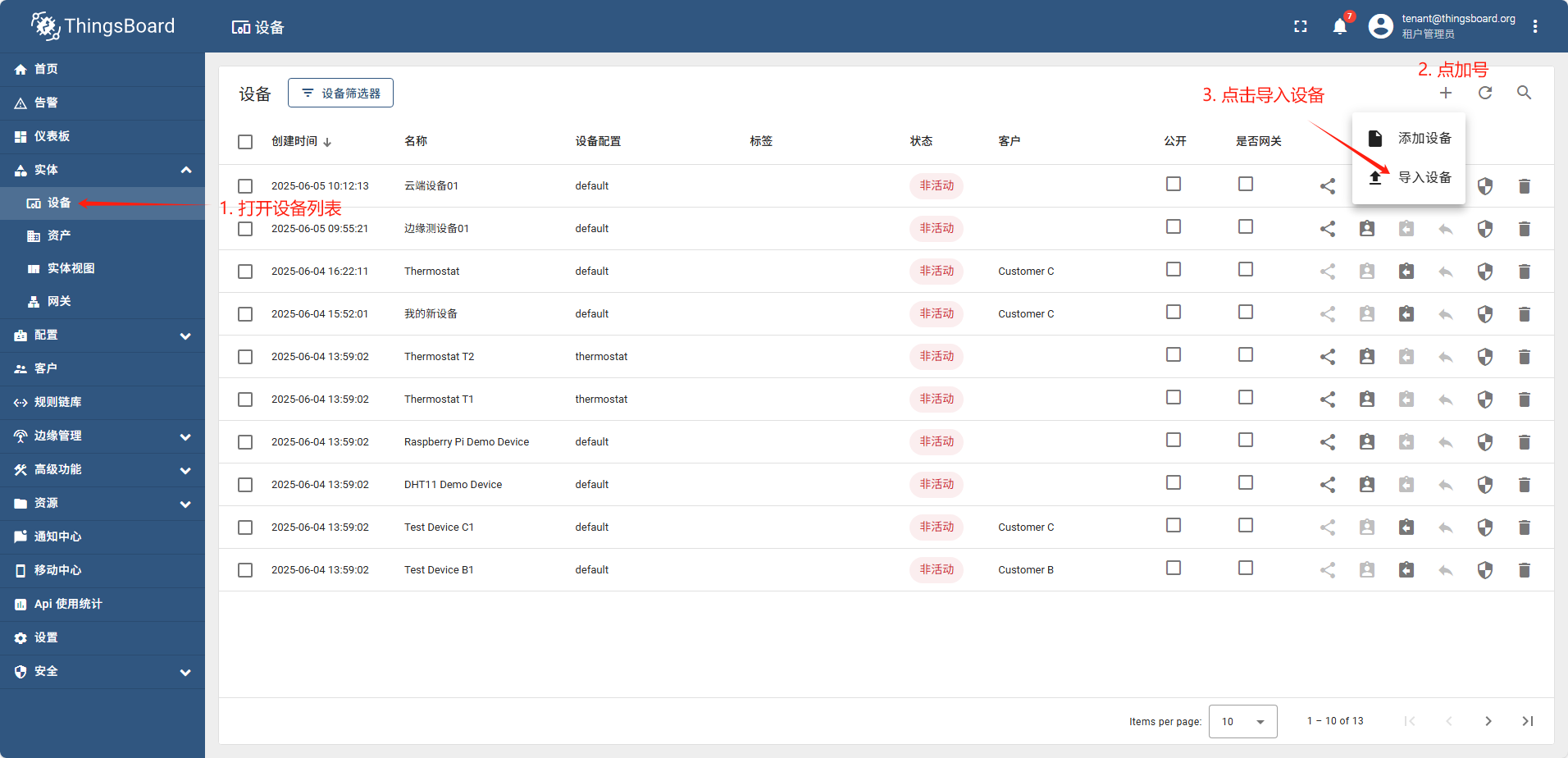
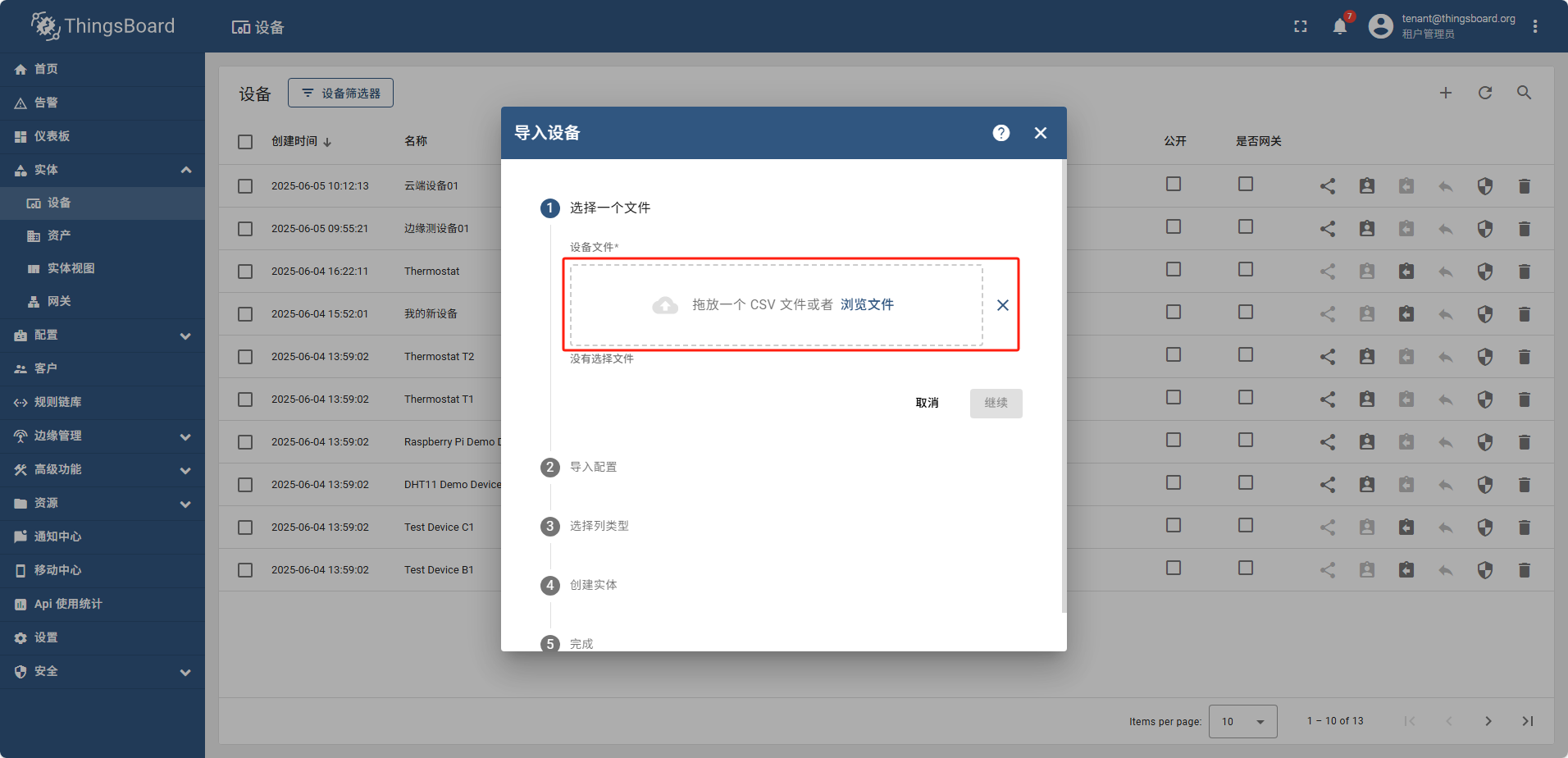
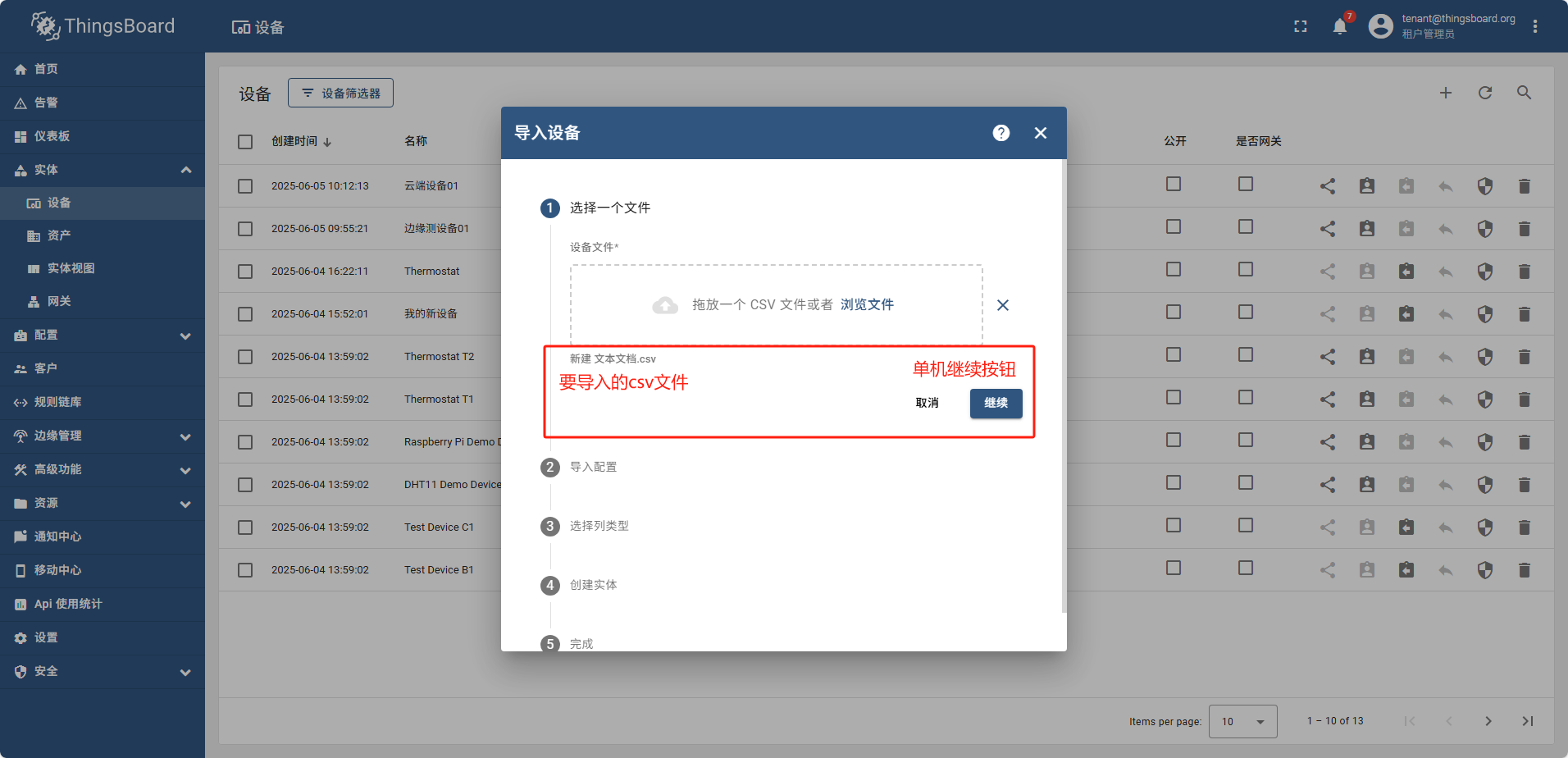
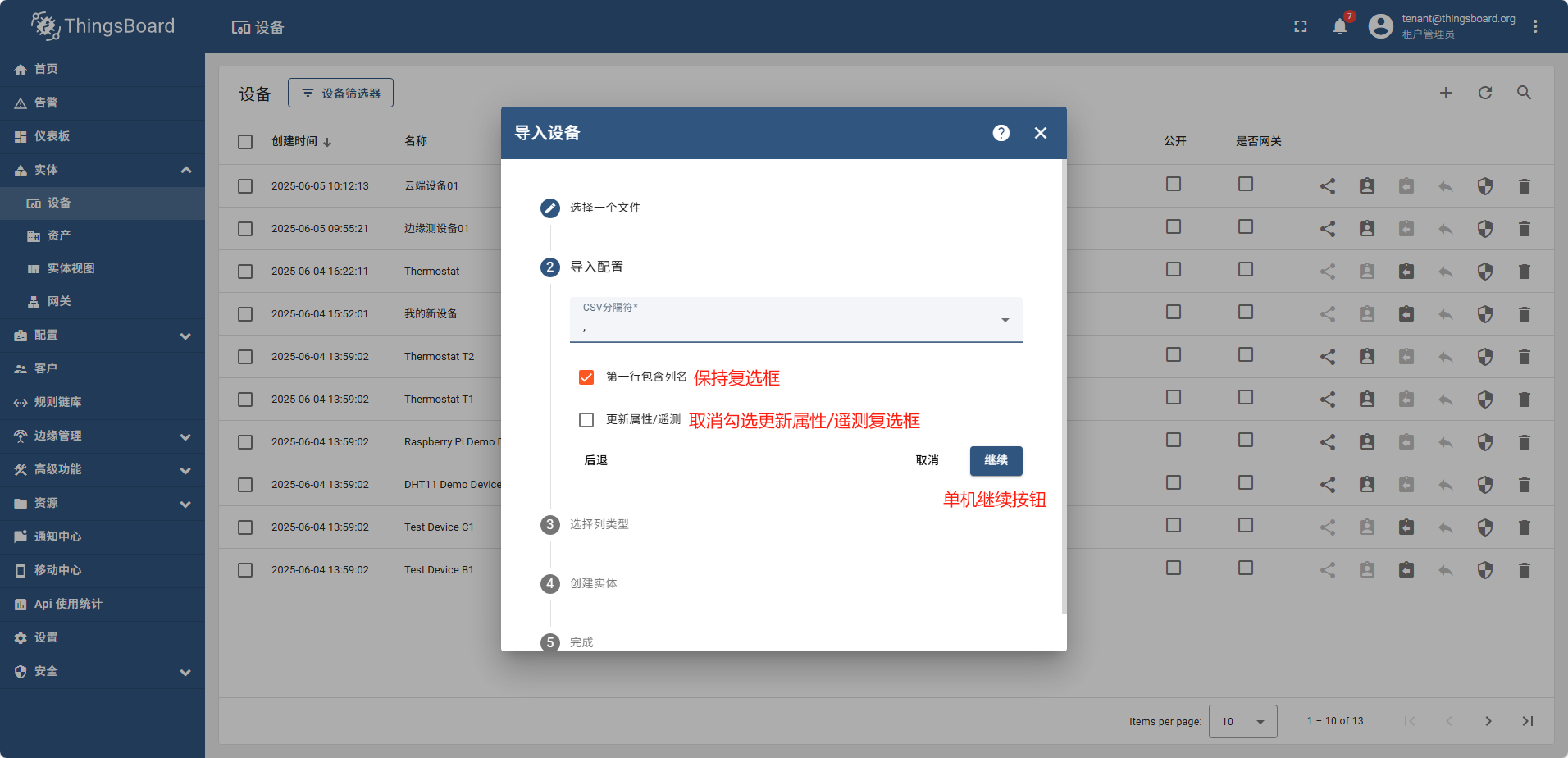
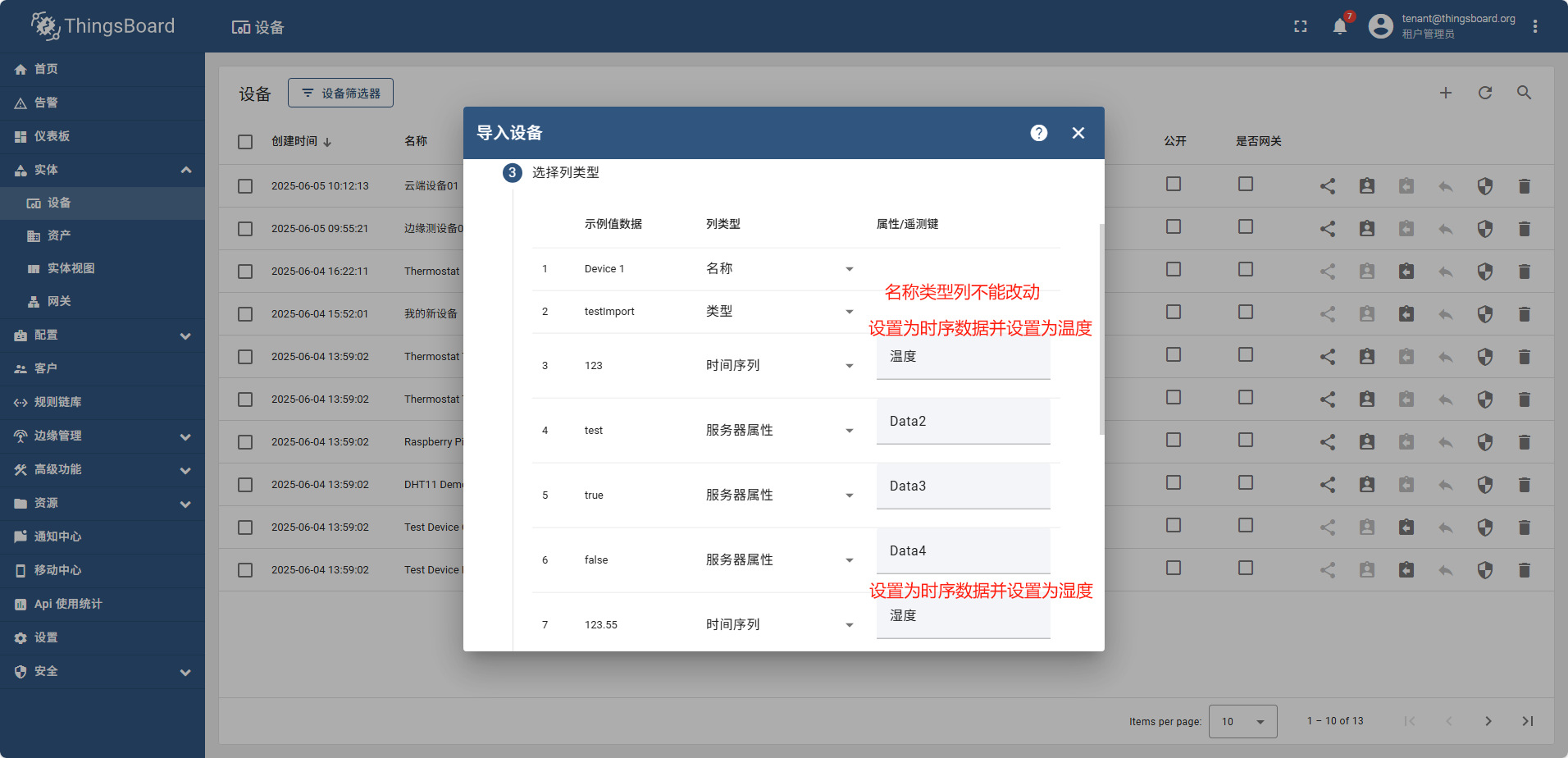
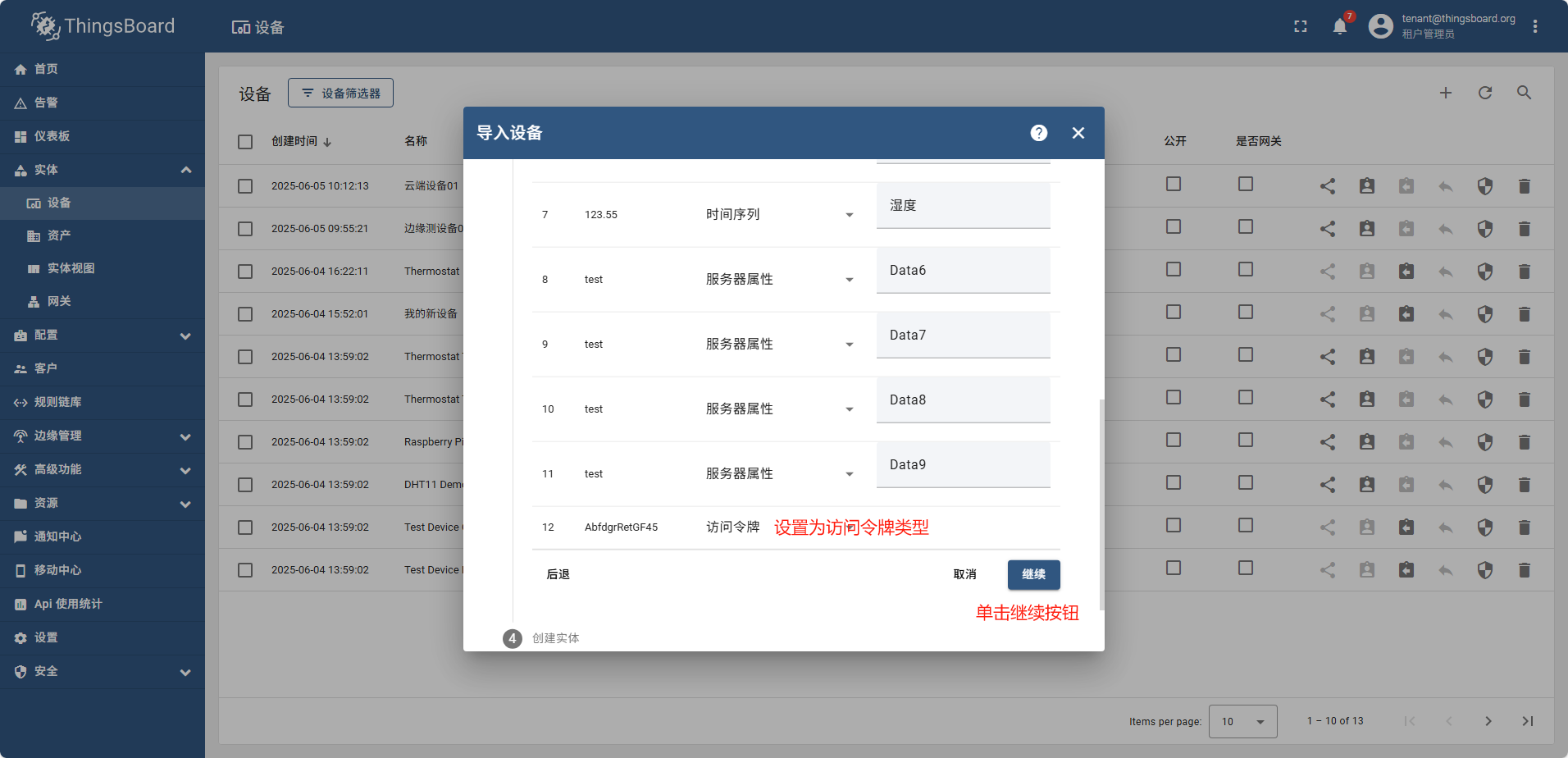
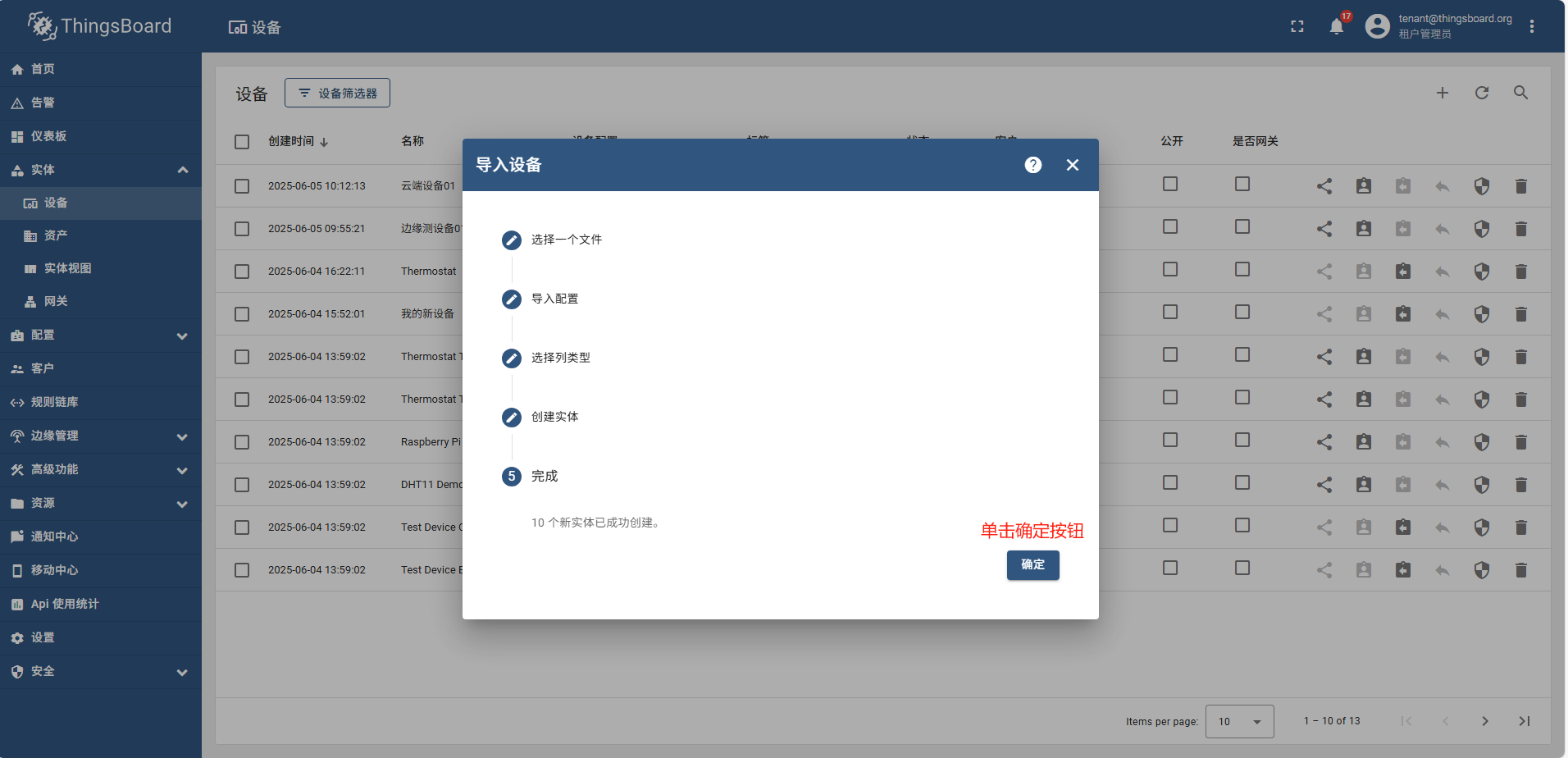
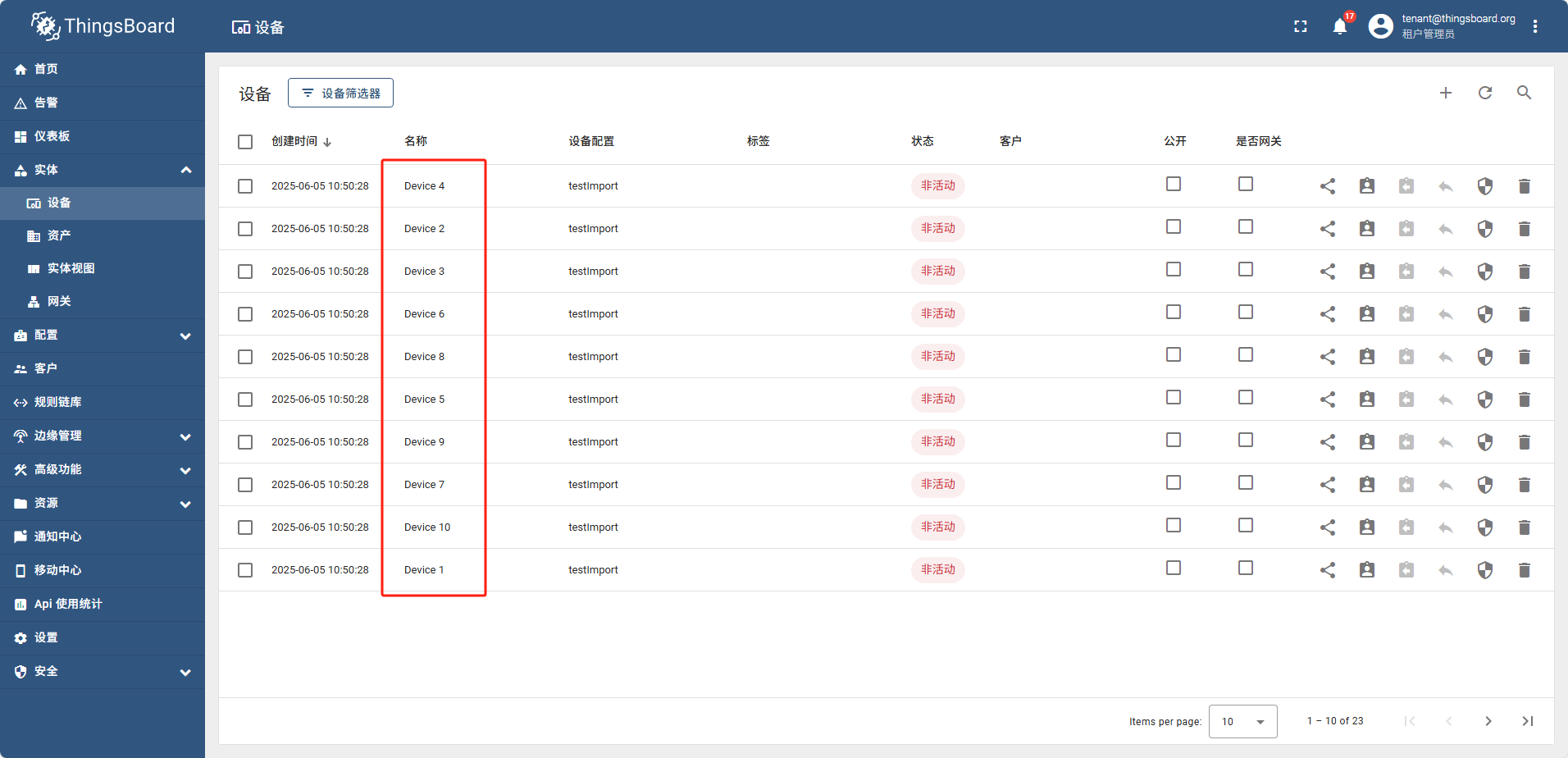
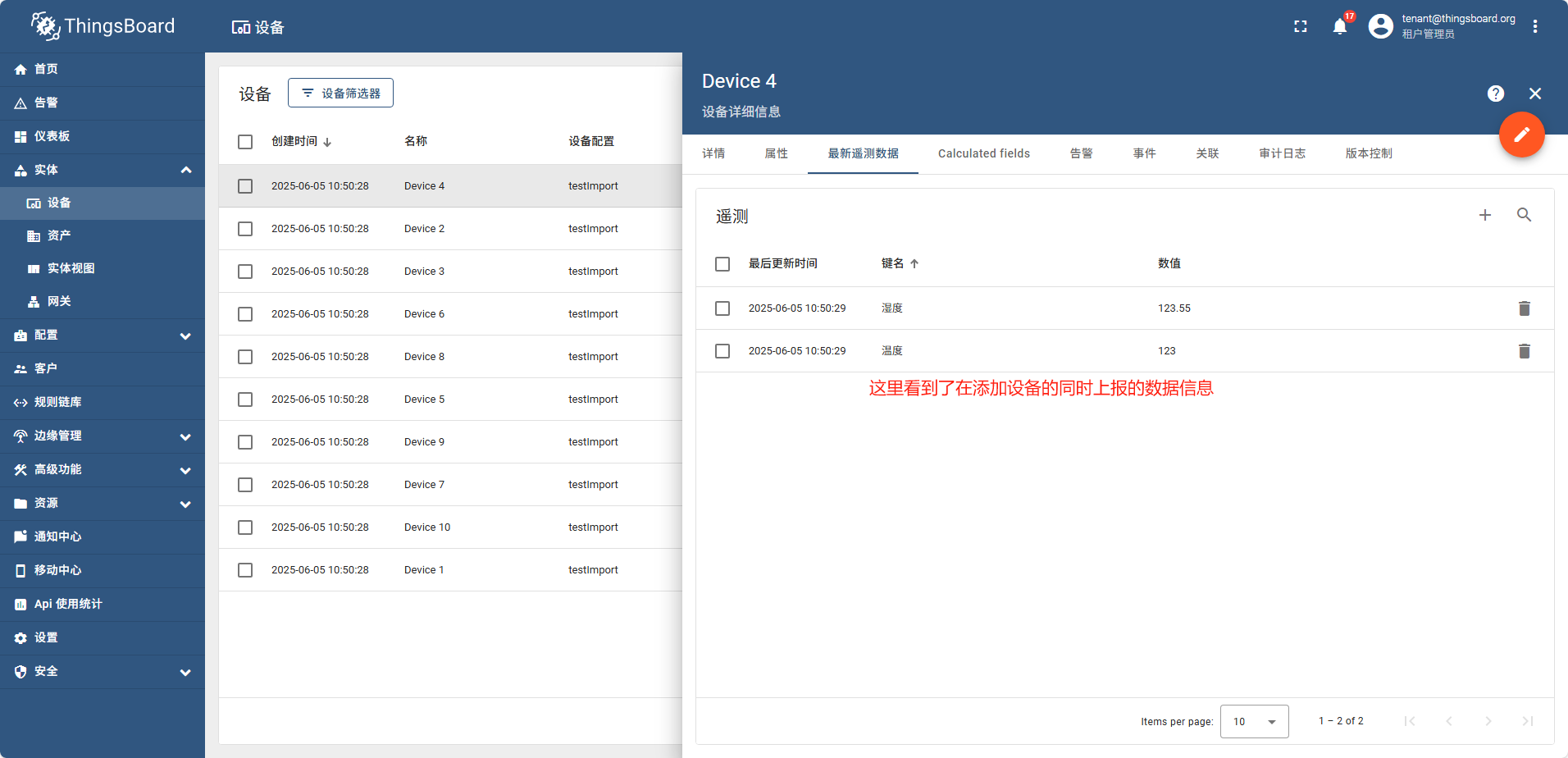
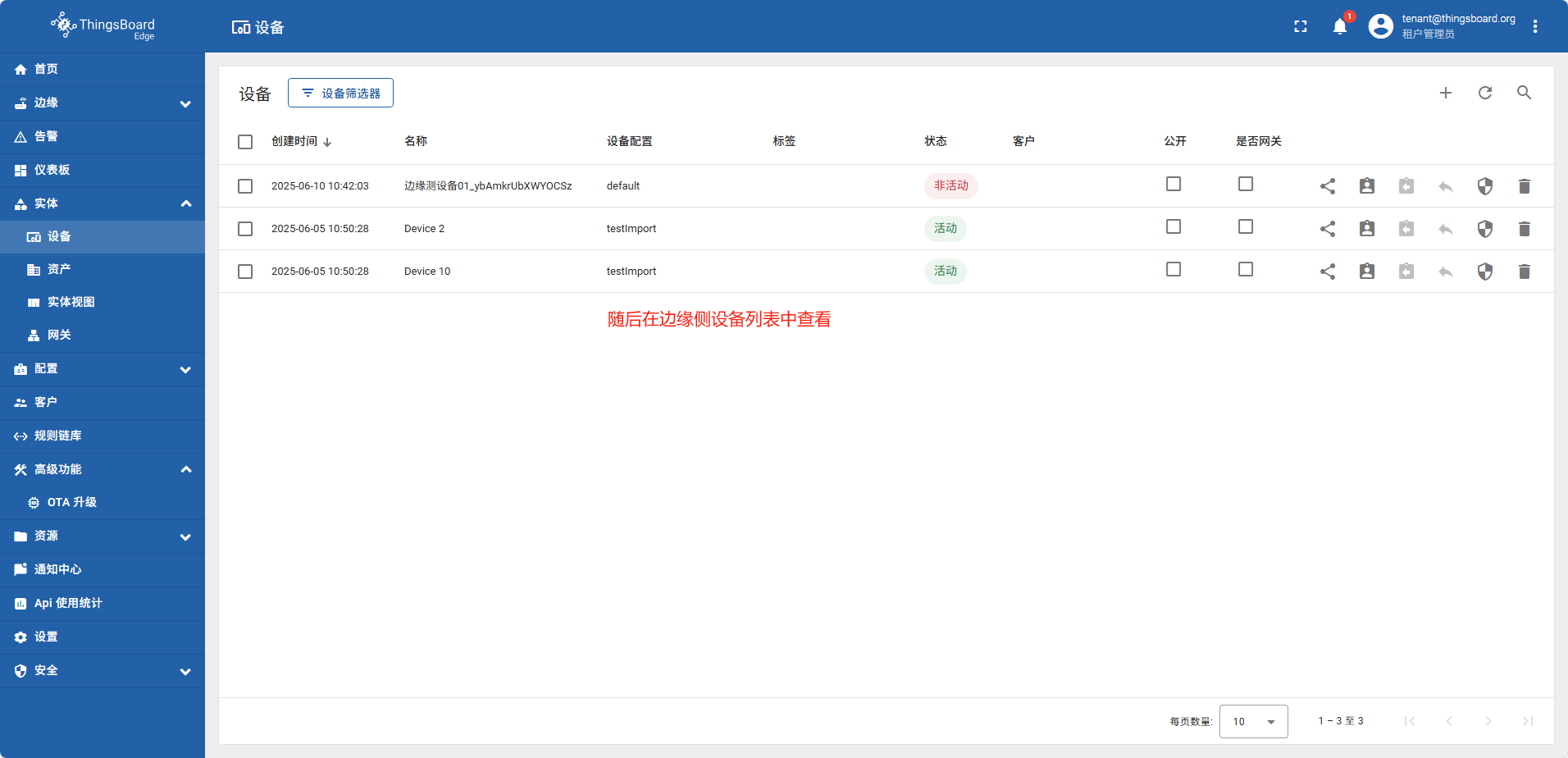
导入完成后,重新查看设备列表
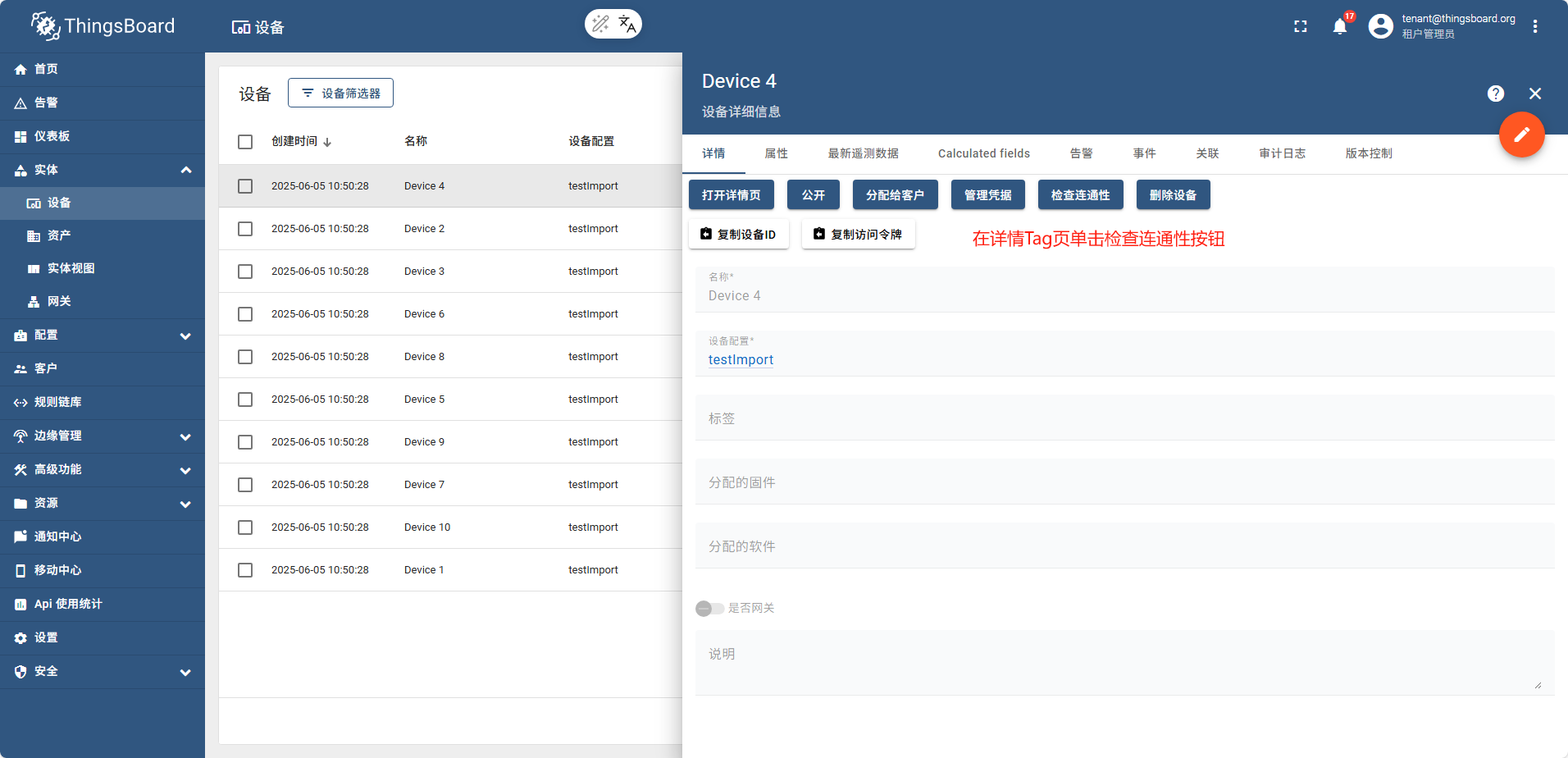
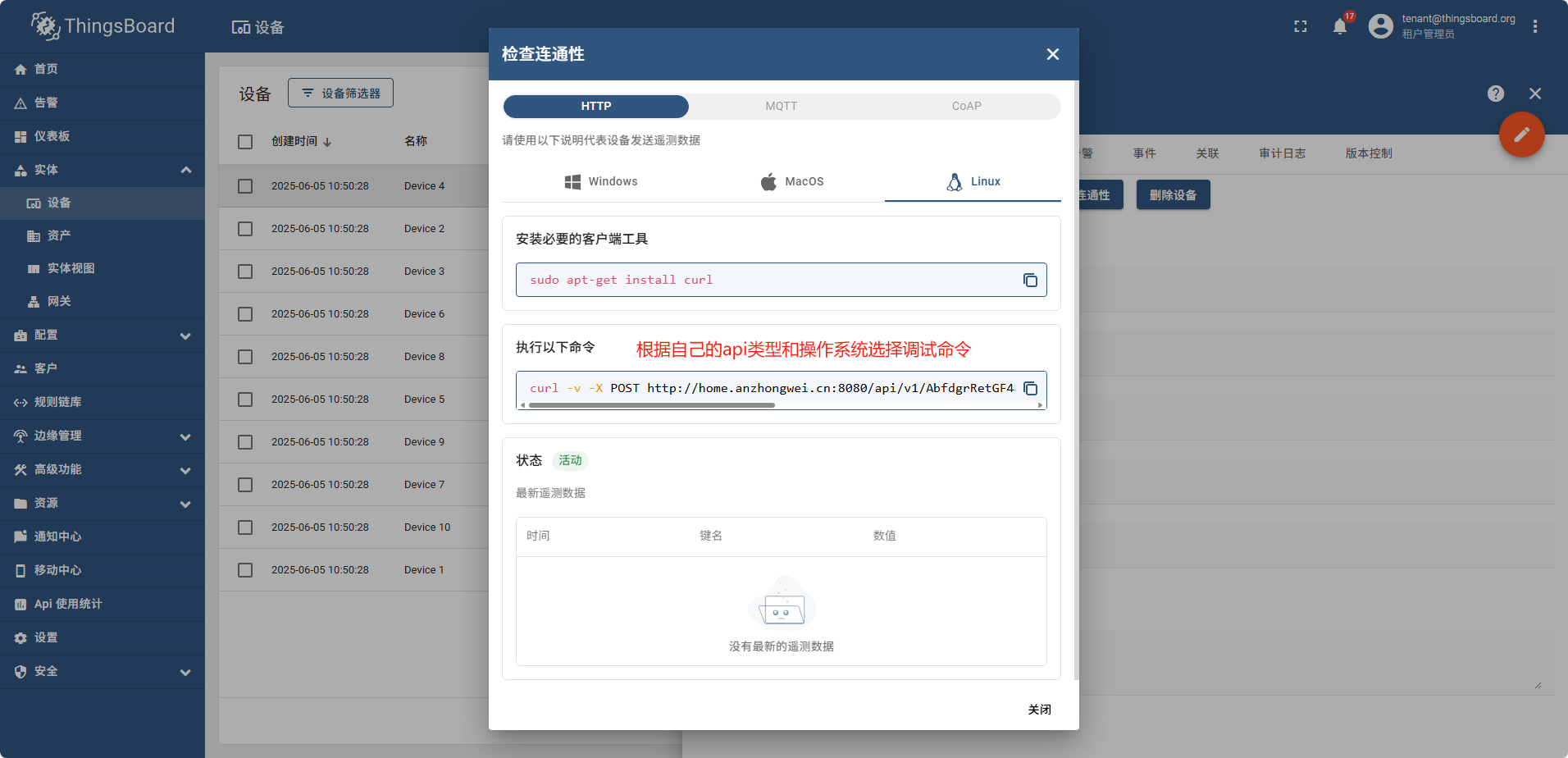
执行命令
# 注意这里我将json字符串的key改成了温度
curl -v -X POST http://demain:8080/api/v1/AbfdgrRetGF48/telemetry --header Content-Type:application/json --data "{温度:25}"
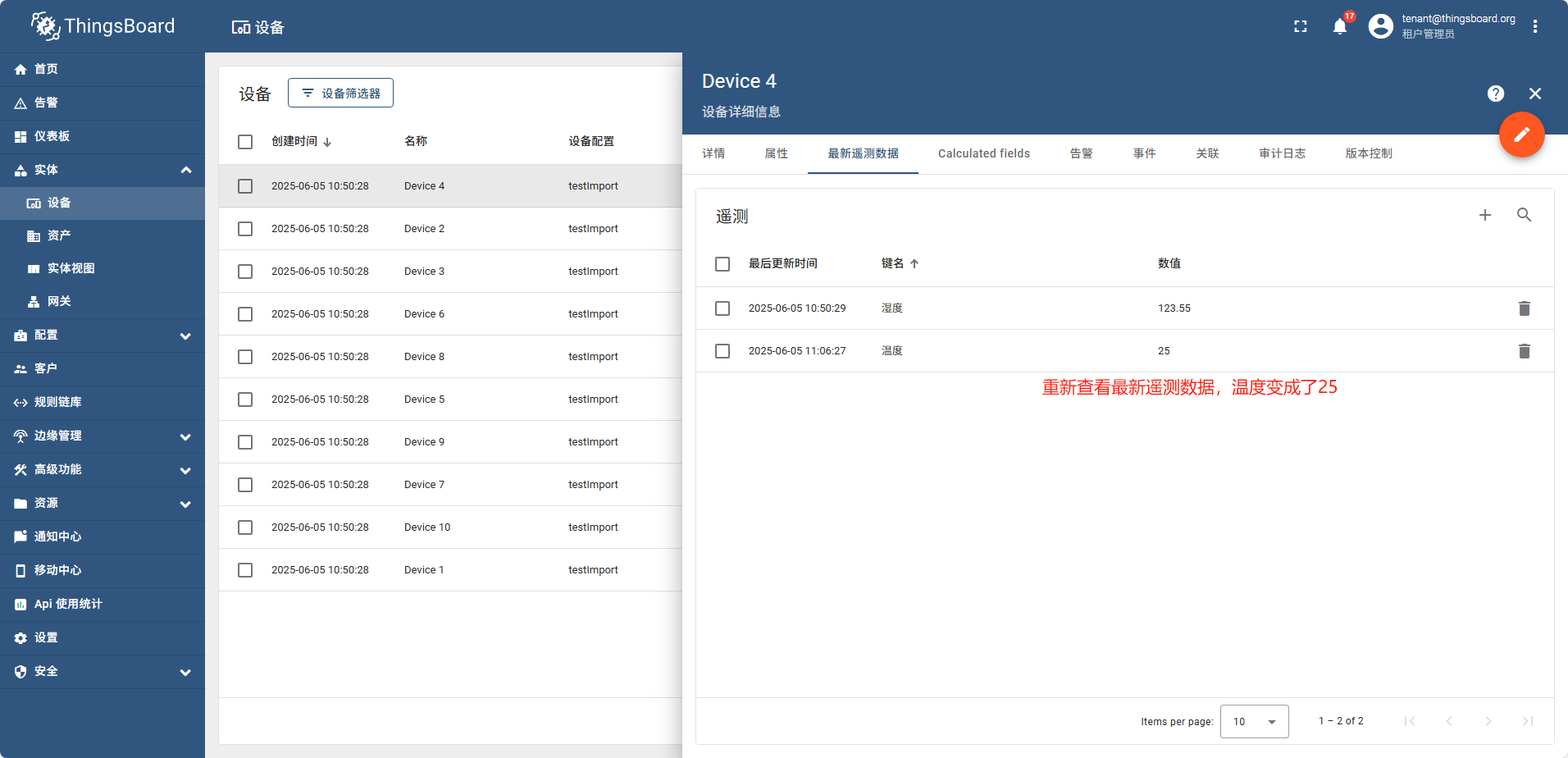
调用完成后,重新查看最新的遥测数据, 温度已经变成了我们api调用设置的值
2 - 02边缘测
https://thingsboard.io/docs/edge/getting-started/
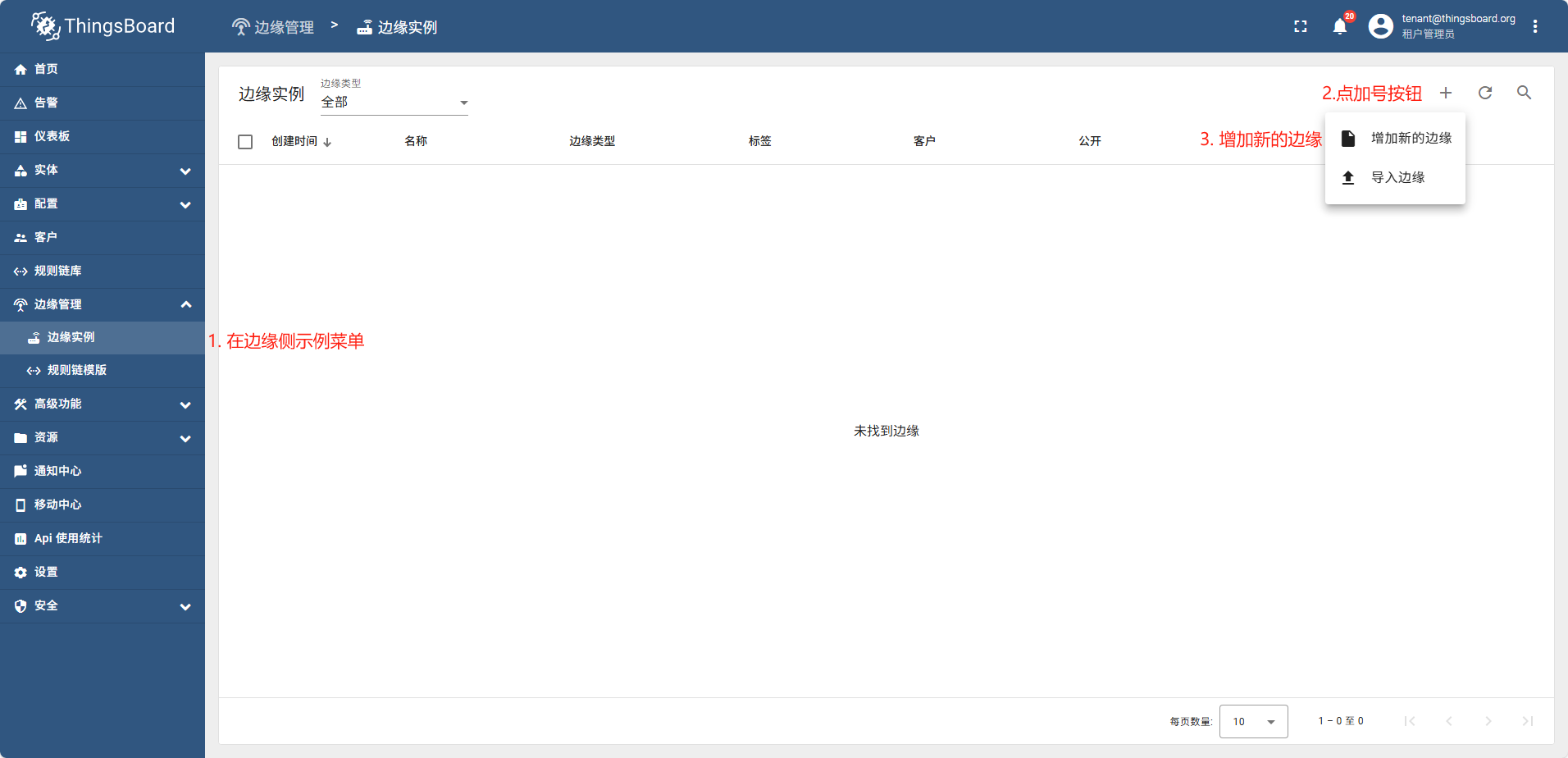
新增边缘实例
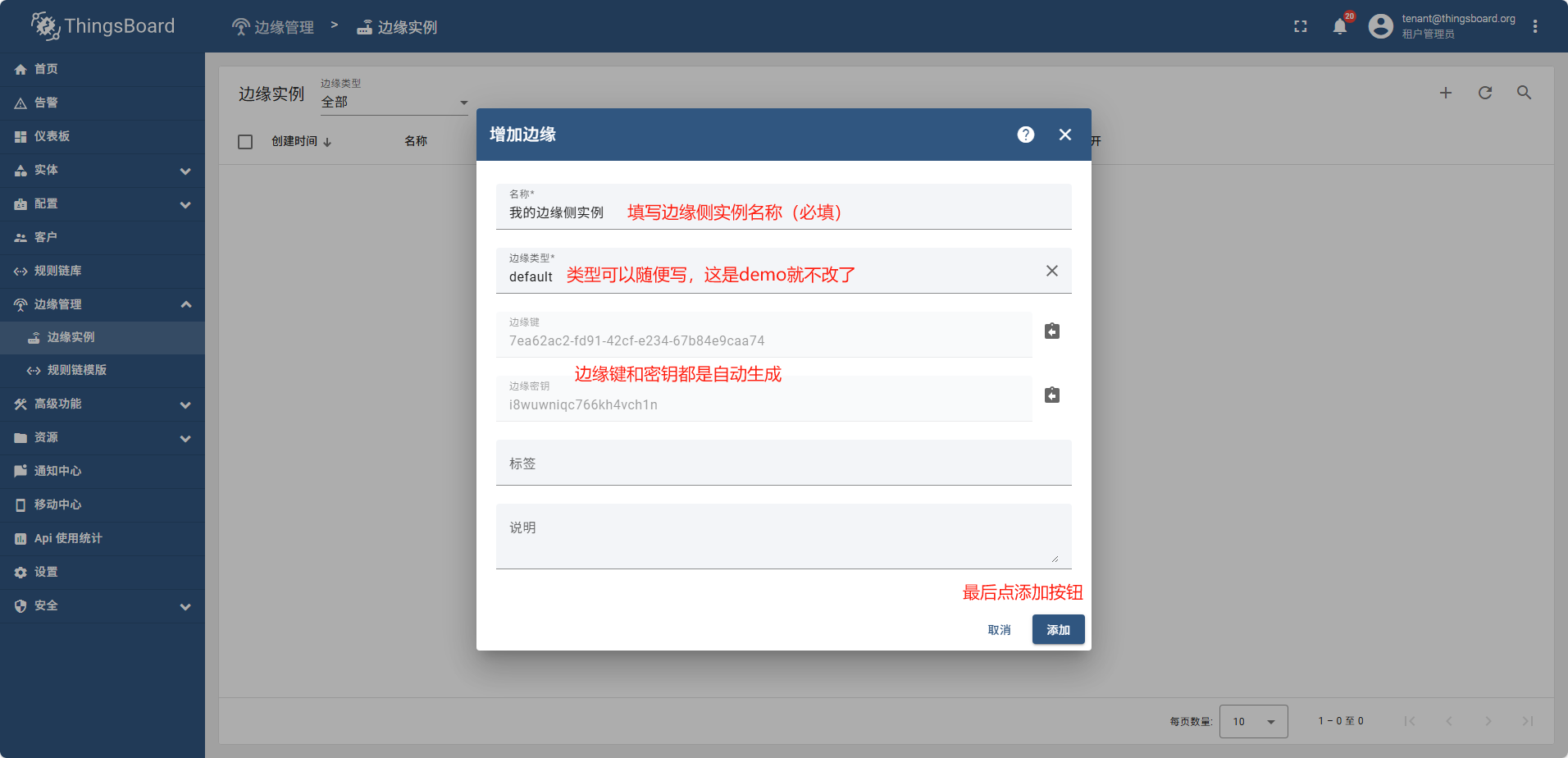
创建完成后弹出连接方式
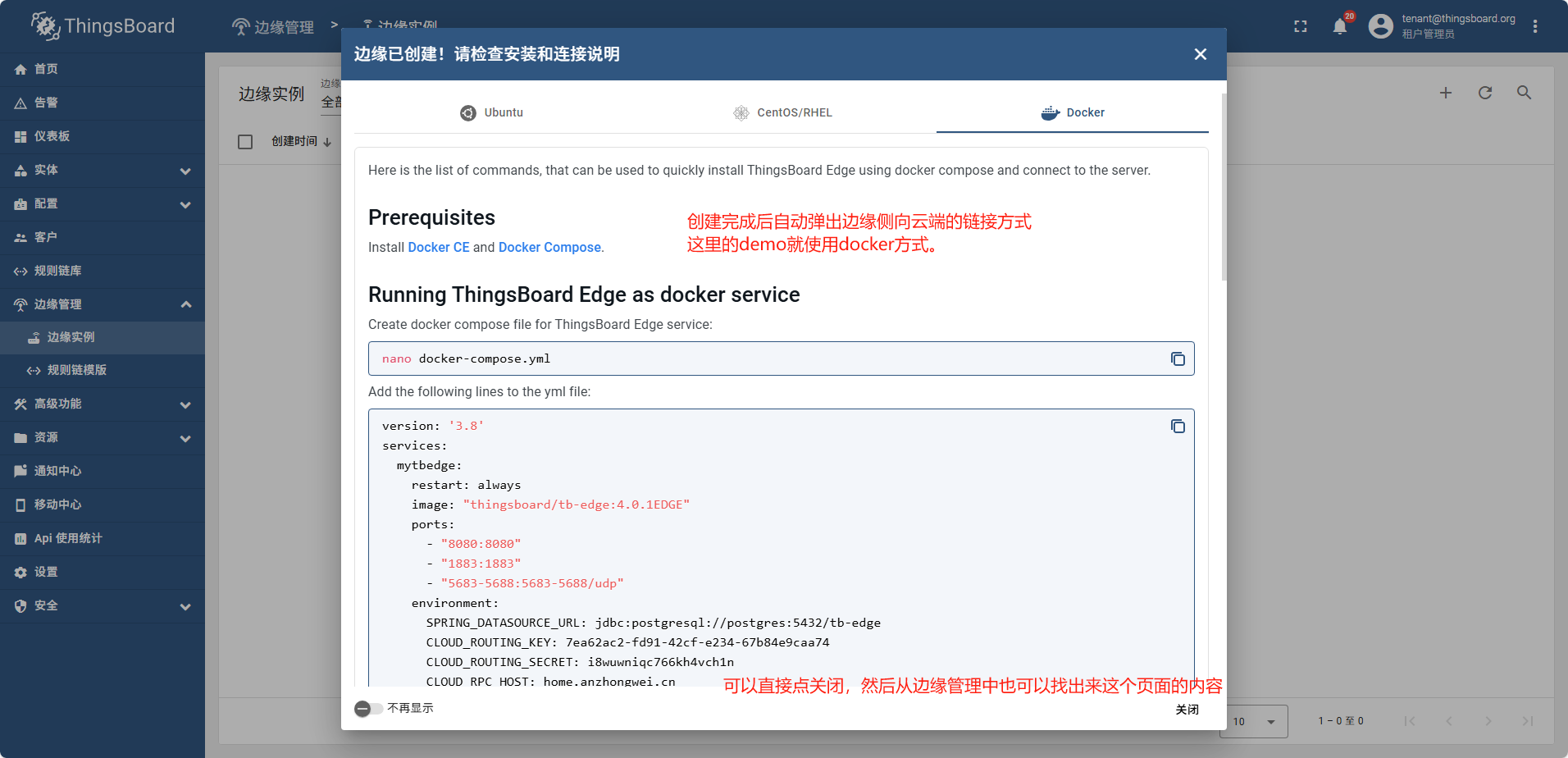
关闭连接方式弹窗后。再重新找到连接方式的弹窗
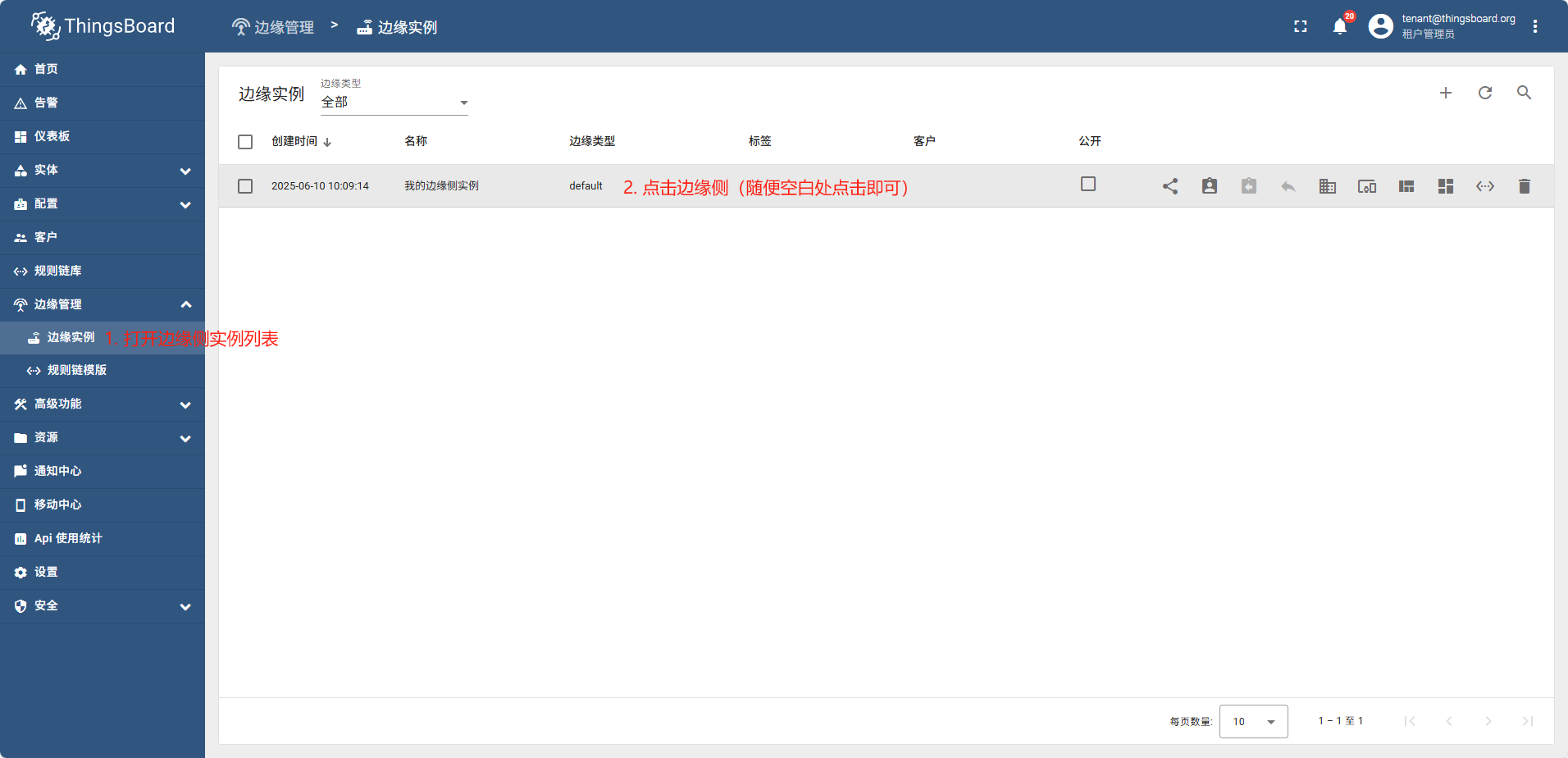
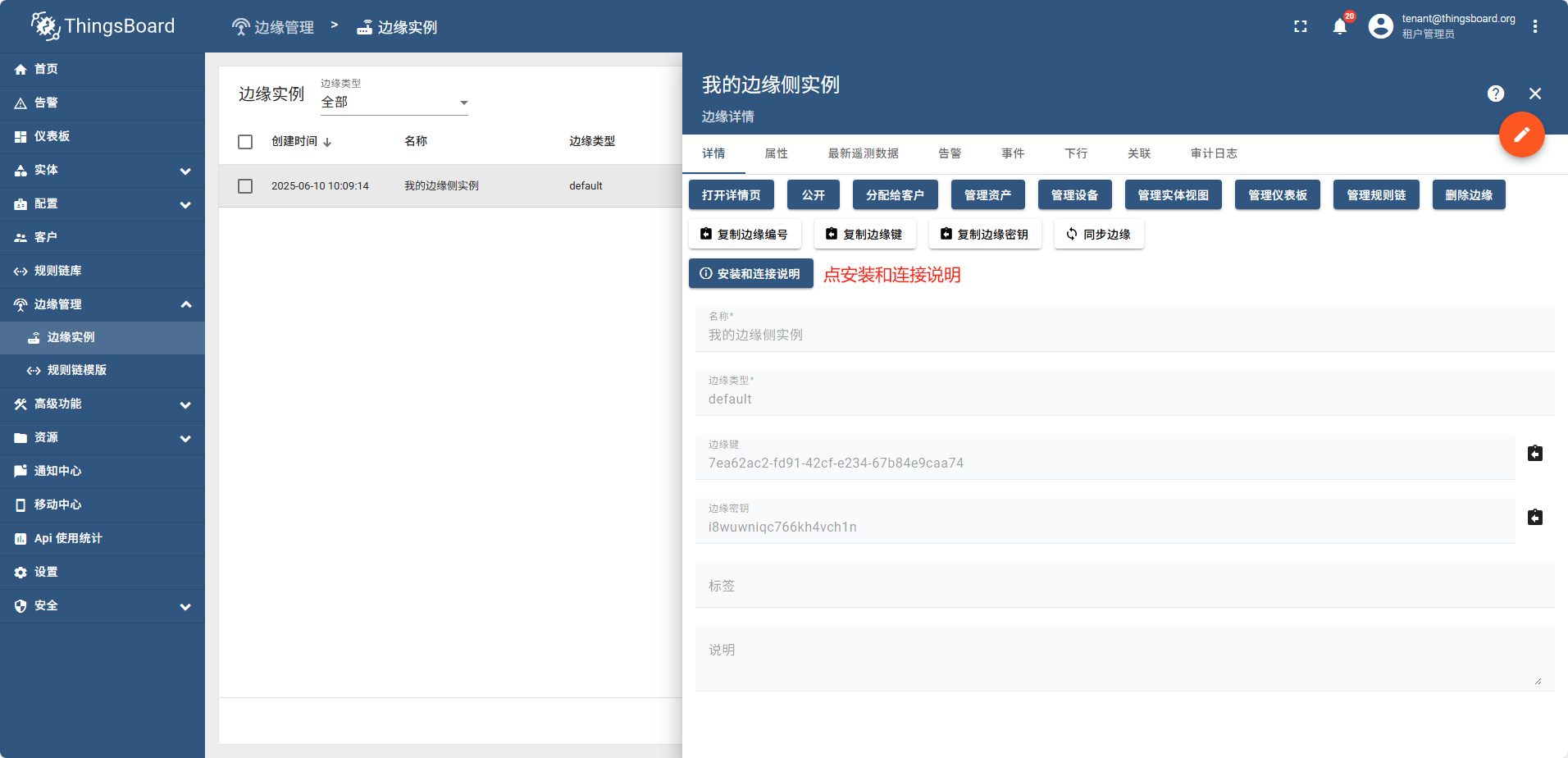
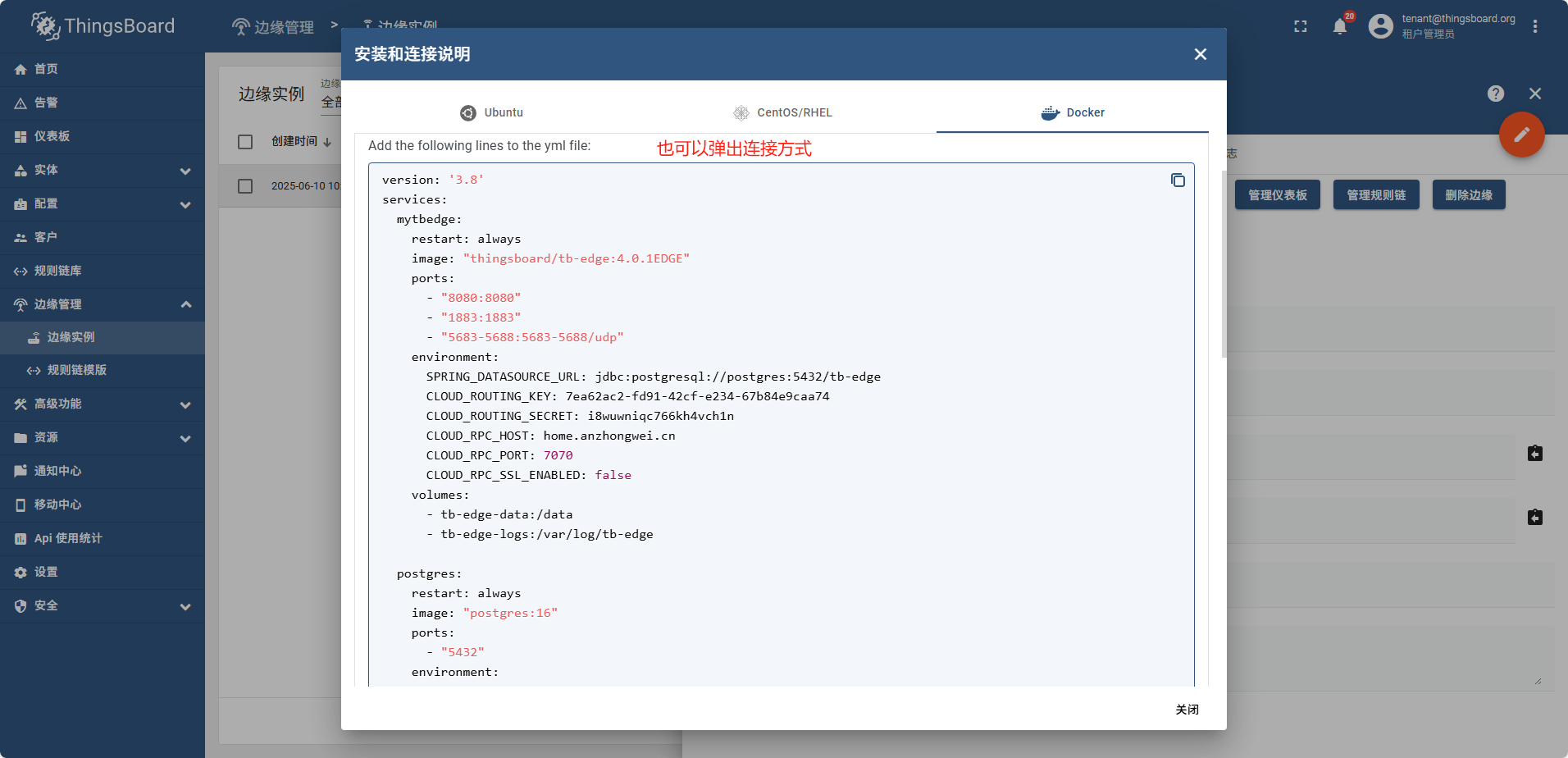
当边缘侧完成连接后,“安装和连接说明” 则变成了 “升级说明”
填写完表单后,此处以docker创建为例
- 复制docker tag中的docker-compose
services:
  mytbedge:
    restart: always
    image: "thingsboard/tb-edge:4.0.1EDGE"
    ports:
      - "8080:8080"
      - "1883:1883"
      - "5683-5688:5683-5688/udp"
    environment:
      SPRING_DATASOURCE_URL: jdbc:postgresql://postgres:5432/tb-edge
      CLOUD_ROUTING_KEY: 7ea62ac2-fd91-42cf-e234-67b84e9caa74
      CLOUD_ROUTING_SECRET: i8wuwniqc766kh4vch1n
      CLOUD_RPC_HOST: home.anzhongwei.cn
      CLOUD_RPC_PORT: 57070
      CLOUD_RPC_SSL_ENABLED: false
    volumes:
      - tb-edge-data:/data
      - tb-edge-logs:/var/log/tb-edge

  postgres:
    restart: always
    image: "postgres:16"
    ports:
      - "5432"
    environment:
      POSTGRES_DB: tb-edge
      POSTGRES_PASSWORD: postgres
    volumes:
      - tb-edge-postgres-data:/var/lib/postgresql/data

volumes:
  tb-edge-data:
    name: tb-edge-data
  tb-edge-logs:
    name: tb-edge-logs
  tb-edge-postgres-data:
    name: tb-edge-postgres-data
使用docker运行起来
运行成功可以在本地浏览器通过 http:///127.0.0.1:8080 访问到页面
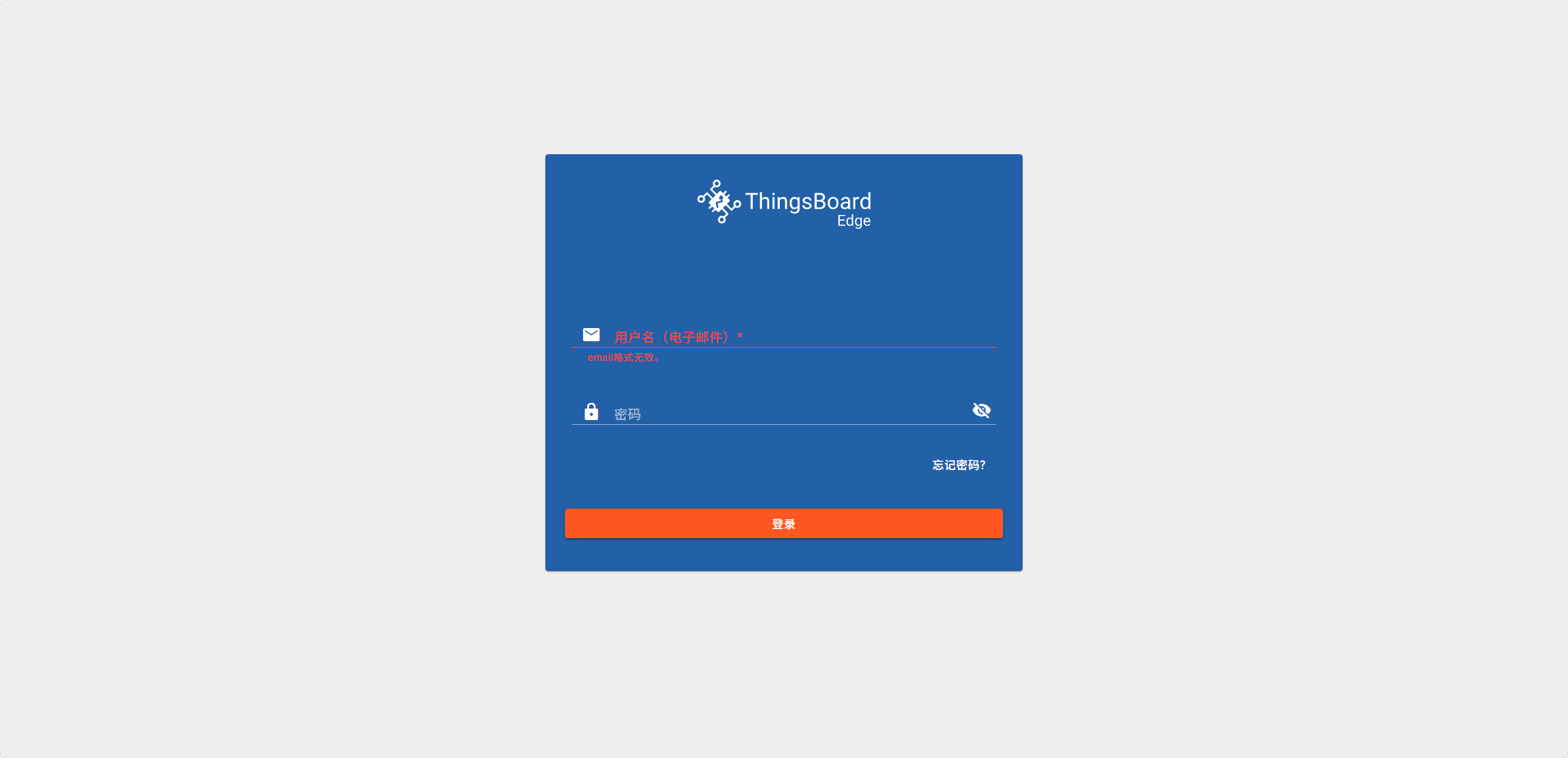
用户名:tenant@thingsboard.org
密码: tenant
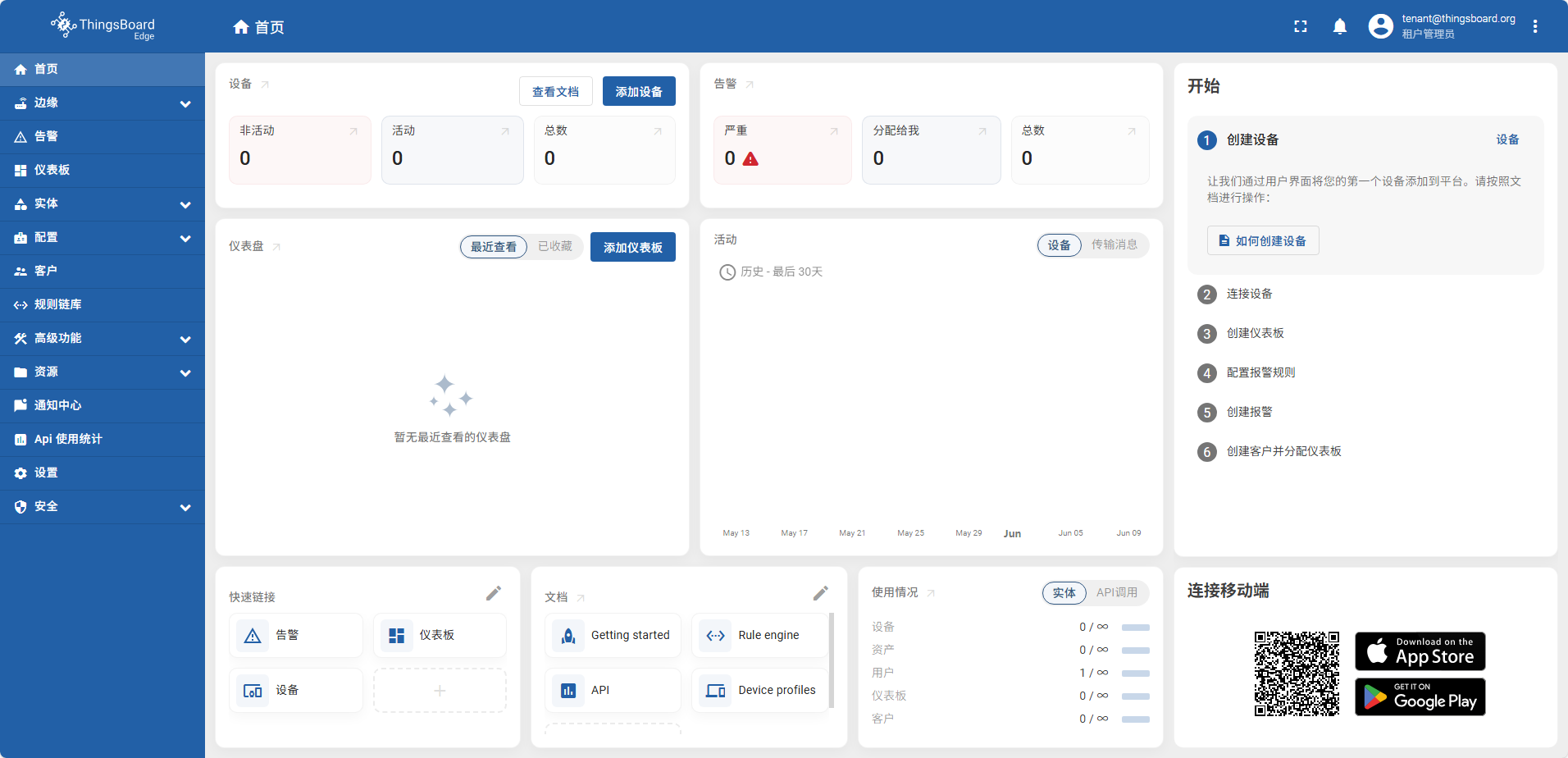
登录成功后页面
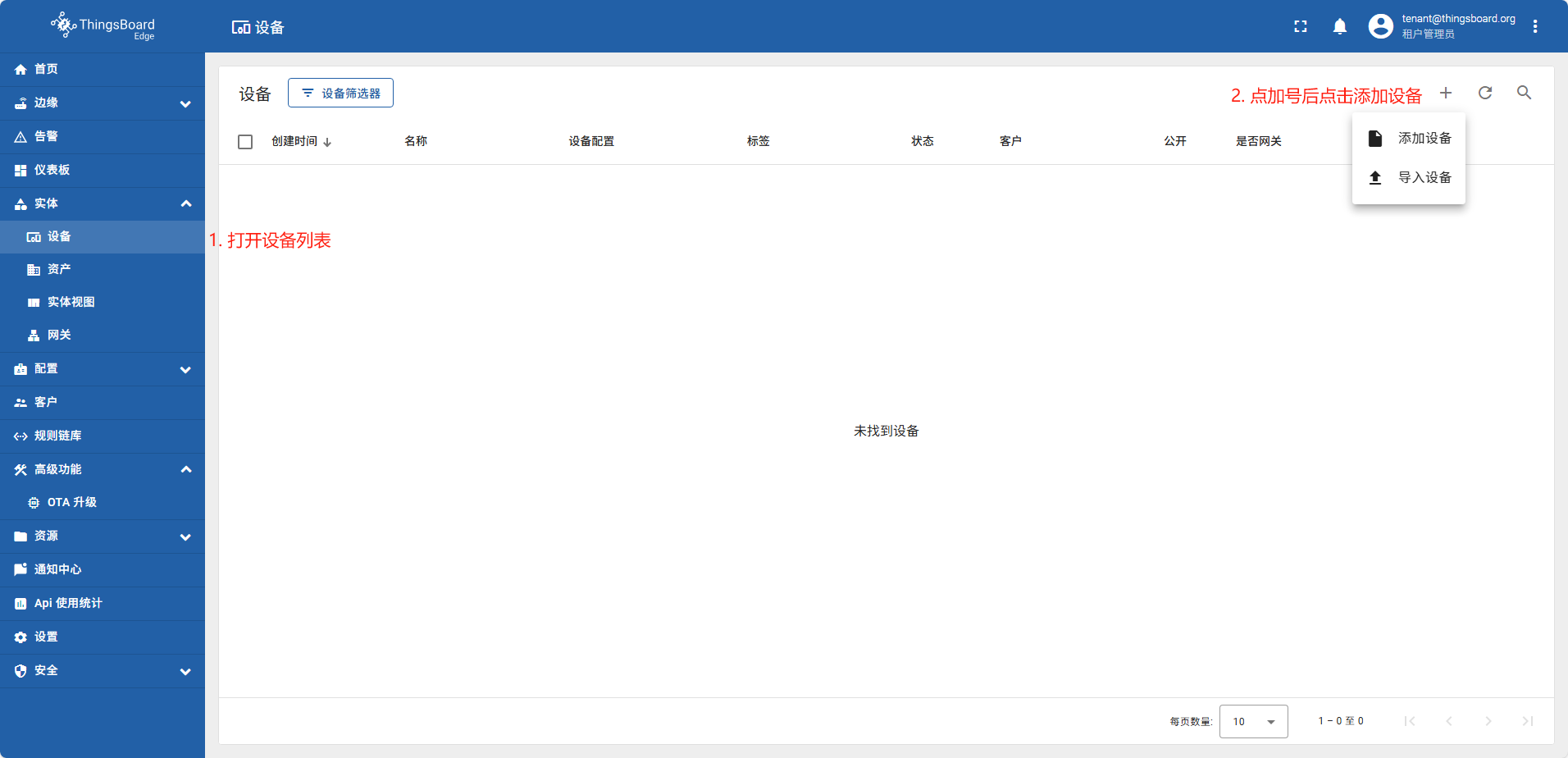
在边缘侧创建设备并发送设备数据
在边缘侧创建的设备,系统会自动同步给云端
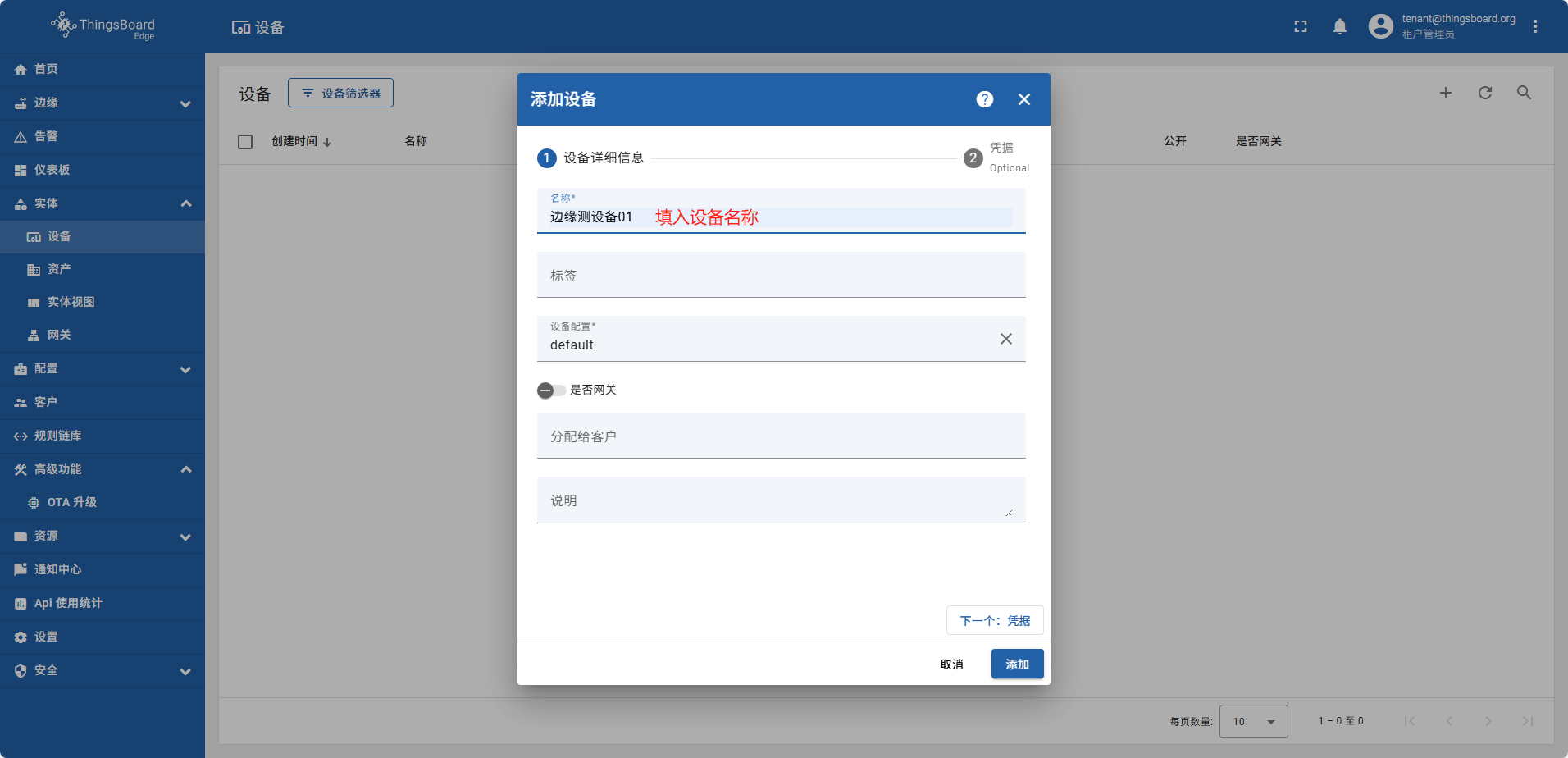
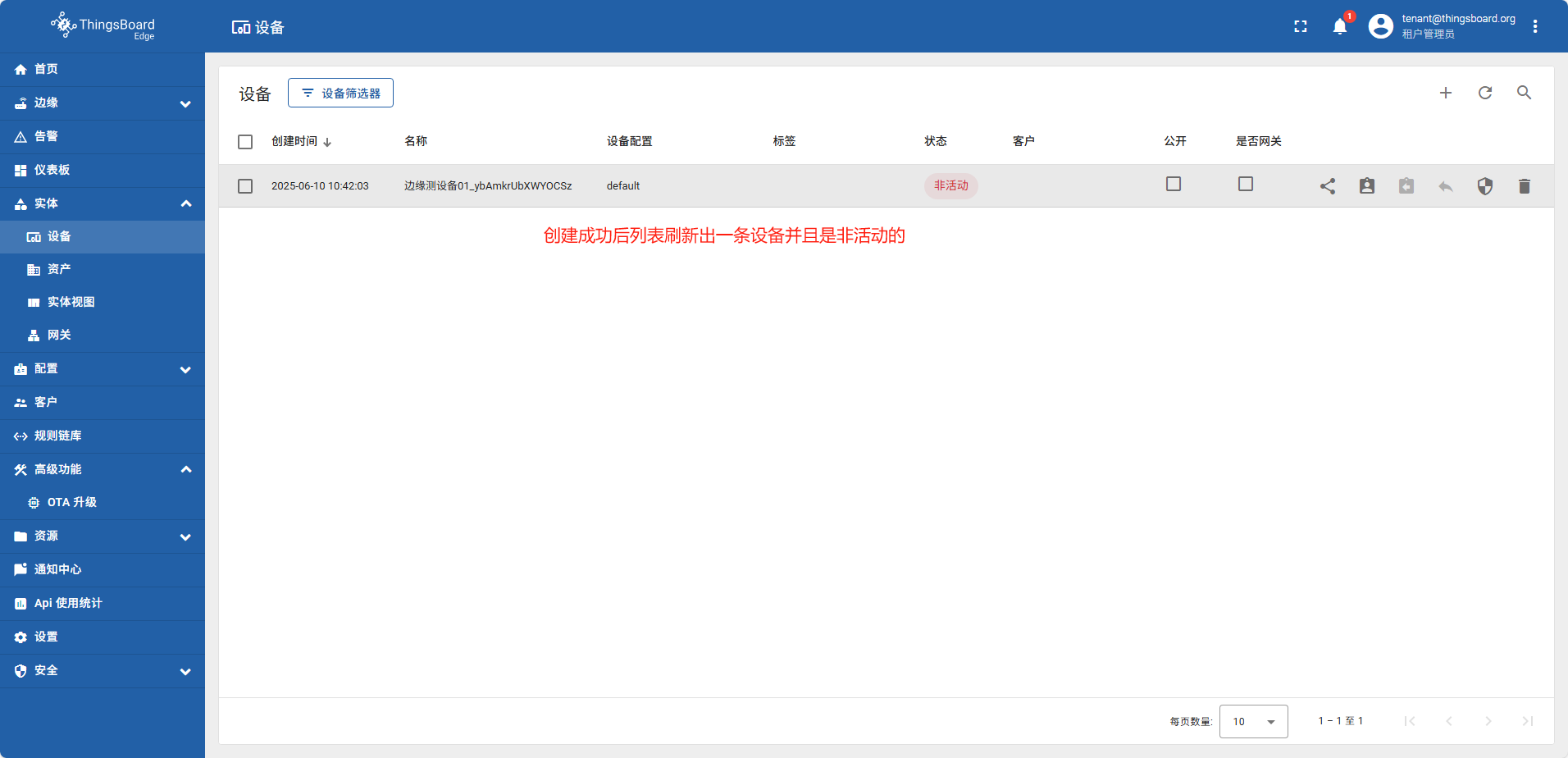
设备名称 边缘测设备01。此实例由于在云端设备已经存在一个同名的设备,所以会自动添加随机字符串
边缘测设备01_ybAmkrUbXWYOCSz
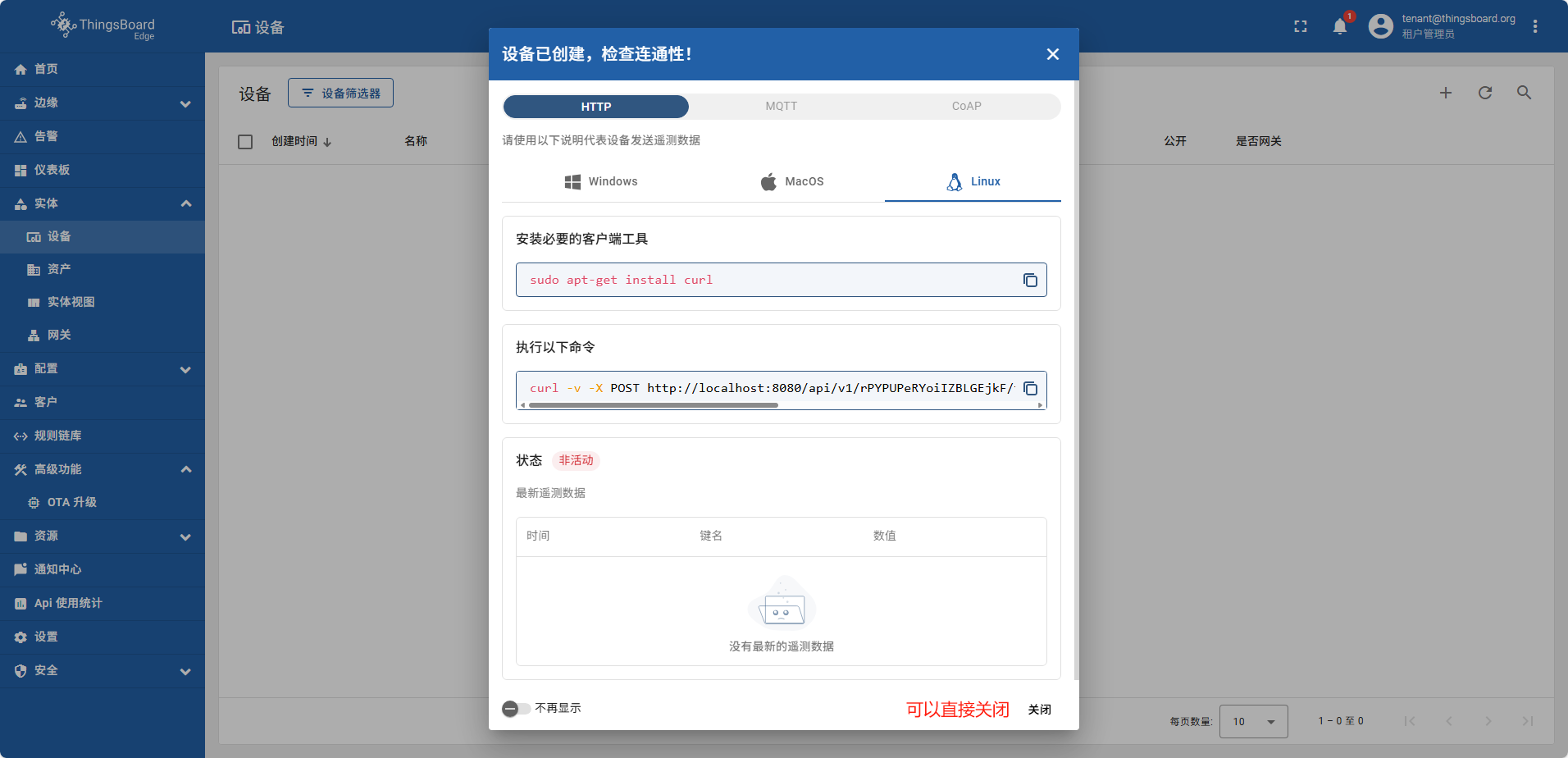
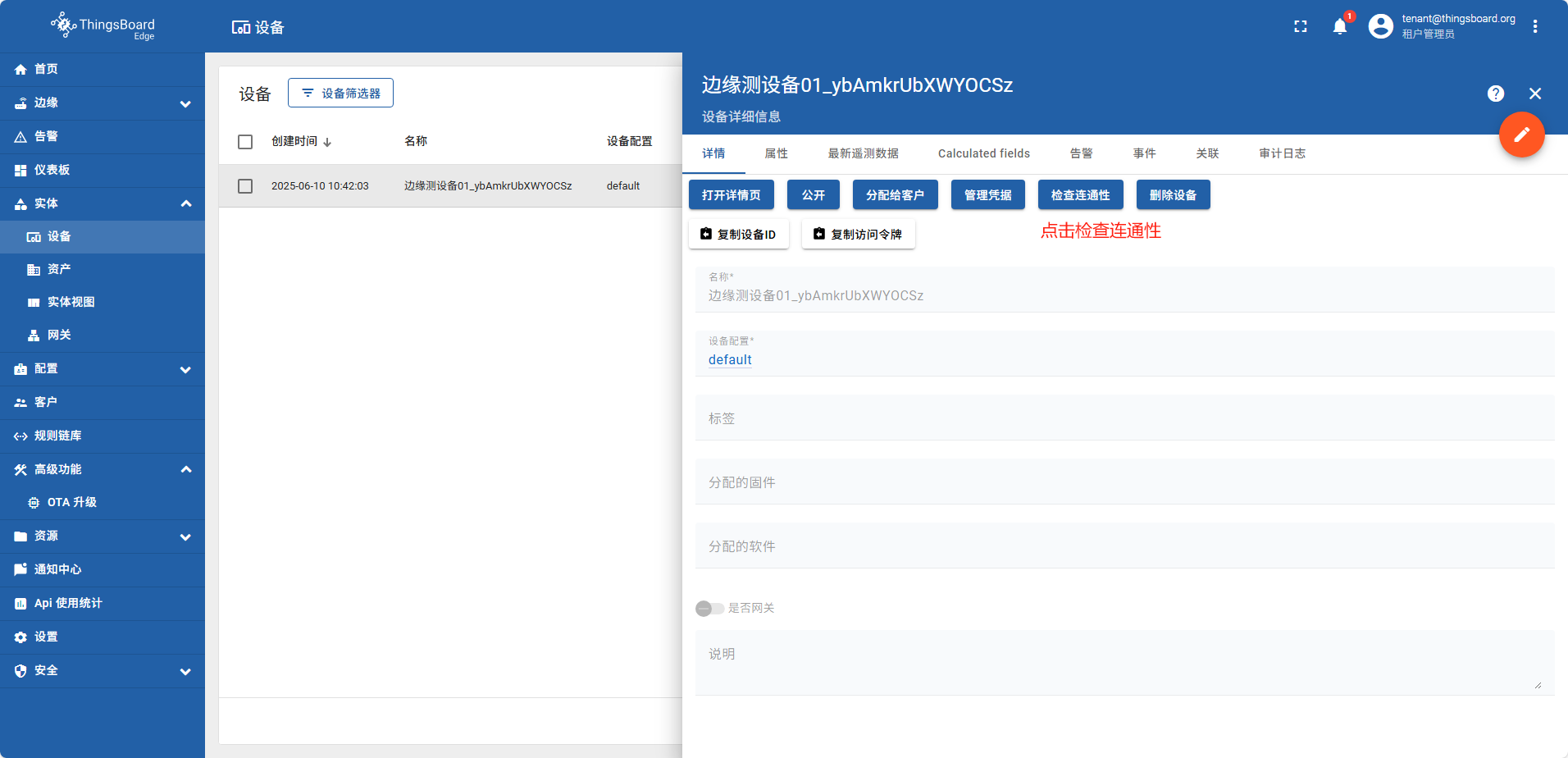
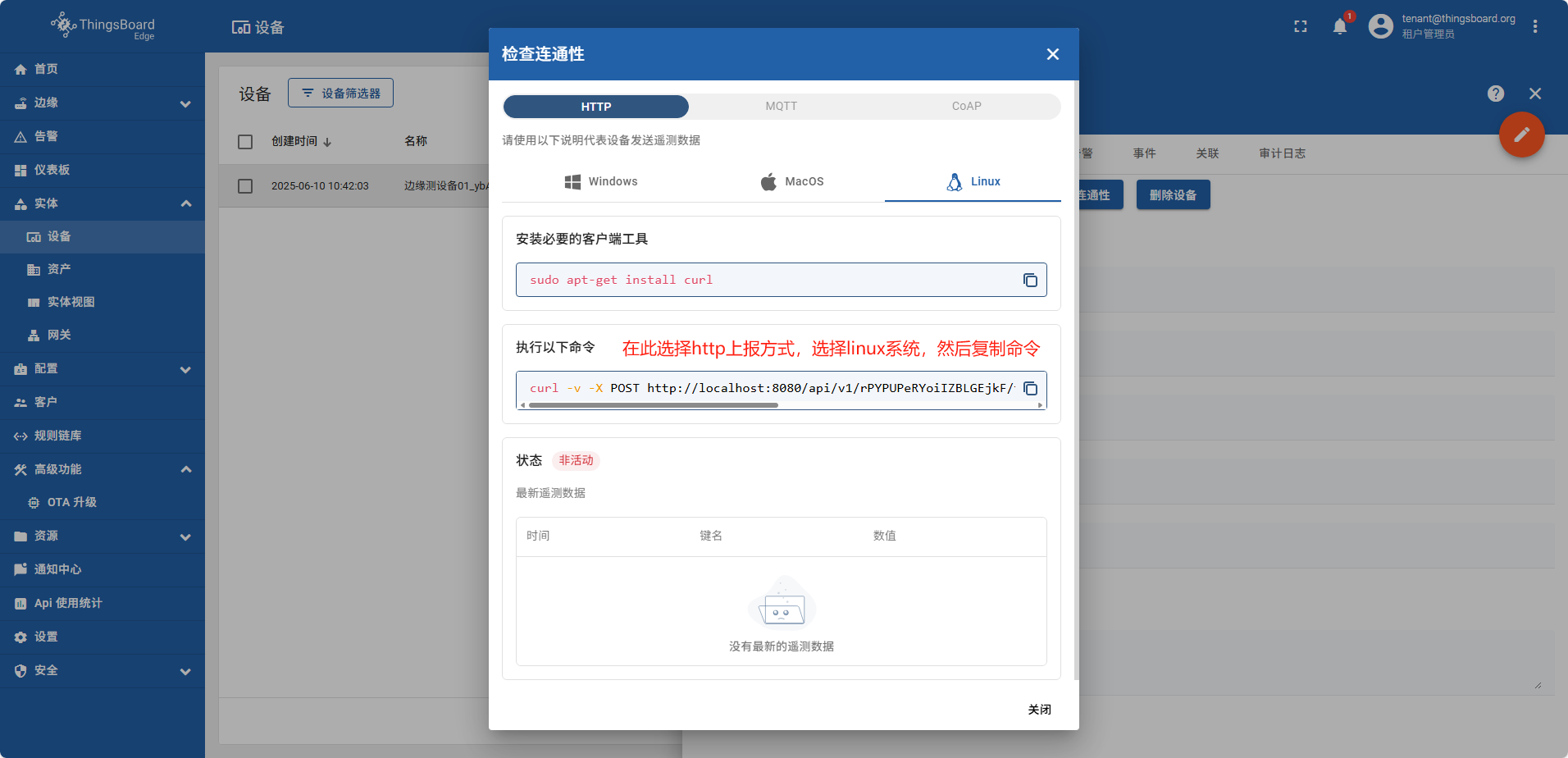
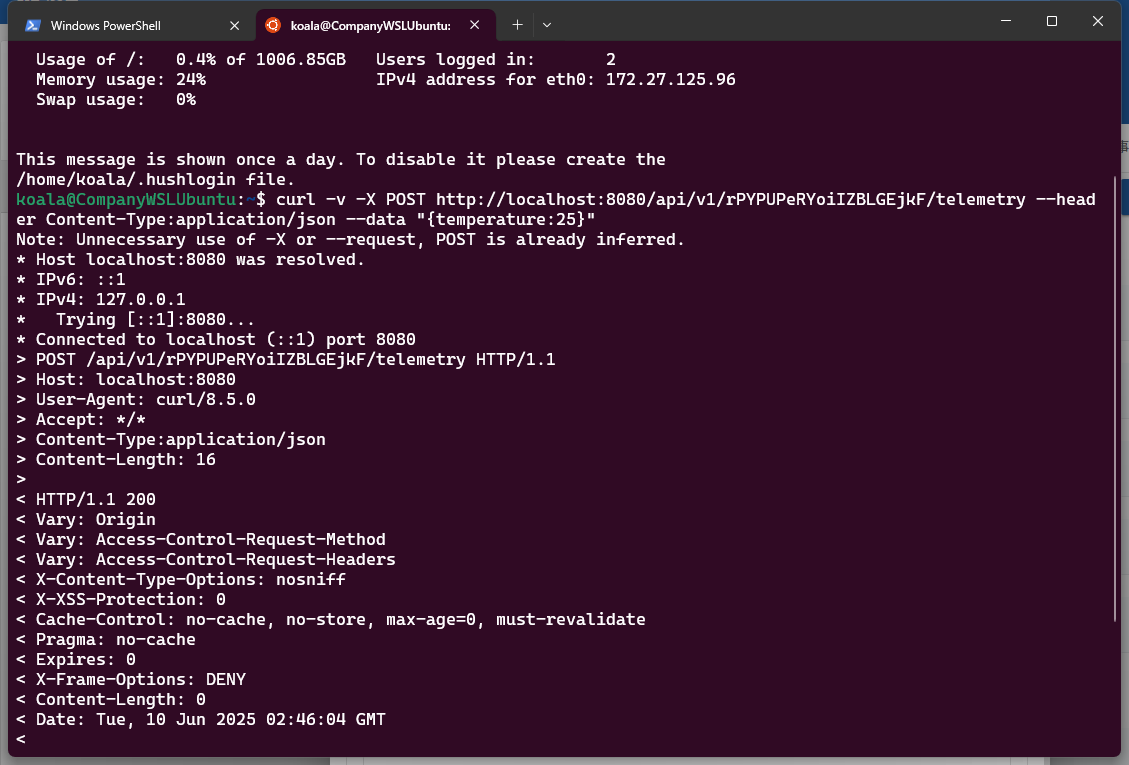
打开本地linux执行命令
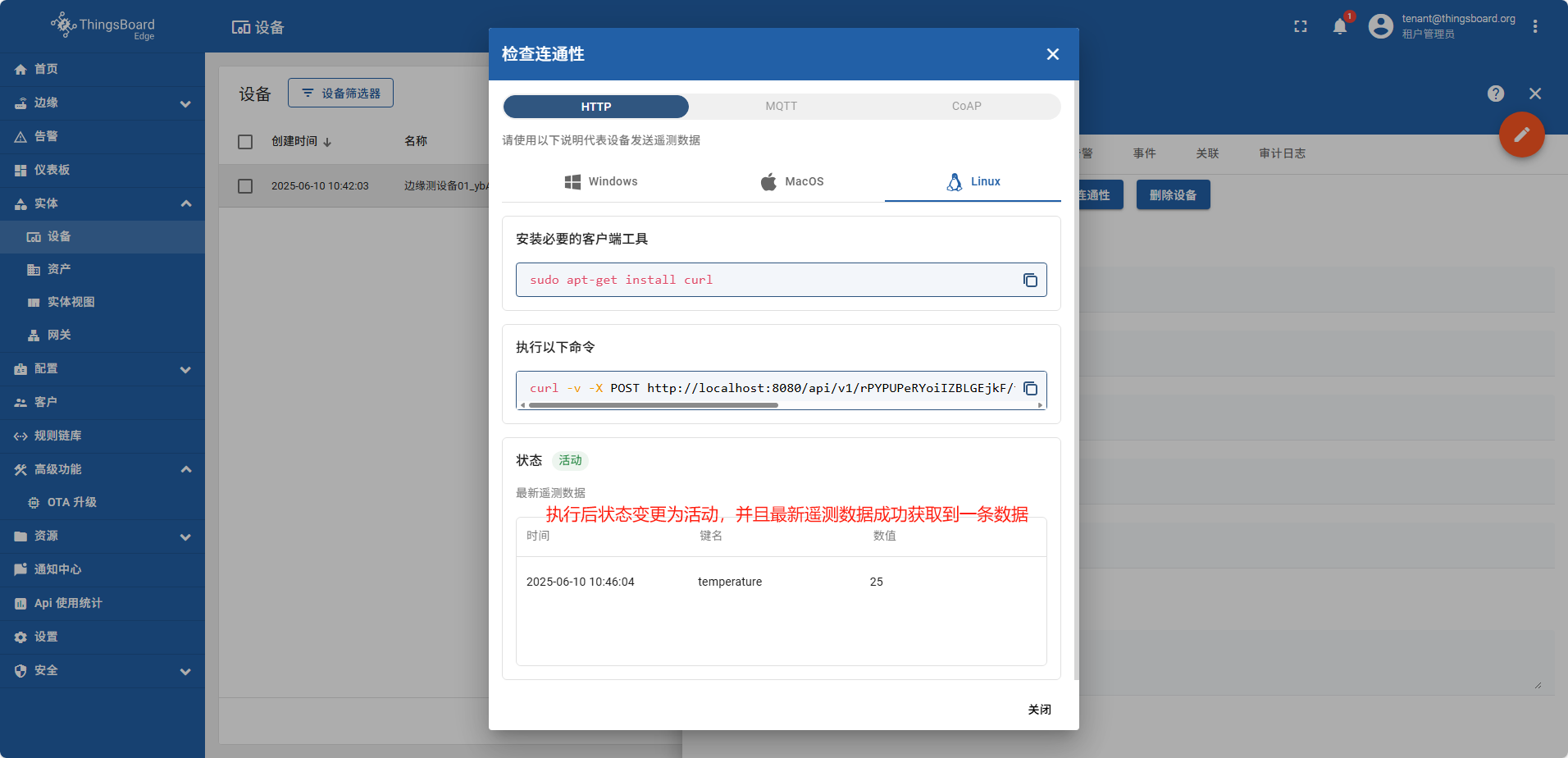
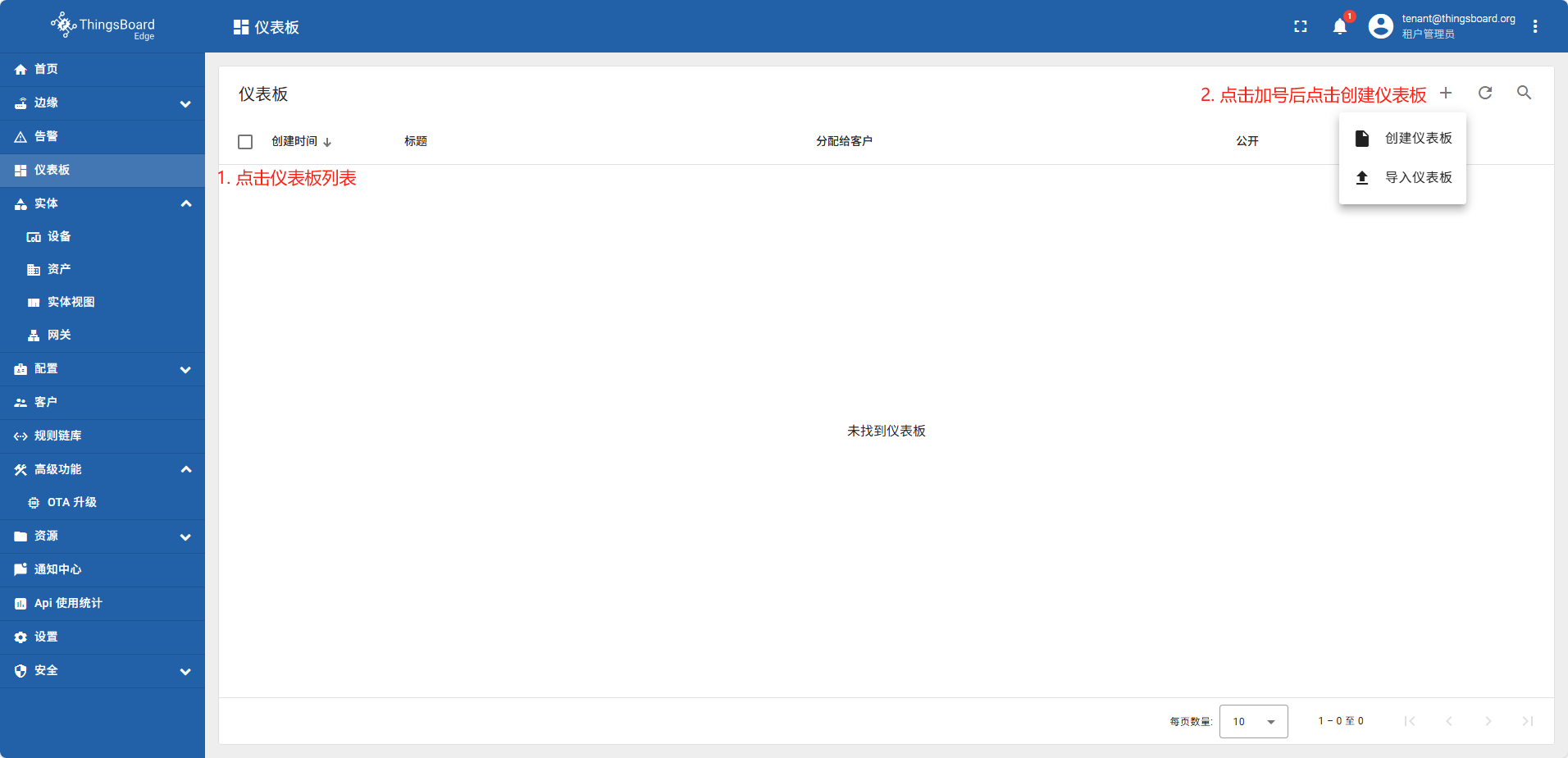
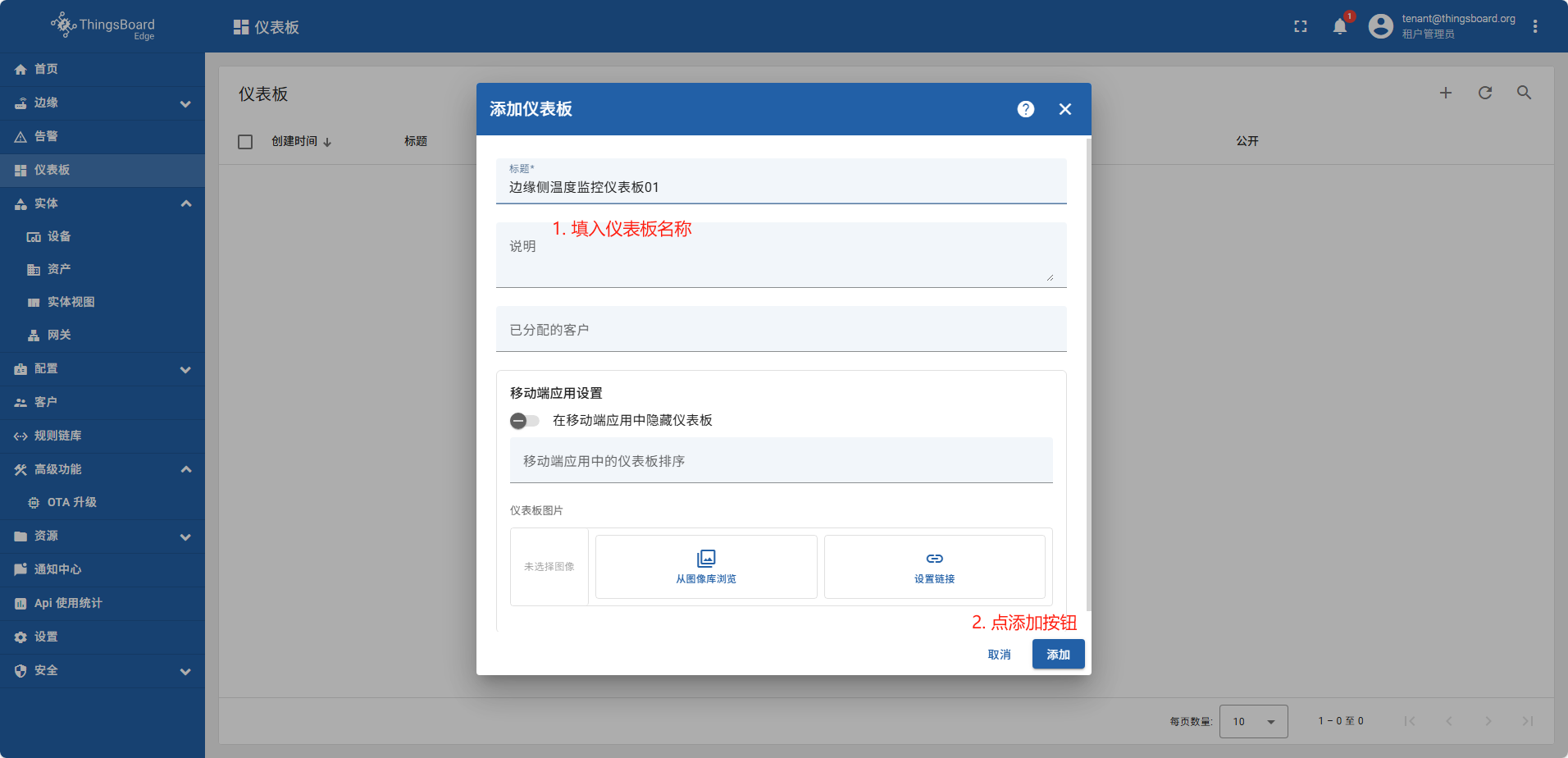
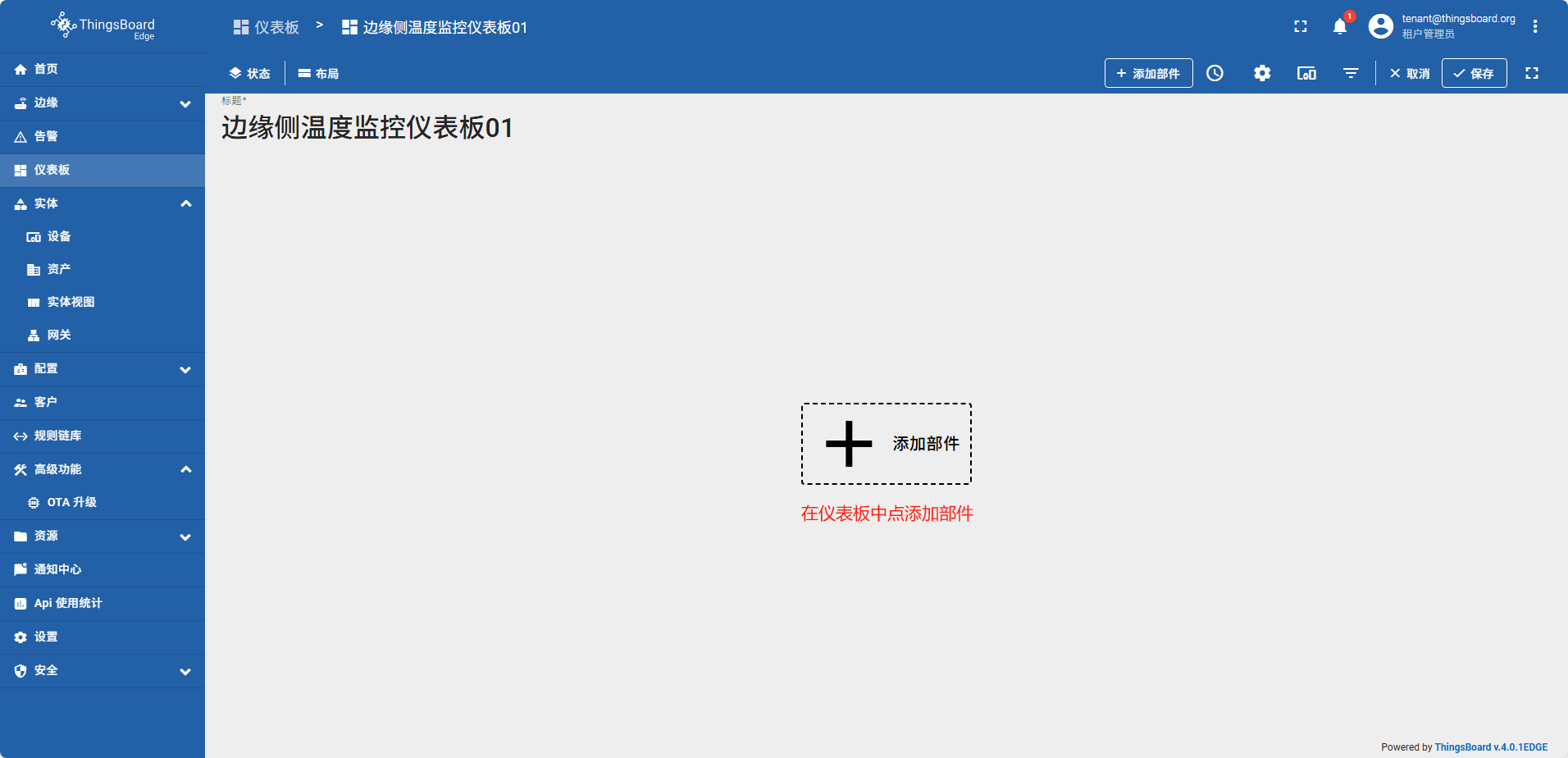
创建仪表板
在边缘侧创建的仪表板,系统会自动同步到云端
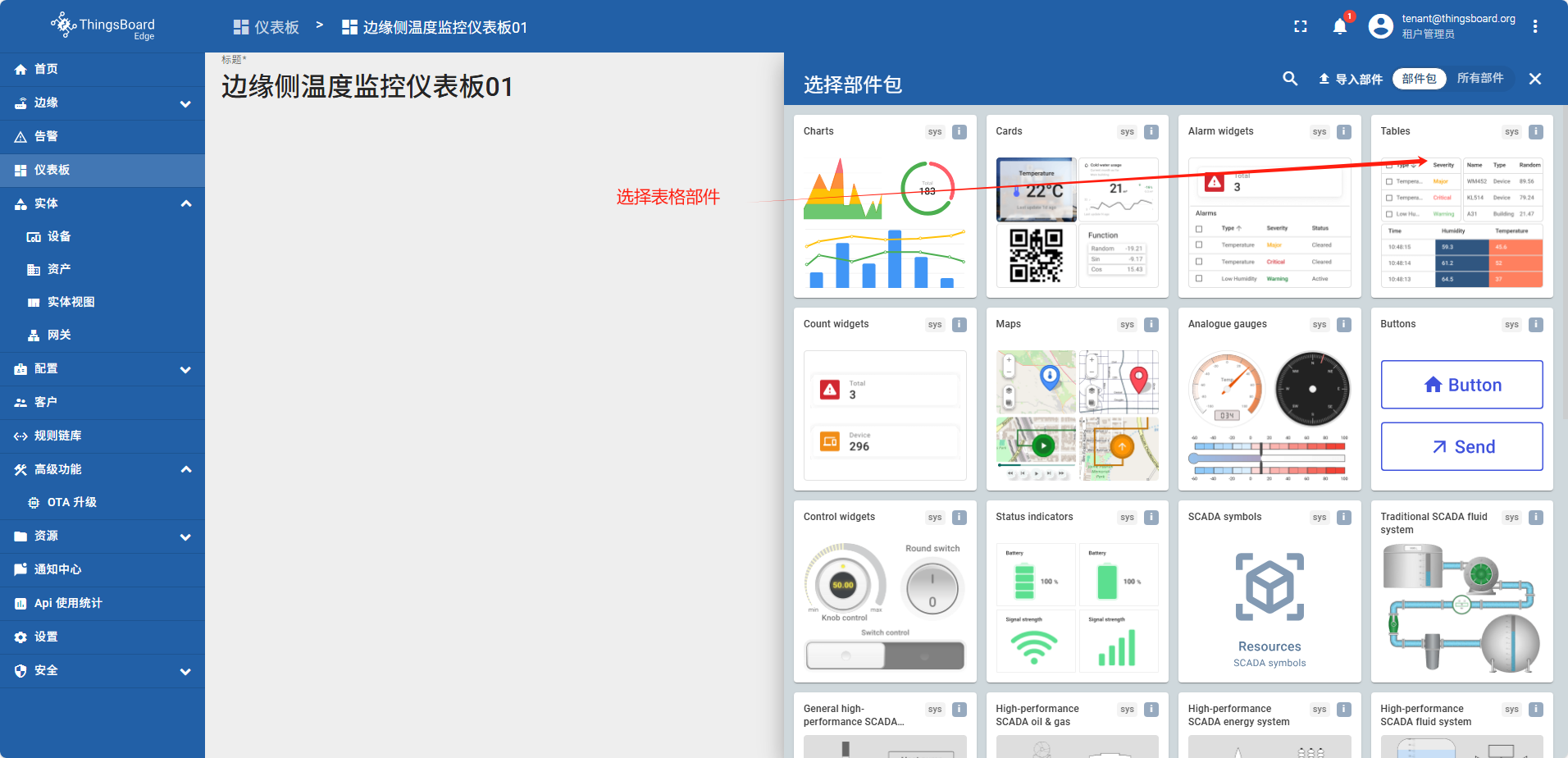
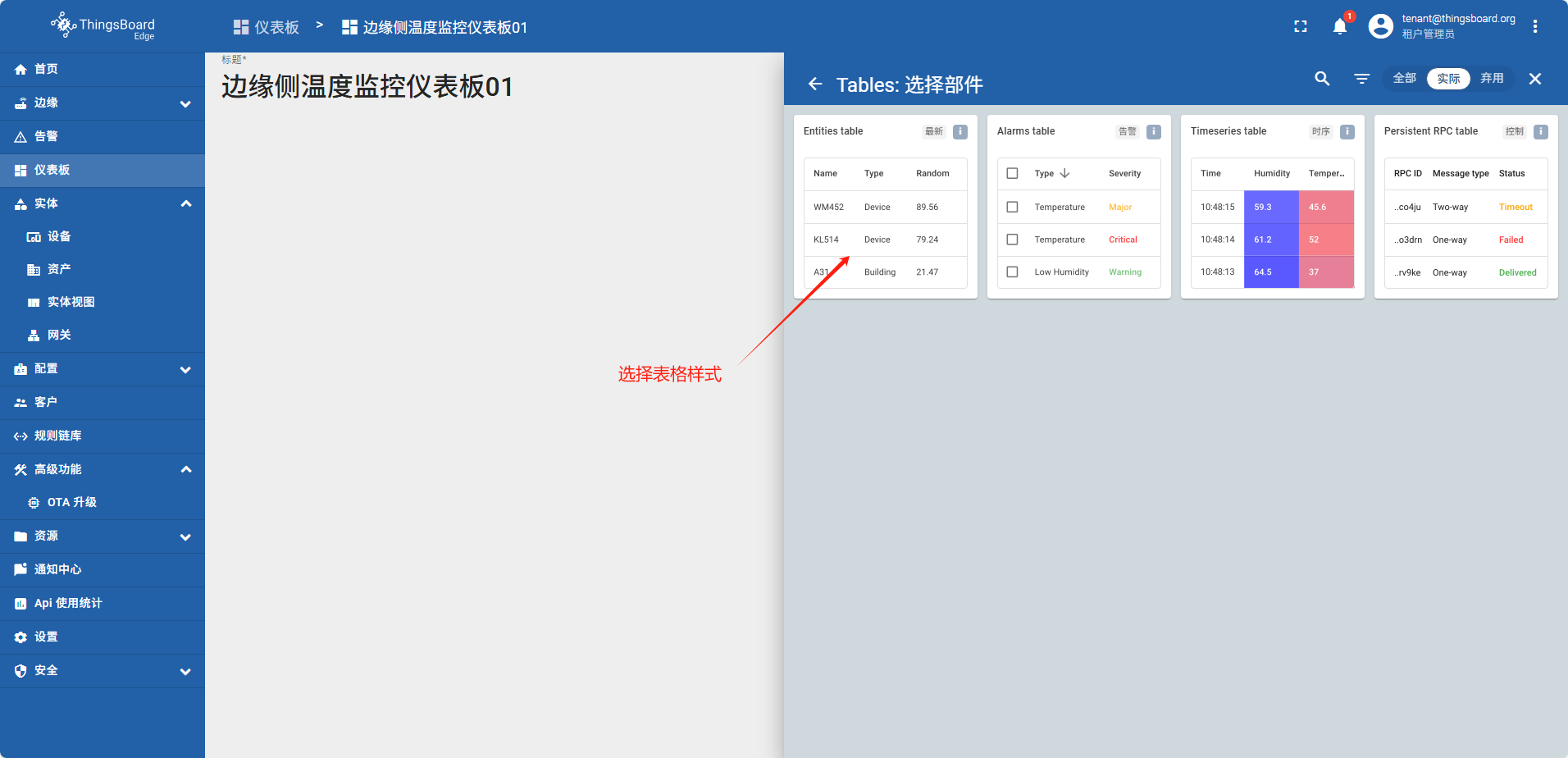
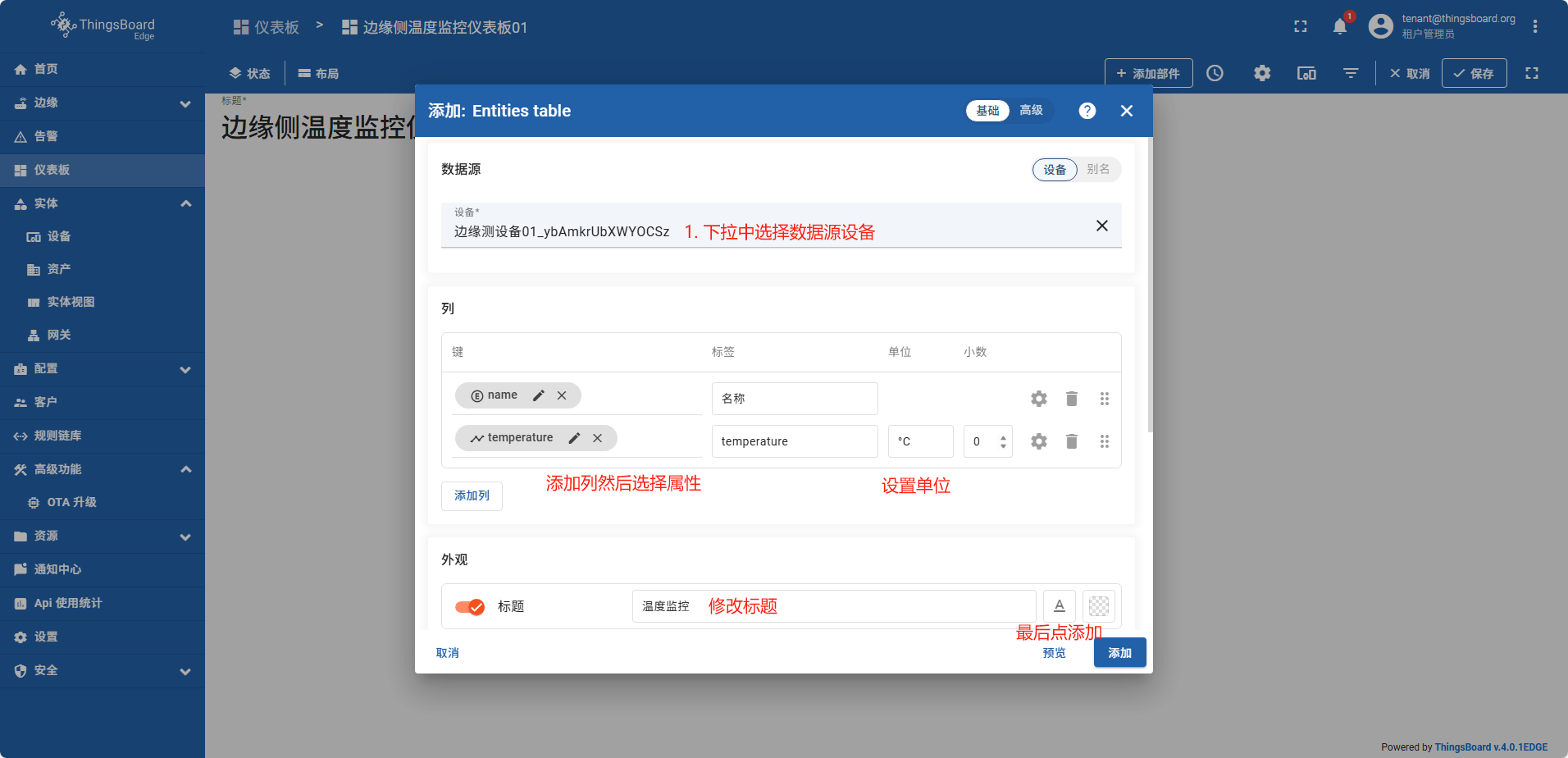
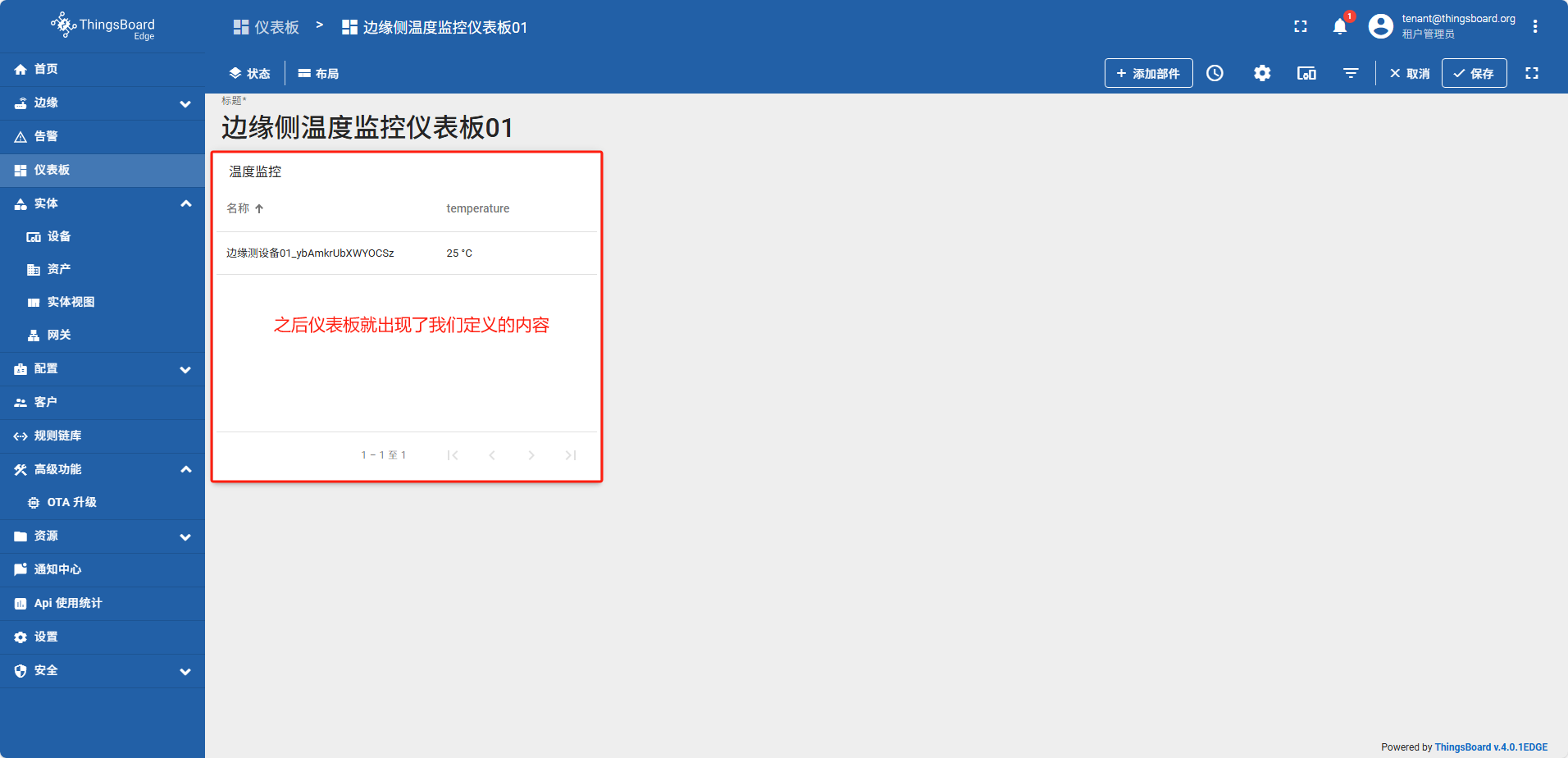
从边缘侧将数据推送到云端
边缘侧数据推送到云使用的是规则链库中的默认模板规则 “Edge Root Rule Chain”
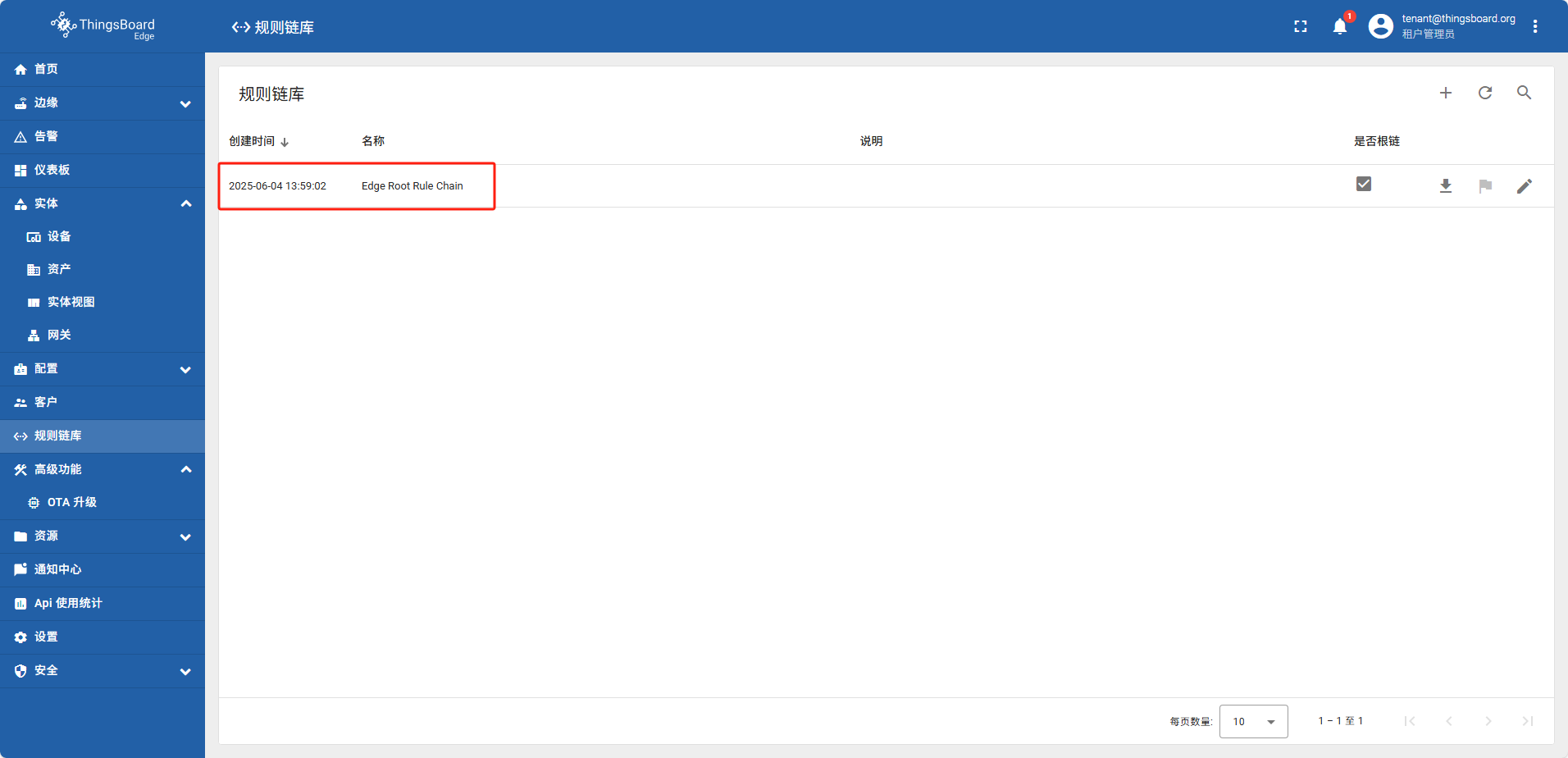
实体从边缘(Edge)到 云(Cloud、服务器)
在边缘侧可以创建和云端相同类型的实体(设备、资产、网关),并且他们在边缘侧创建完成后会自动能发布到云端。
以刚创建的 边缘测设备01_ybAmkrUbXWYOCSz 为例
在云端打开这个设备详情点 关联tag,方向 下拉 由从 变更为 到
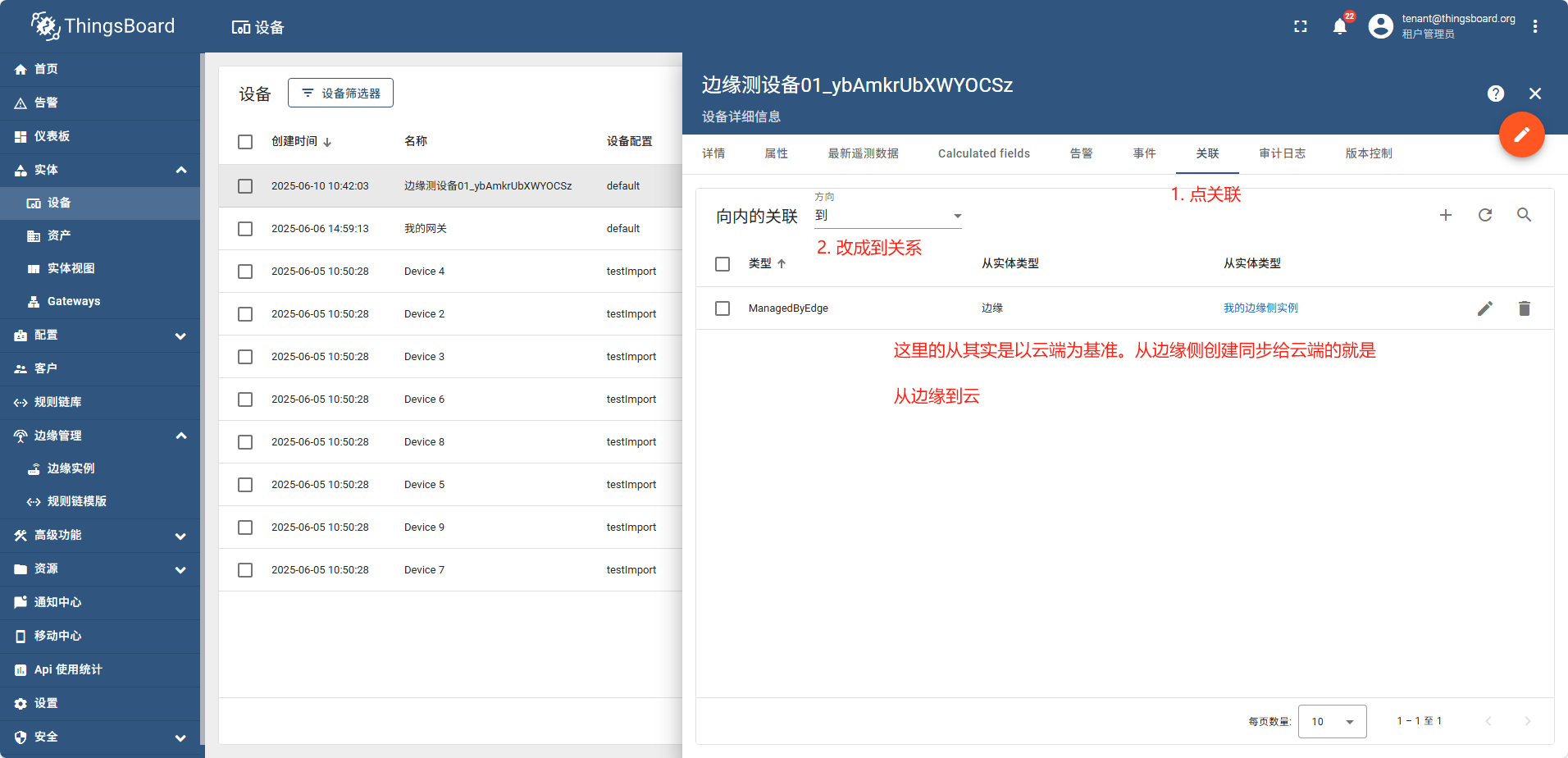
实体从云(Cloud)到边缘(Edge)
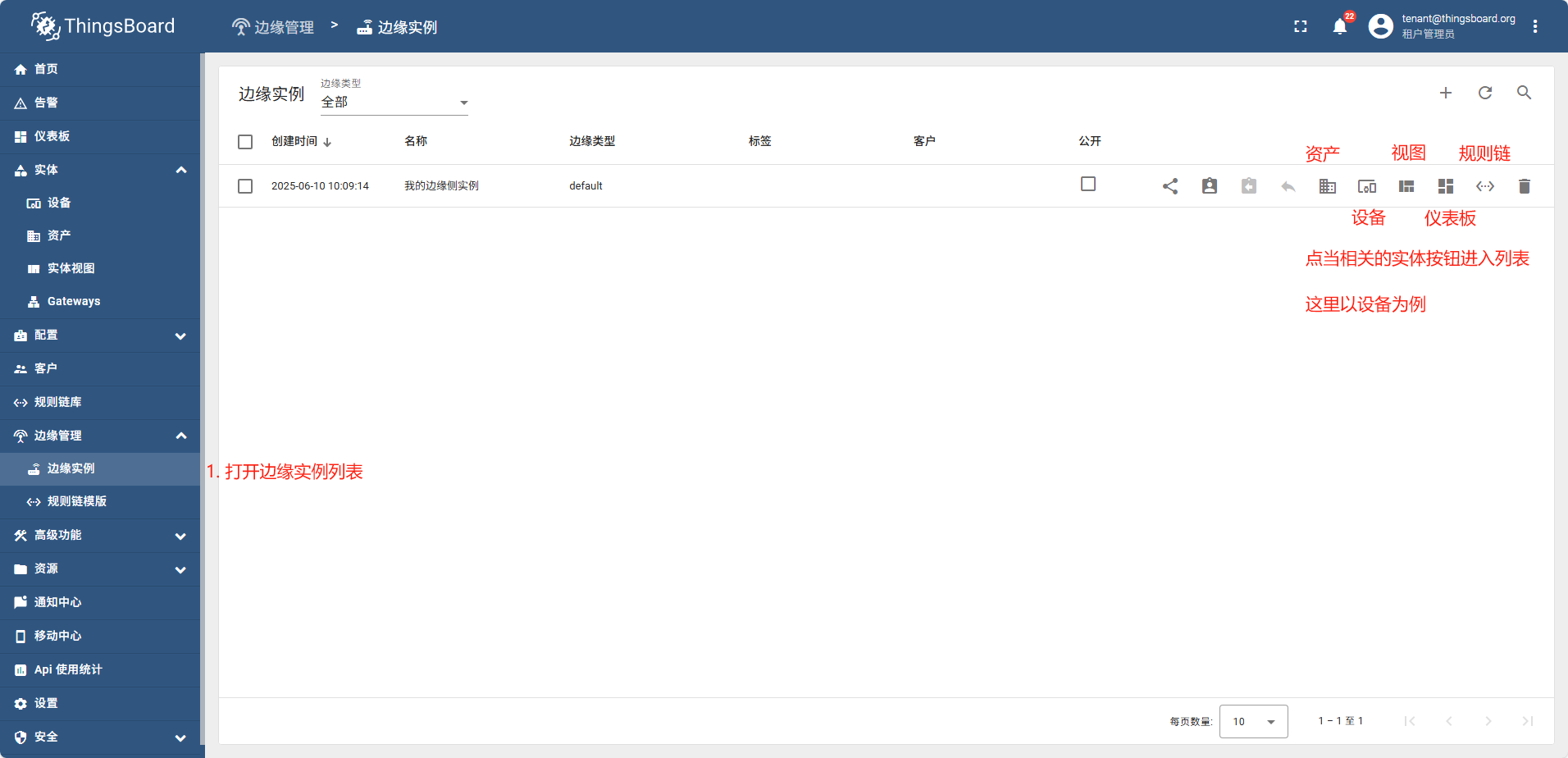
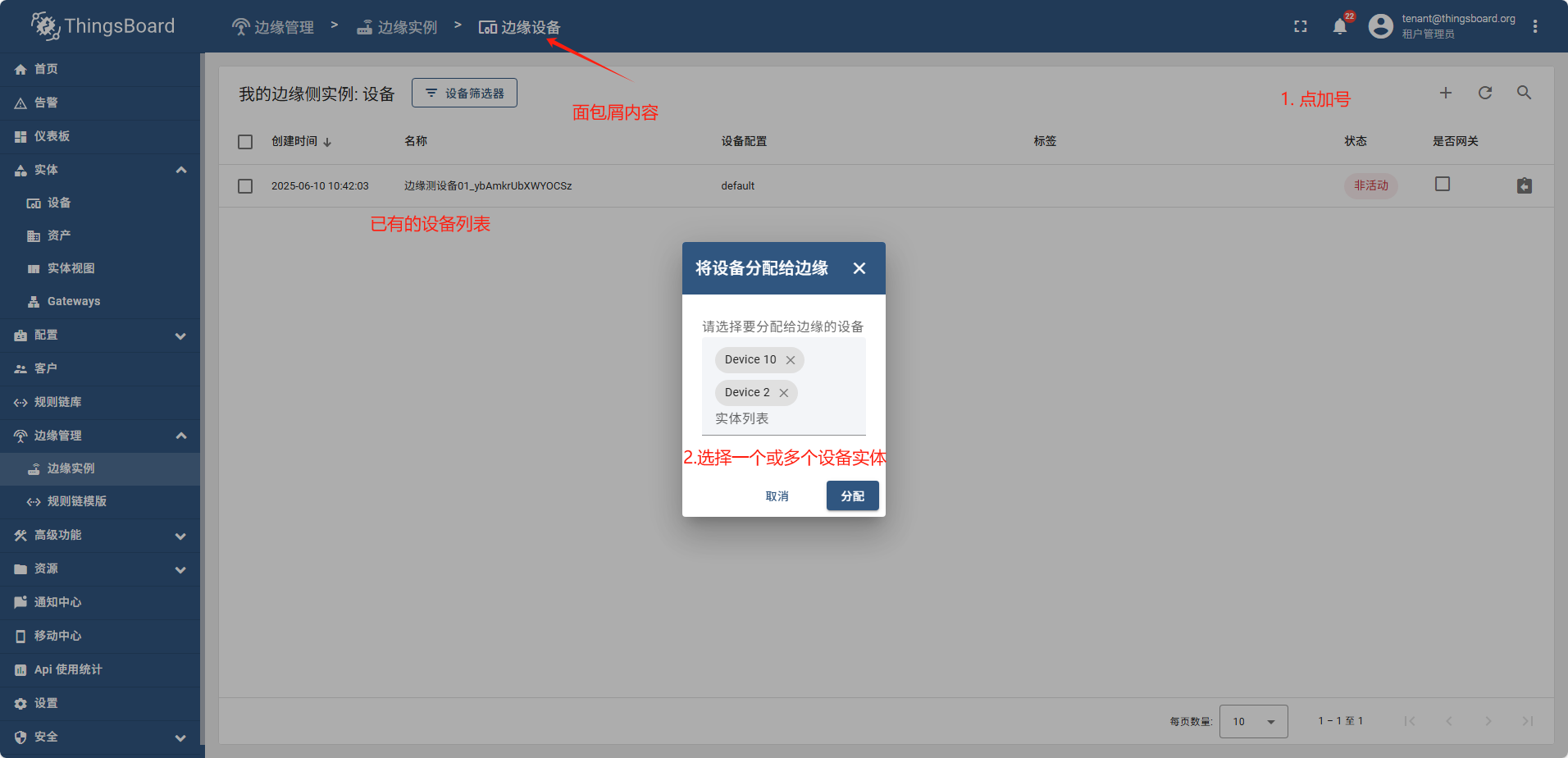
在边缘创建的实体可以自动的同步到云,也可以在云端创建实体后,然后分配给相关的实体
以下实体内容均可以从云端下发到边缘:资产 设备 实体视图 仪表板 规则链
方法为:
3 - 网关
网关存在的目的是将已有的IOT系统数据采集到ThingsBoard平台(包括云服务和边缘服务)中
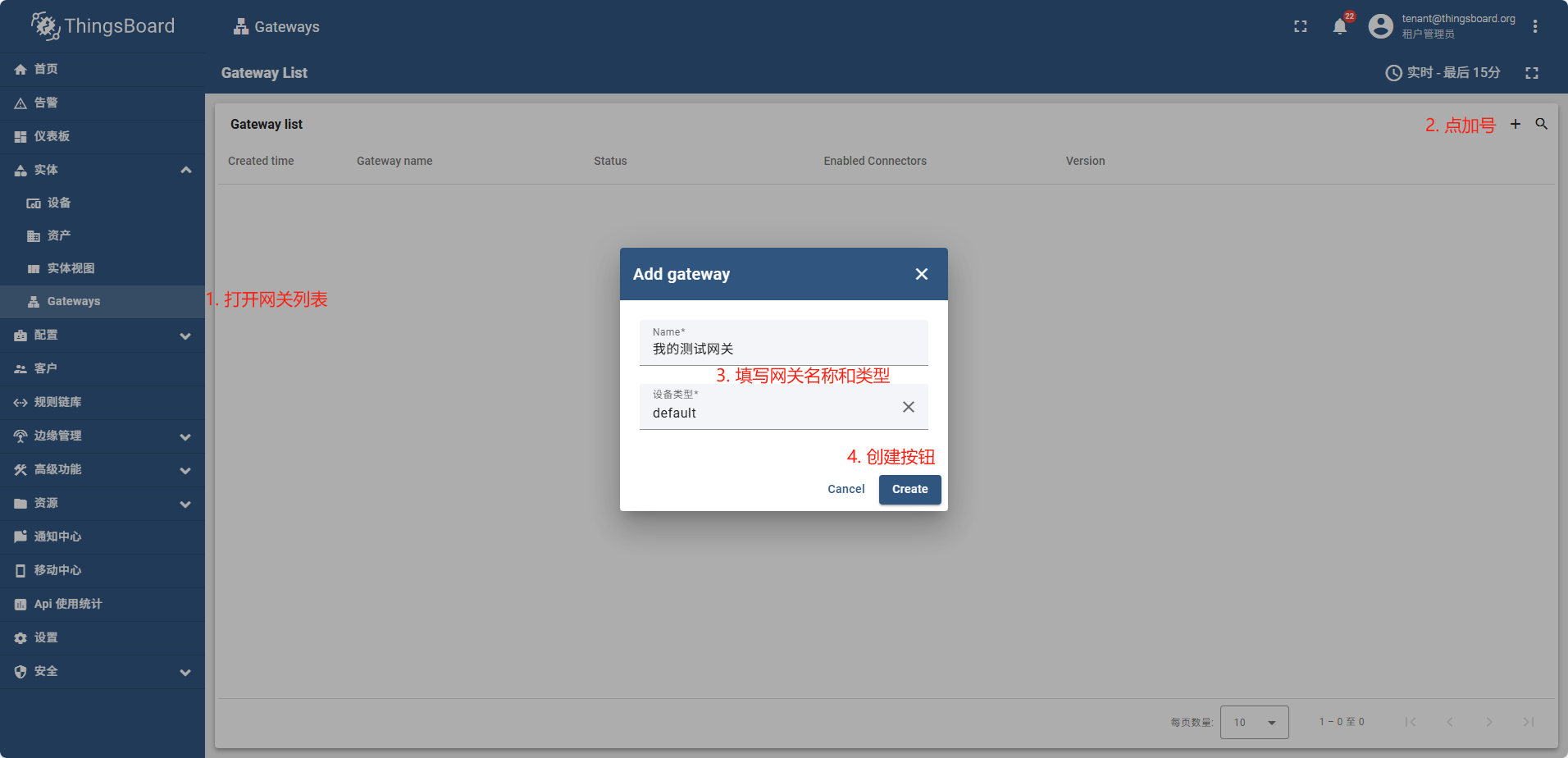
新建网关(云端)
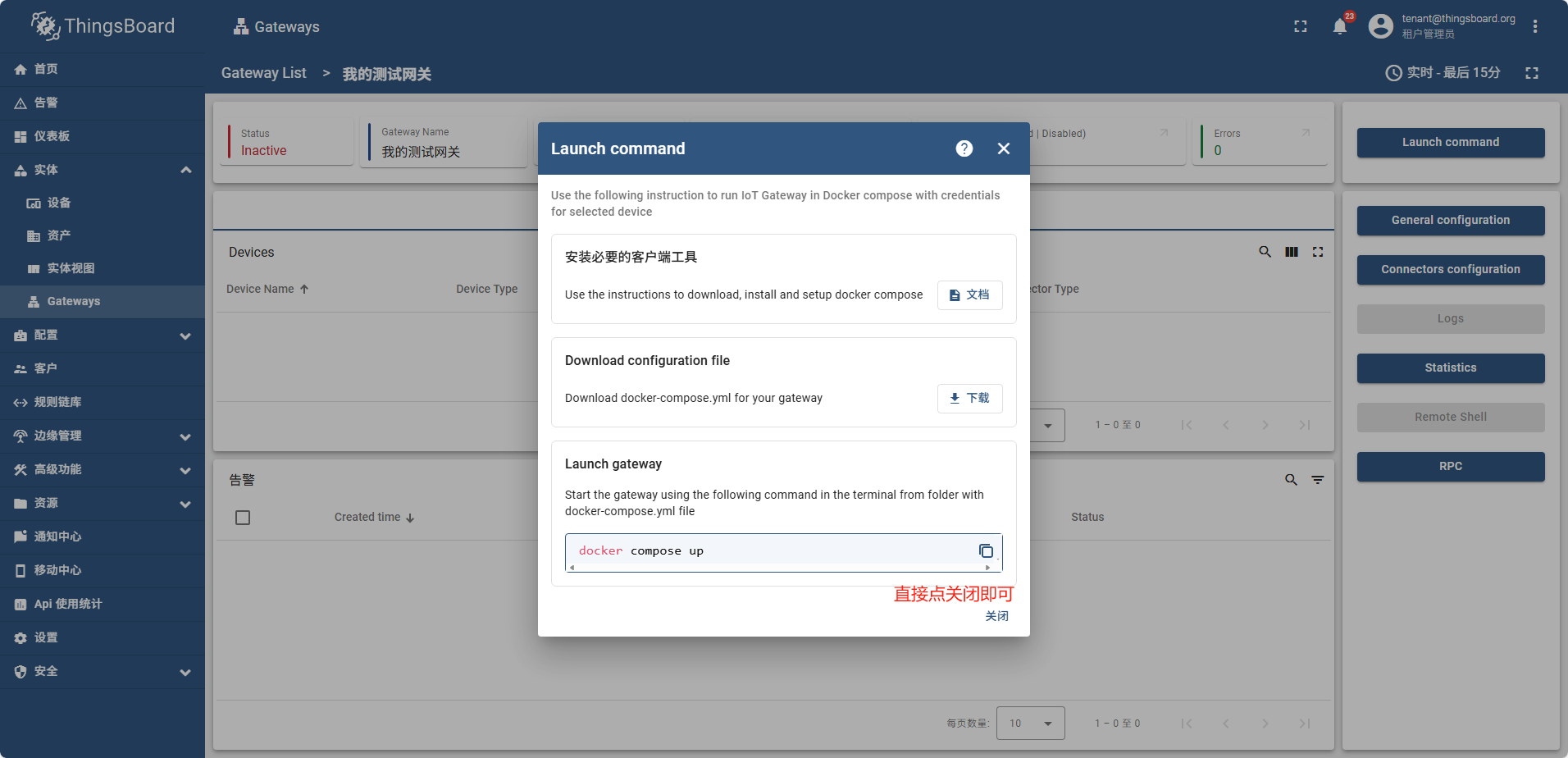
直接下载也可以,
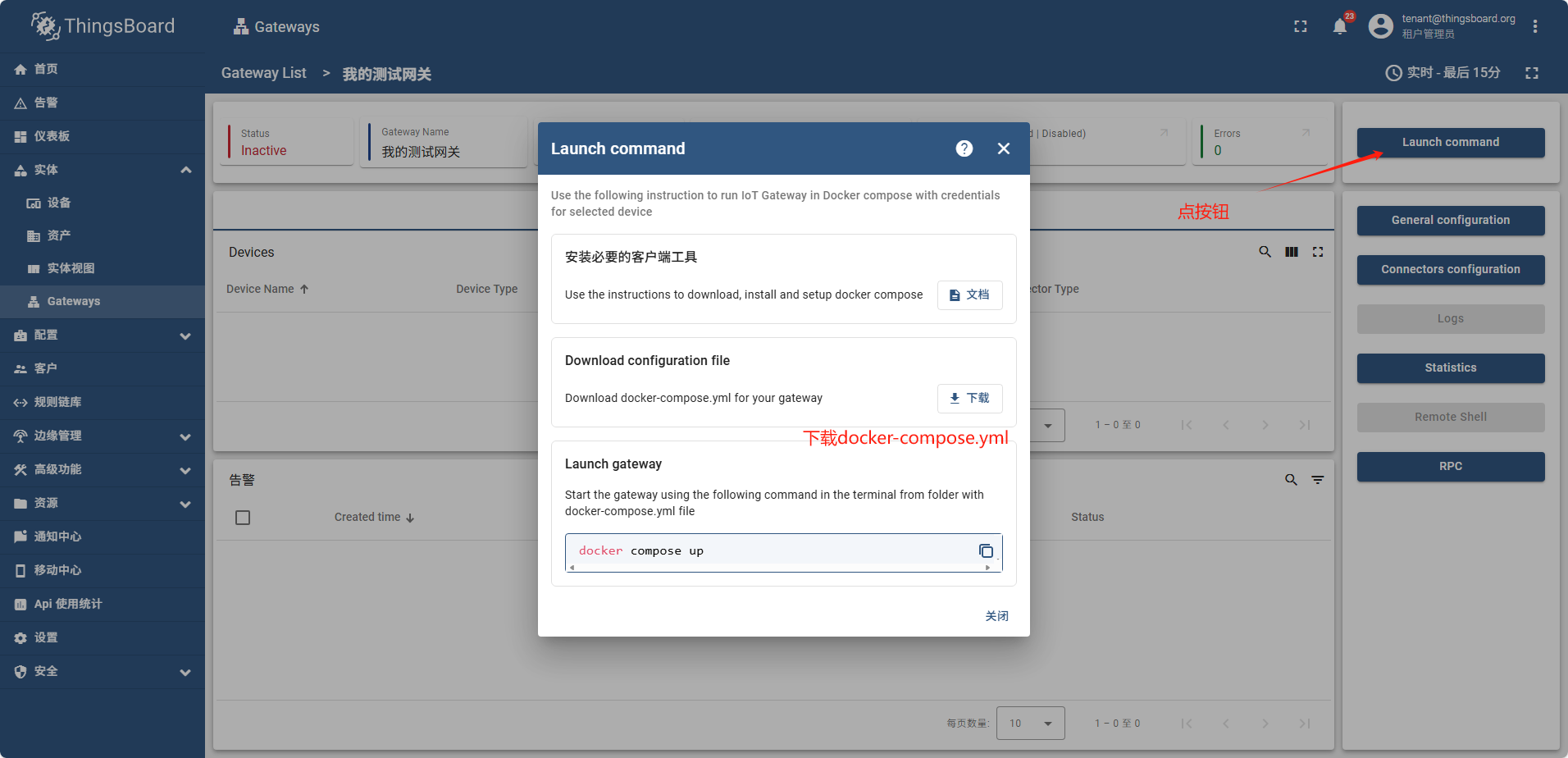
关闭后也可以再找到这个页面进行下载
检查云端mqtt通信端口
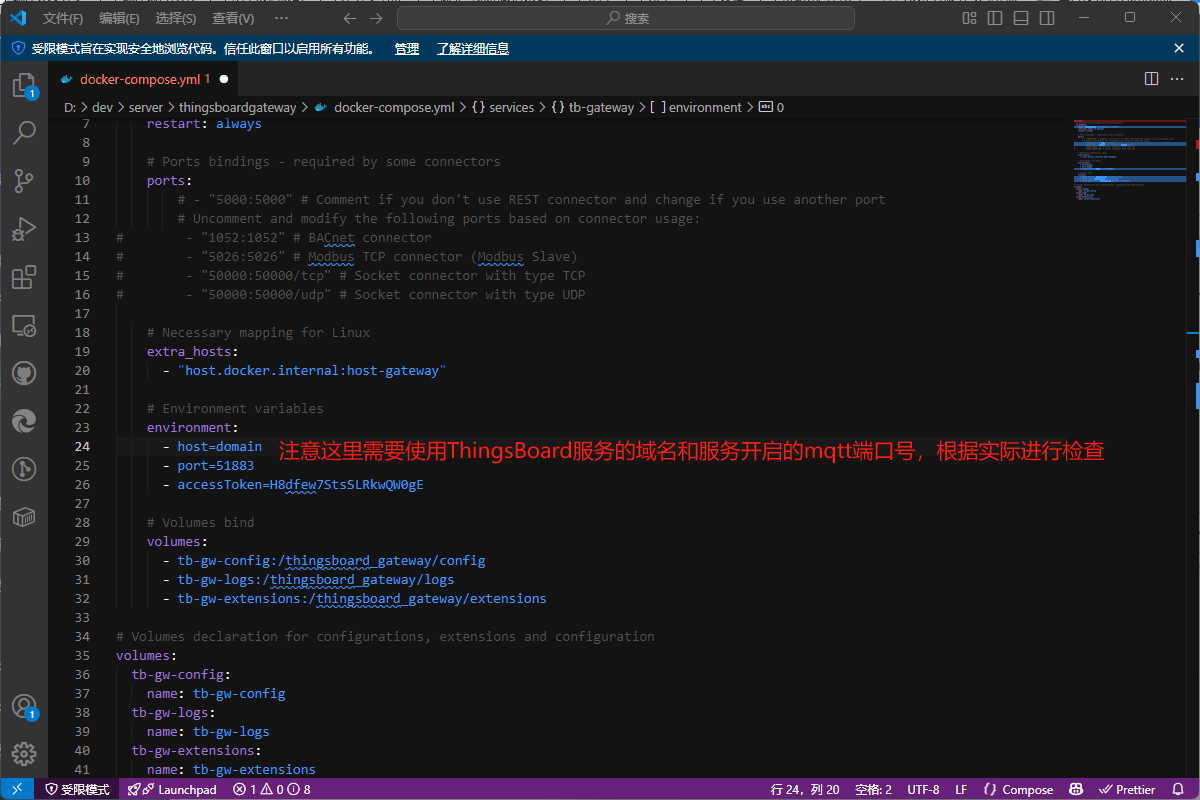
services:
  # ThingsBoard IoT Gateway Service Configuration
  tb-gateway:
    image: thingsboard/tb-gateway:3.7-stable
    container_name: tb-gateway
    restart: always

    # Ports bindings - required by some connectors
    # ports:
        # - "5000:5000" # Comment if you don't use REST connector and change if you use another port
        # Uncomment and modify the following ports based on connector usage:
#        - "1052:1052" # BACnet connector
#        - "5026:5026" # Modbus TCP connector (Modbus Slave)
#        - "50000:50000/tcp" # Socket connector with type TCP
#        - "50000:50000/udp" # Socket connector with type UDP

    # Necessary mapping for Linux
    extra_hosts:
      - "host.docker.internal:host-gateway"

    # Environment variables
    environment:
      - host=home.anzhongwei.cn
      - port=51883
      - accessToken=H8dfew7StsSLRkwQW0gE

    # Volumes bind
    volumes:
      - tb-gw-config:/thingsboard_gateway/config
      - tb-gw-logs:/thingsboard_gateway/logs
      - tb-gw-extensions:/thingsboard_gateway/extensions

# Volumes declaration for configurations, extensions and configuration
volumes:
  tb-gw-config:
    name: tb-gw-config
  tb-gw-logs:
    name: tb-gw-logs
  tb-gw-extensions:
    name: tb-gw-extensions
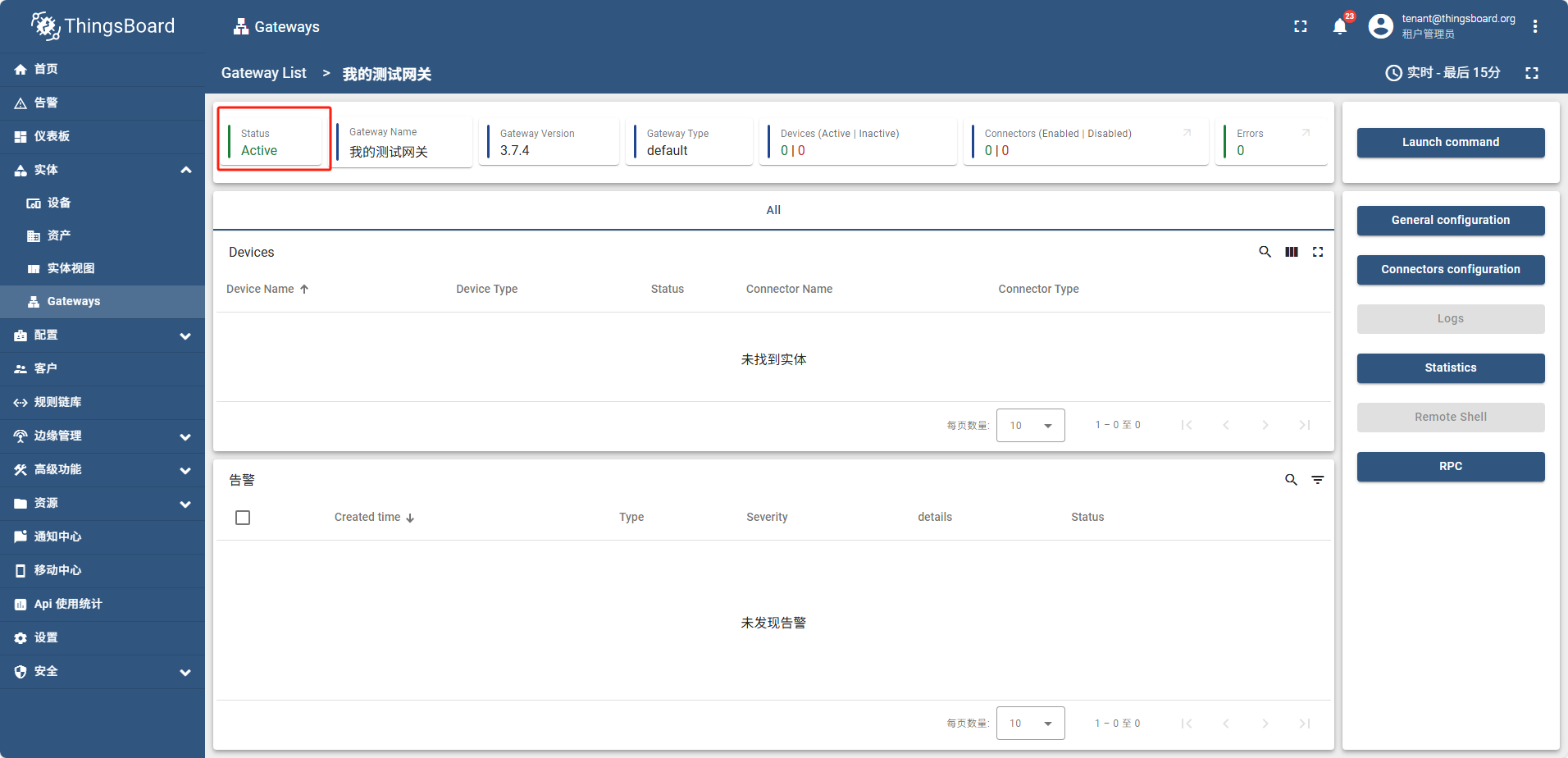
运行成功后,网关状态为 活动的(Active)
新建网关(边缘)
边缘侧网关创建操作和在云端完全一致,唯一区别是启动时连接的mqtt的host地址是边缘侧mqtt的ip地址
因为是在docker内启动, 即使是本机也需要使用宿主机的ip不能用localhost
version: '3.4'
services:
  # ThingsBoard IoT Gateway Service Configuration
  tb-gateway-edge:
    image: thingsboard/tb-gateway:3.7-stable
    container_name: tb-gateway-edge
    restart: always

    # Ports bindings - required by some connectors
    # ports:
    #     - "5000:5000" # Comment if you don't use REST connector and change if you use another port
        # Uncomment and modify the following ports based on connector usage:
#        - "1052:1052" # BACnet connector
#        - "5026:5026" # Modbus TCP connector (Modbus Slave)
#        - "50000:50000/tcp" # Socket connector with type TCP
#        - "50000:50000/udp" # Socket connector with type UDP

    # Necessary mapping for Linux
    extra_hosts:
      - "host.docker.internal:host-gateway"

    # Environment variables
    environment:
      - host=192.168.77.30  // 因为是在docker中启动,所以连接需要用ip,即使是本机也不能用localhost
      - port=1883
      - accessToken=opd2kpPHsS4EuChHe6zJ

    # Volumes bind
    volumes:
      - tb-gw-edge-config:/thingsboard_gateway/config
      - tb-gw-edge-logs:/thingsboard_gateway/logs
      - tb-gw-edge-extensions:/thingsboard_gateway/extensions

# Volumes declaration for configurations, extensions and configuration
volumes:
  tb-gw-edge-config:
    name: tb-gw-edge-config
  tb-gw-edge-logs:
    name: tb-gw-edge-logs
  tb-gw-edge-extensions:
    name: tb-gw-edge-extensions
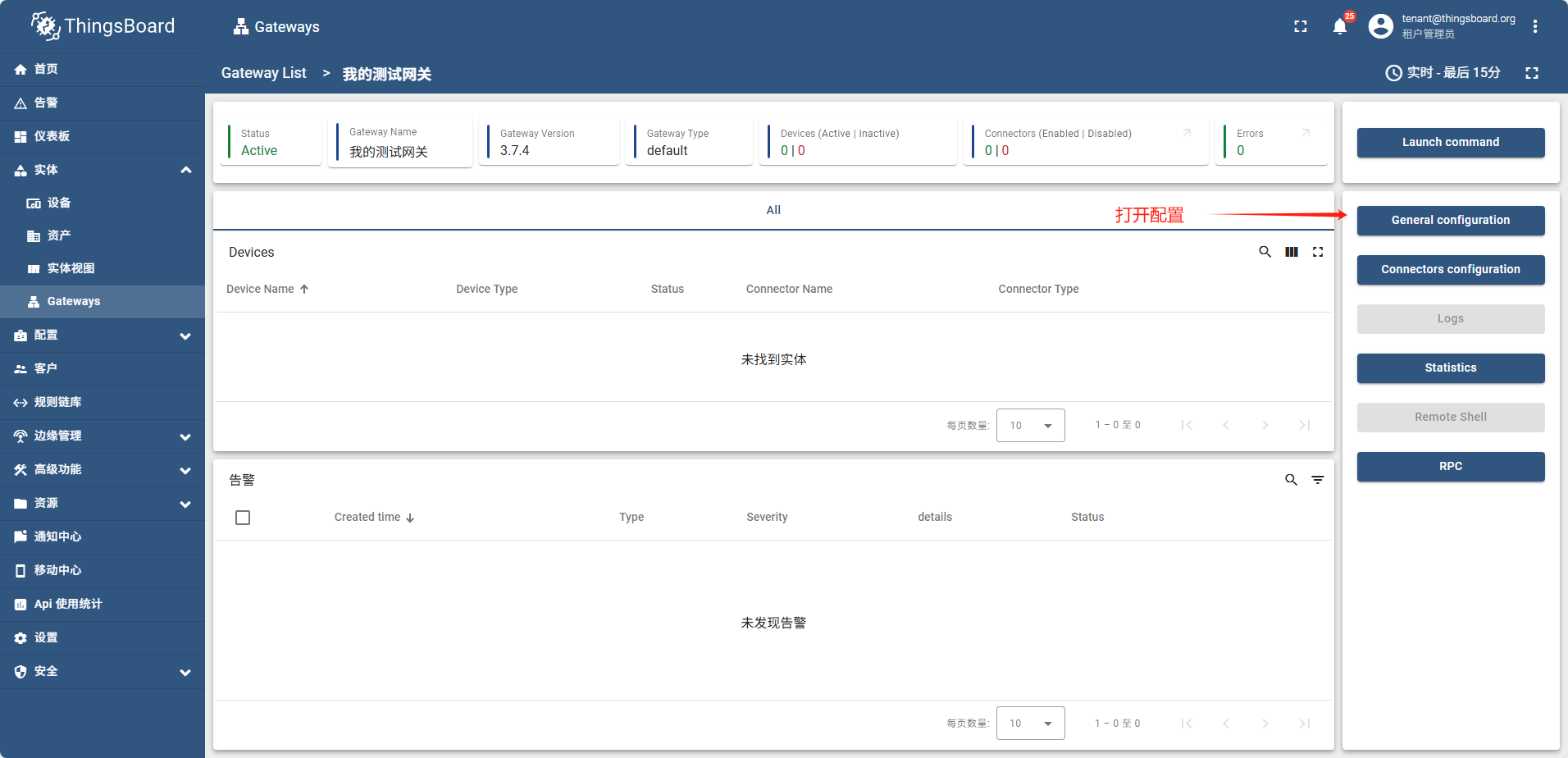
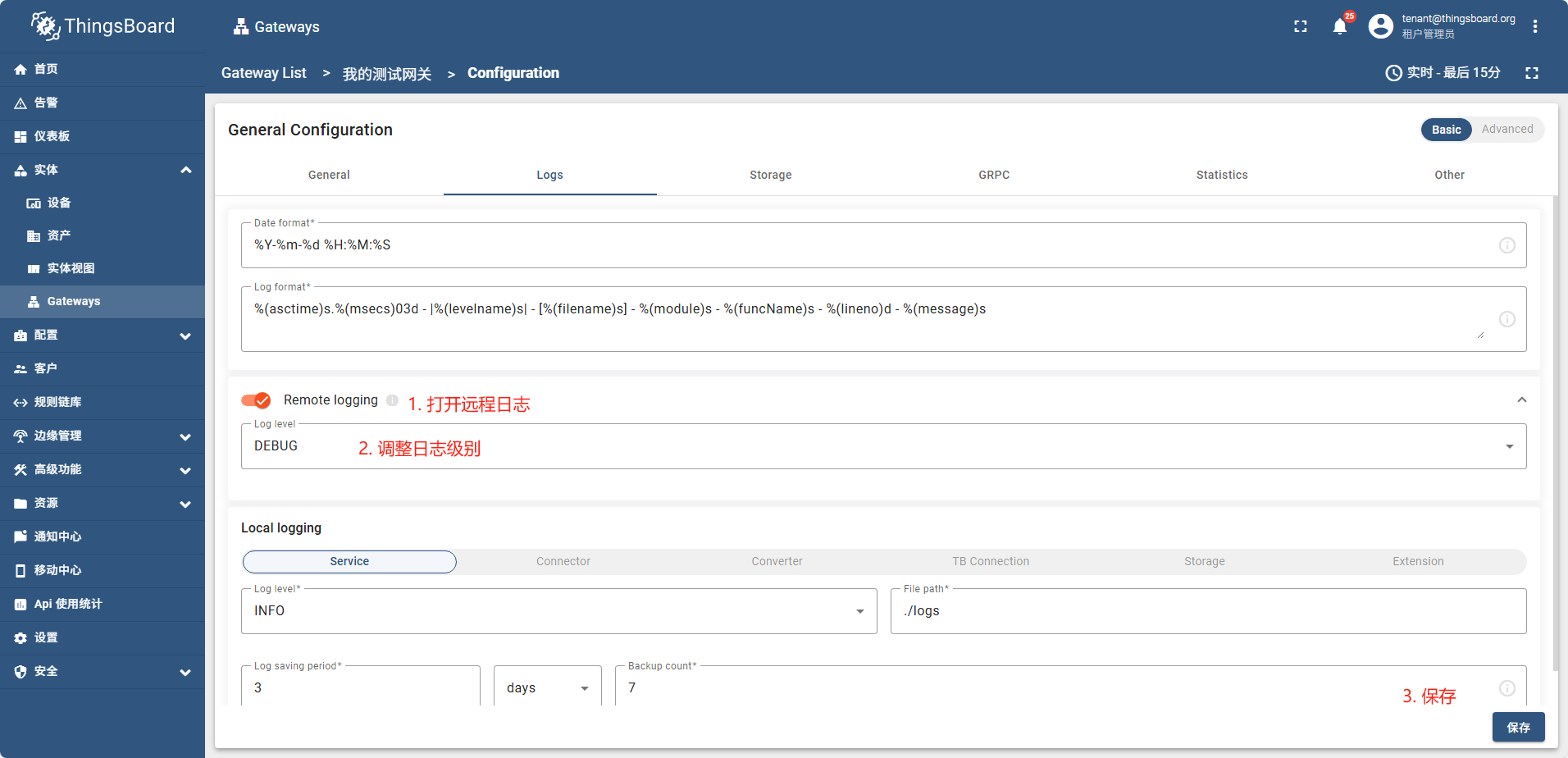
启用远程日记
创建一个MQTT连接器
- 首先启动一个mqtt代理,模拟一个在运行的mqtt服务
docker run -it -p 1884:1884 thingsboard/tb-gw-mqtt-broker:latest
这个mqtt代理会不停的发送信息
- 创建一个连接器
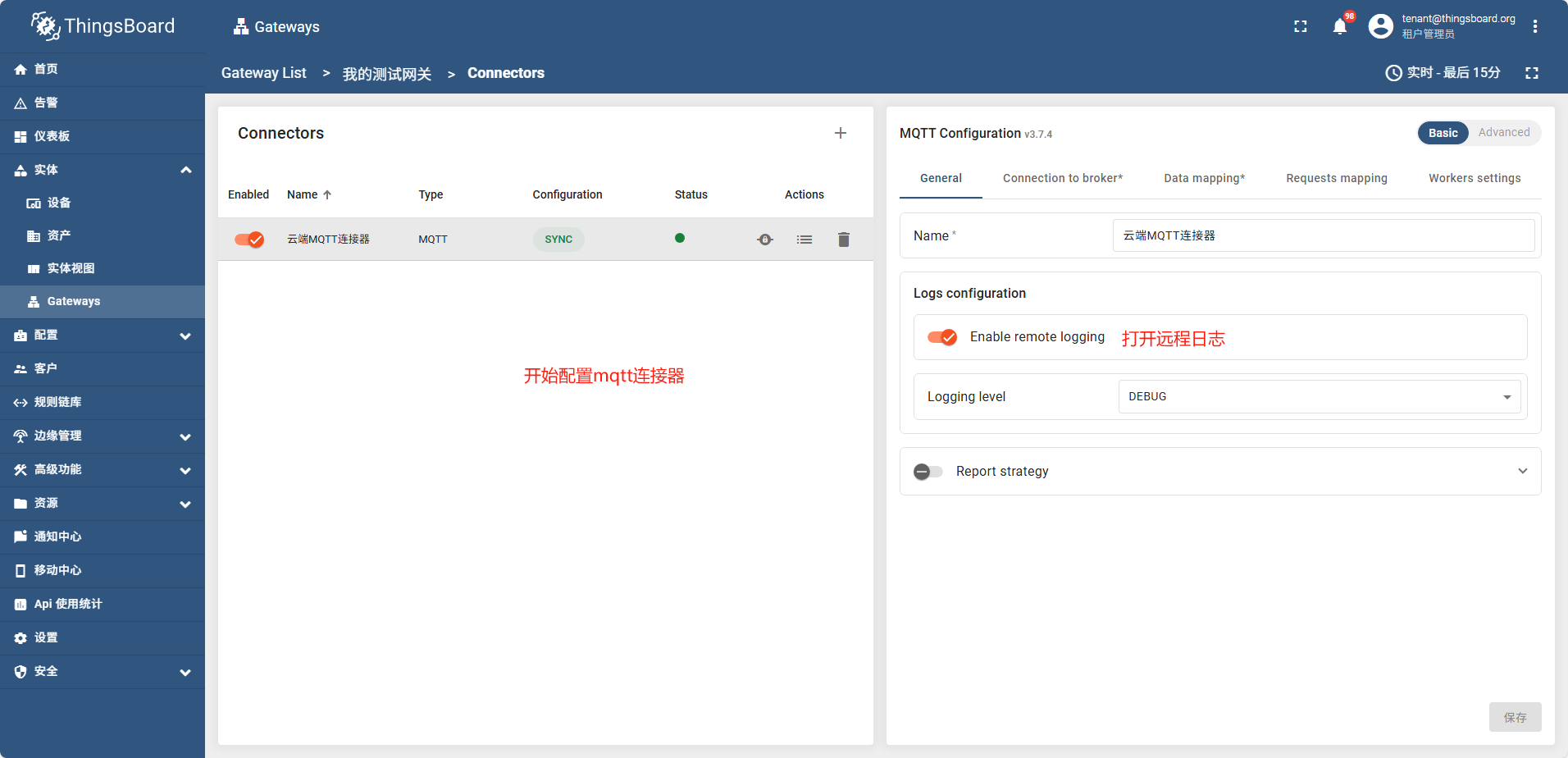
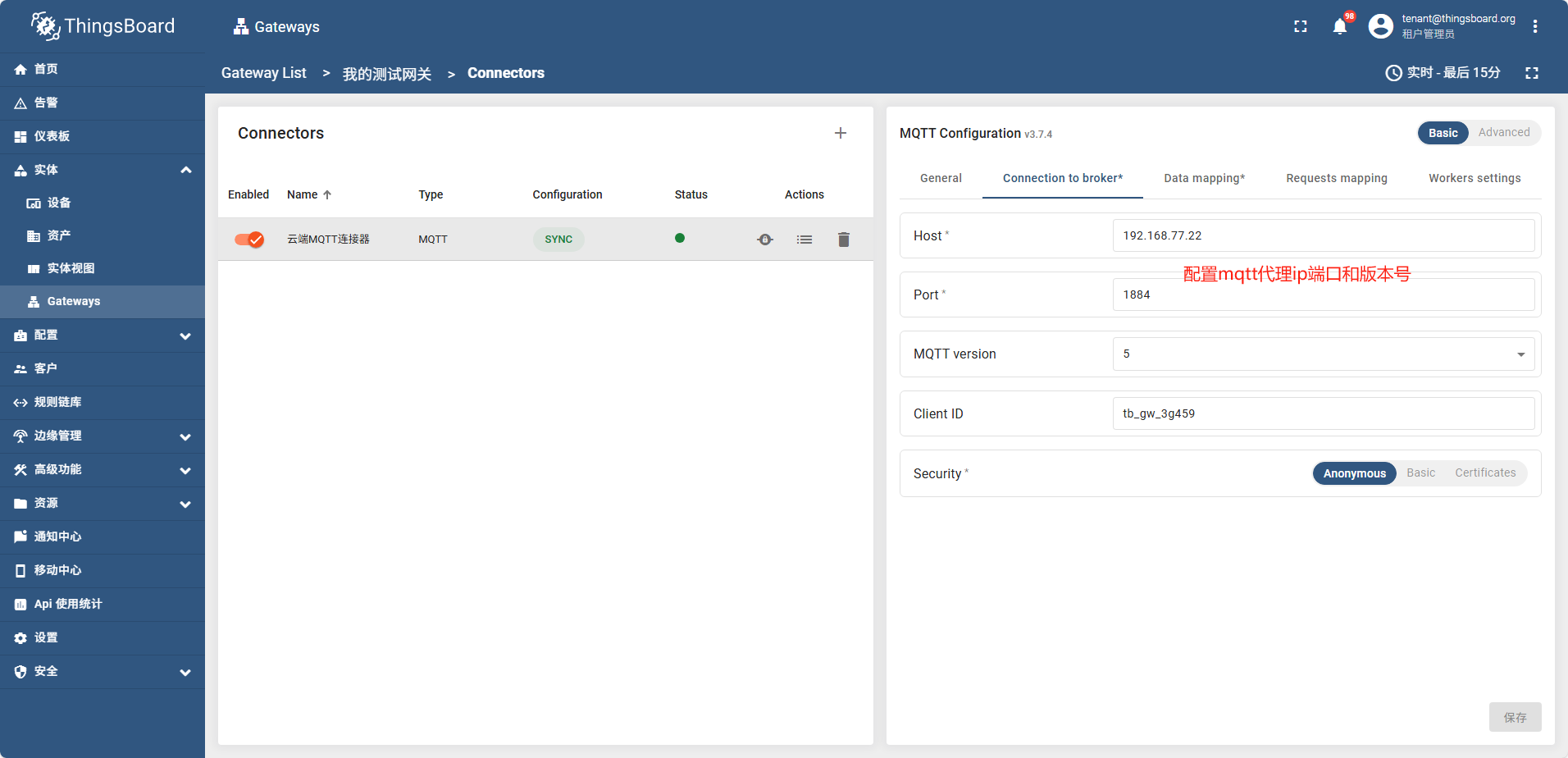
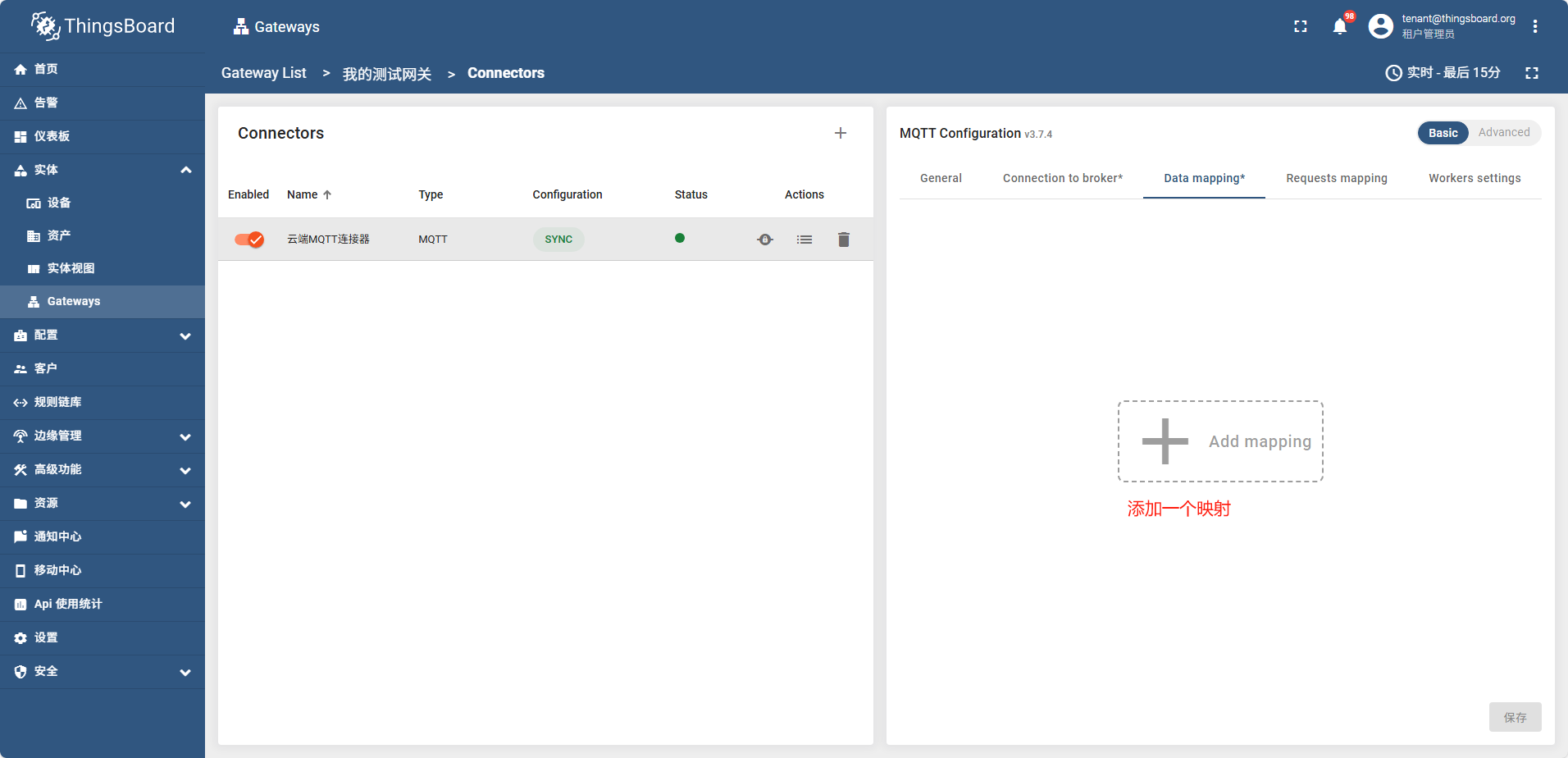
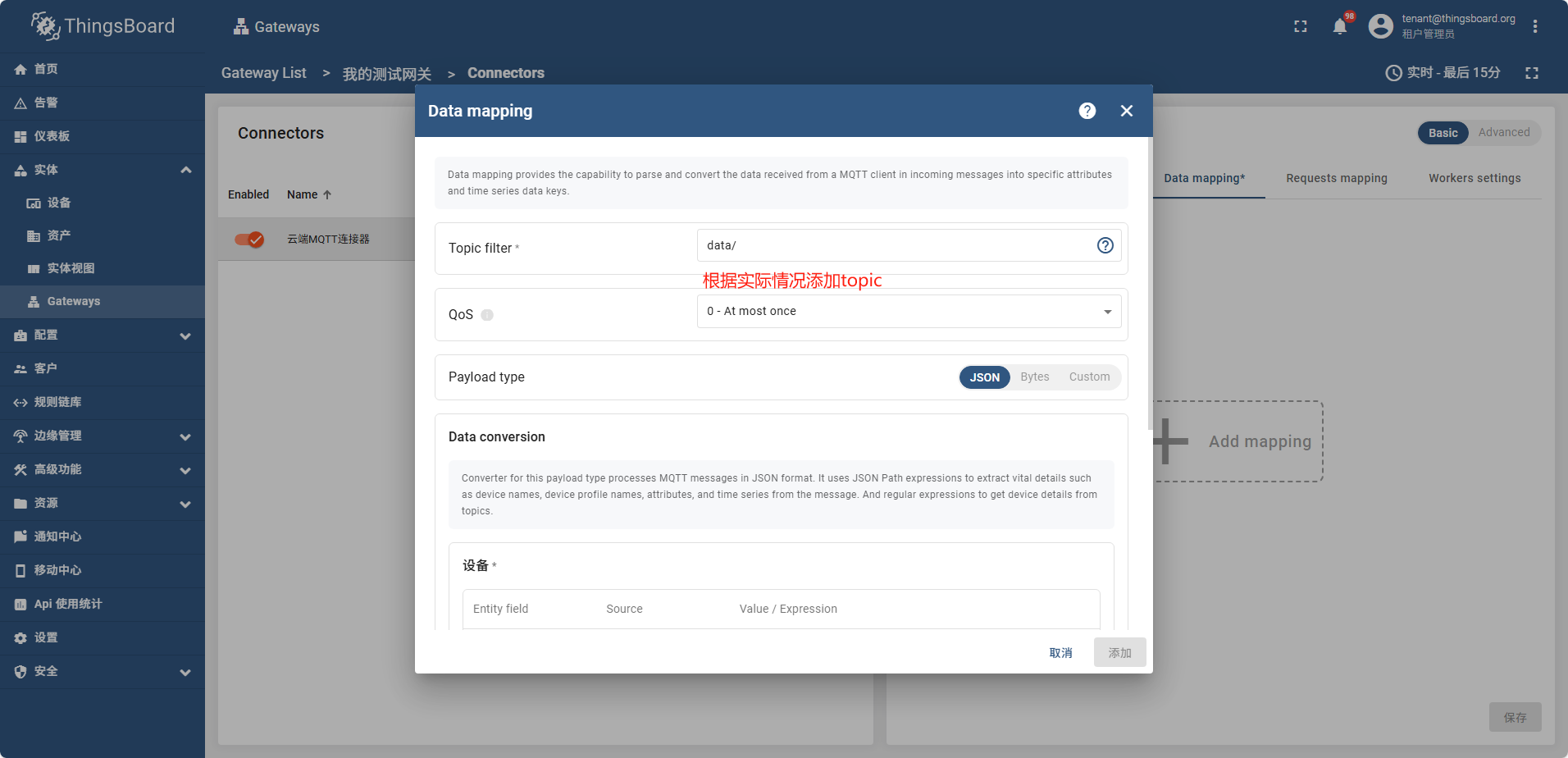
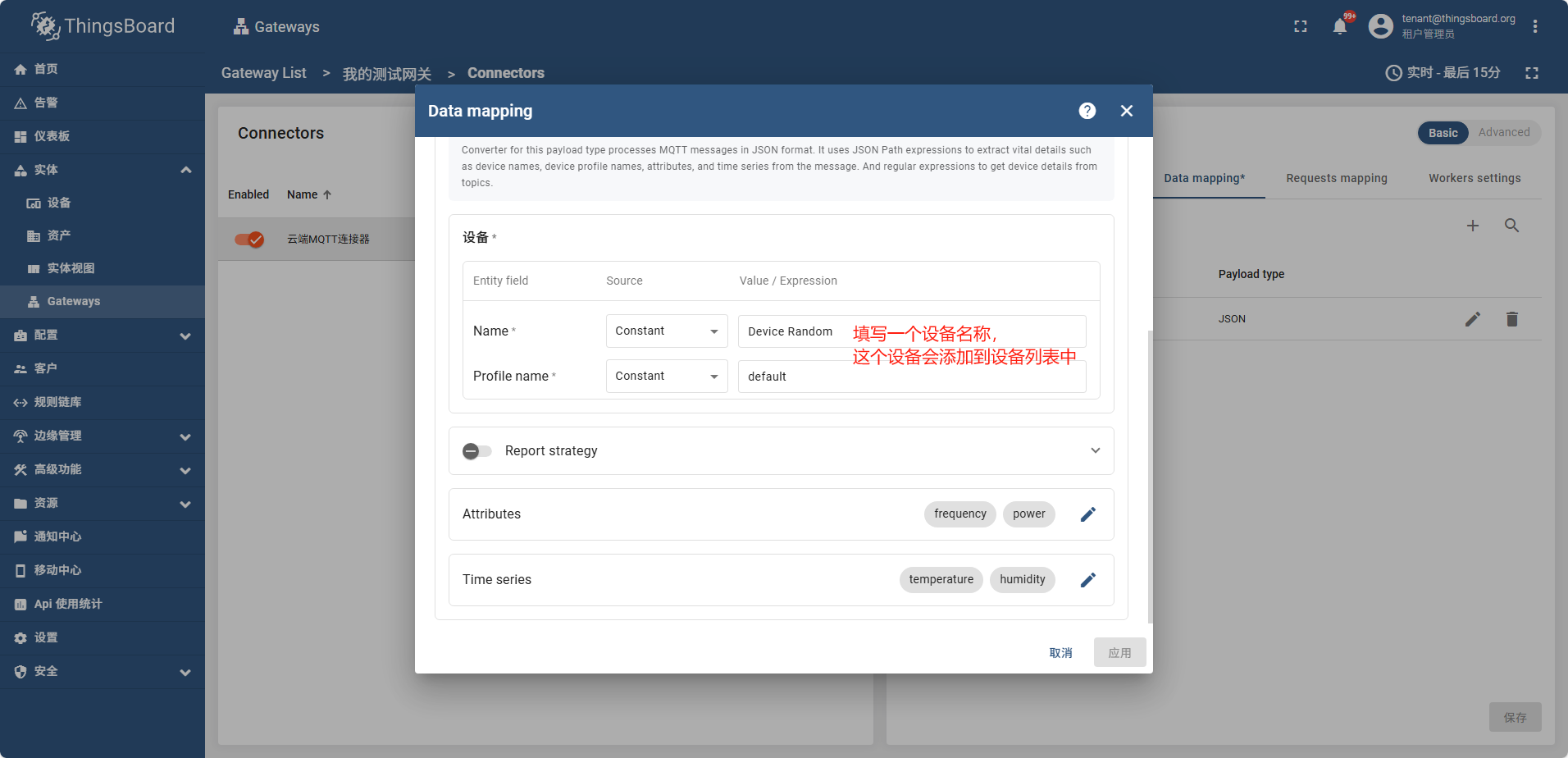
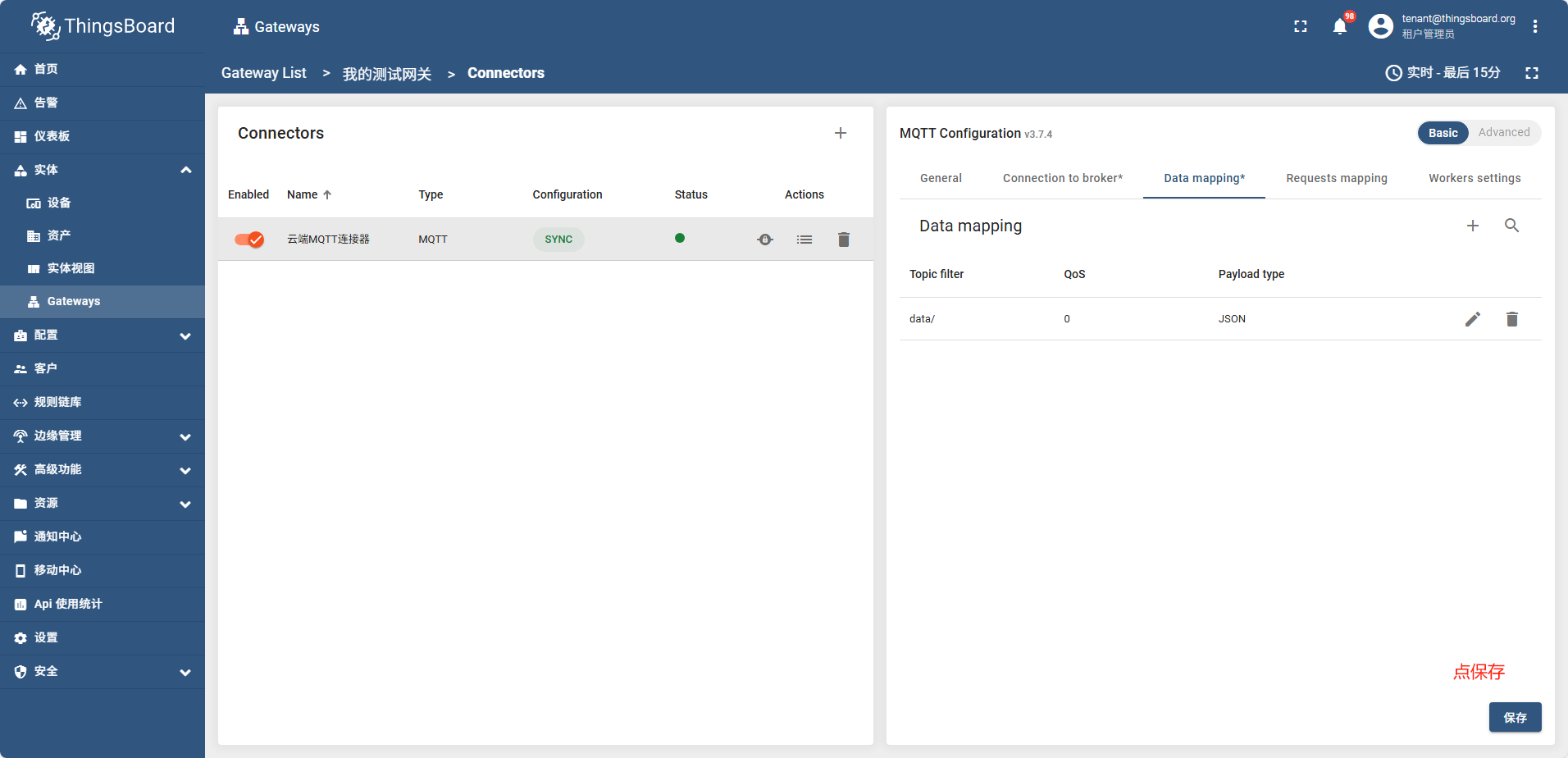
点保存后过一会,网关状态变成了绿色,说明网关成功连接了
mqtt代理控制台日志显示

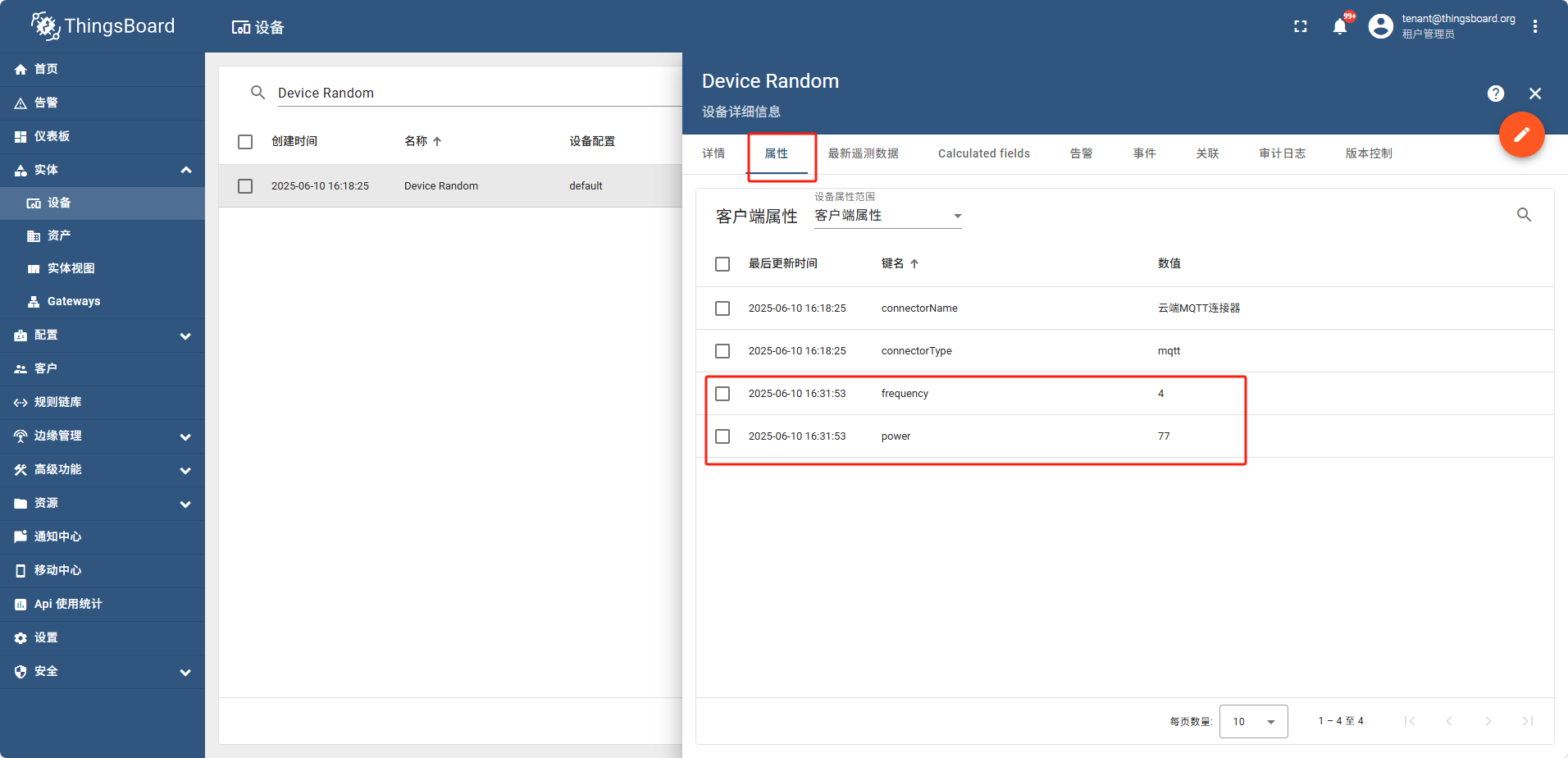
之后配置 Attributes Time series 如图
frequency power
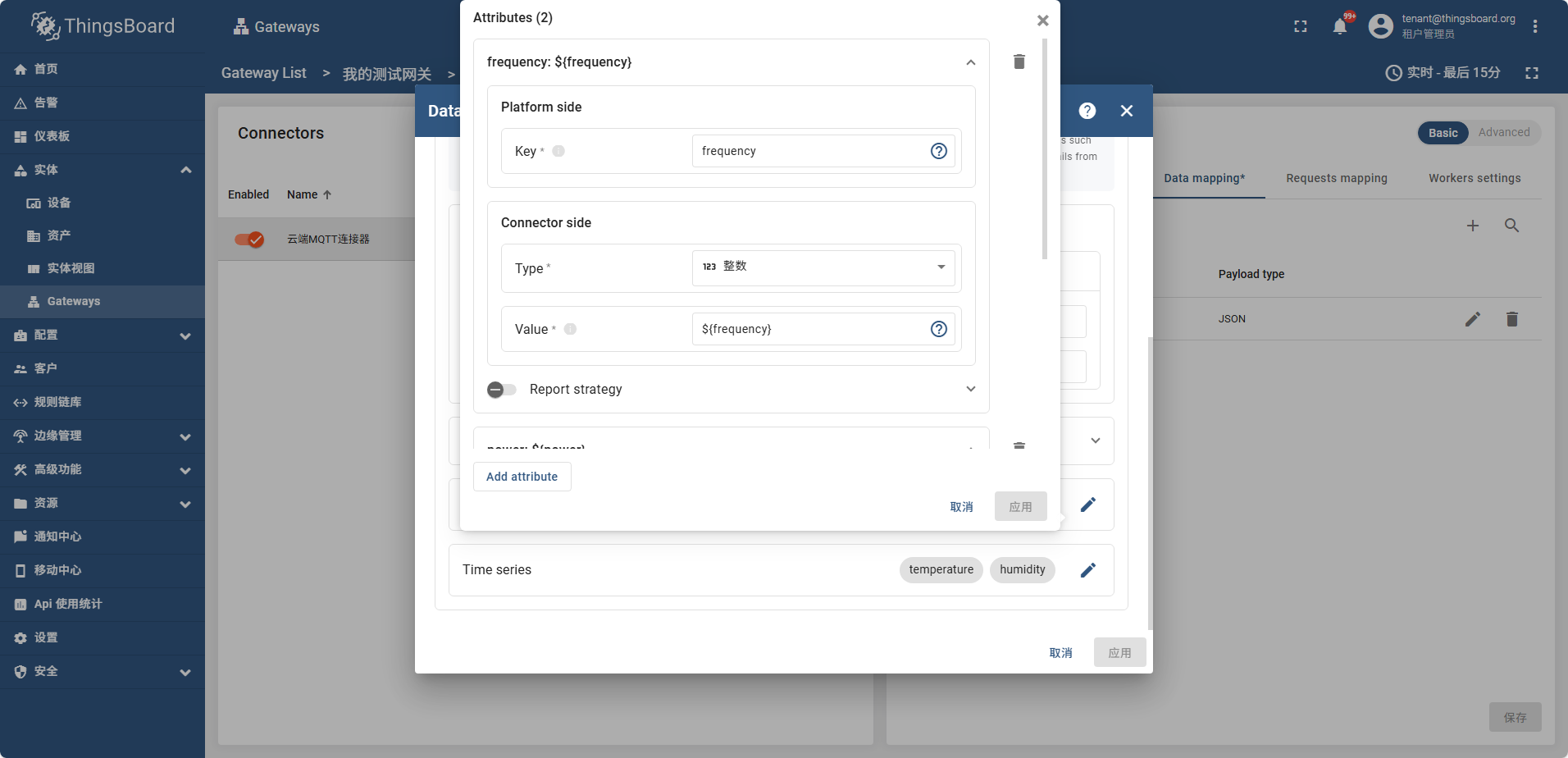
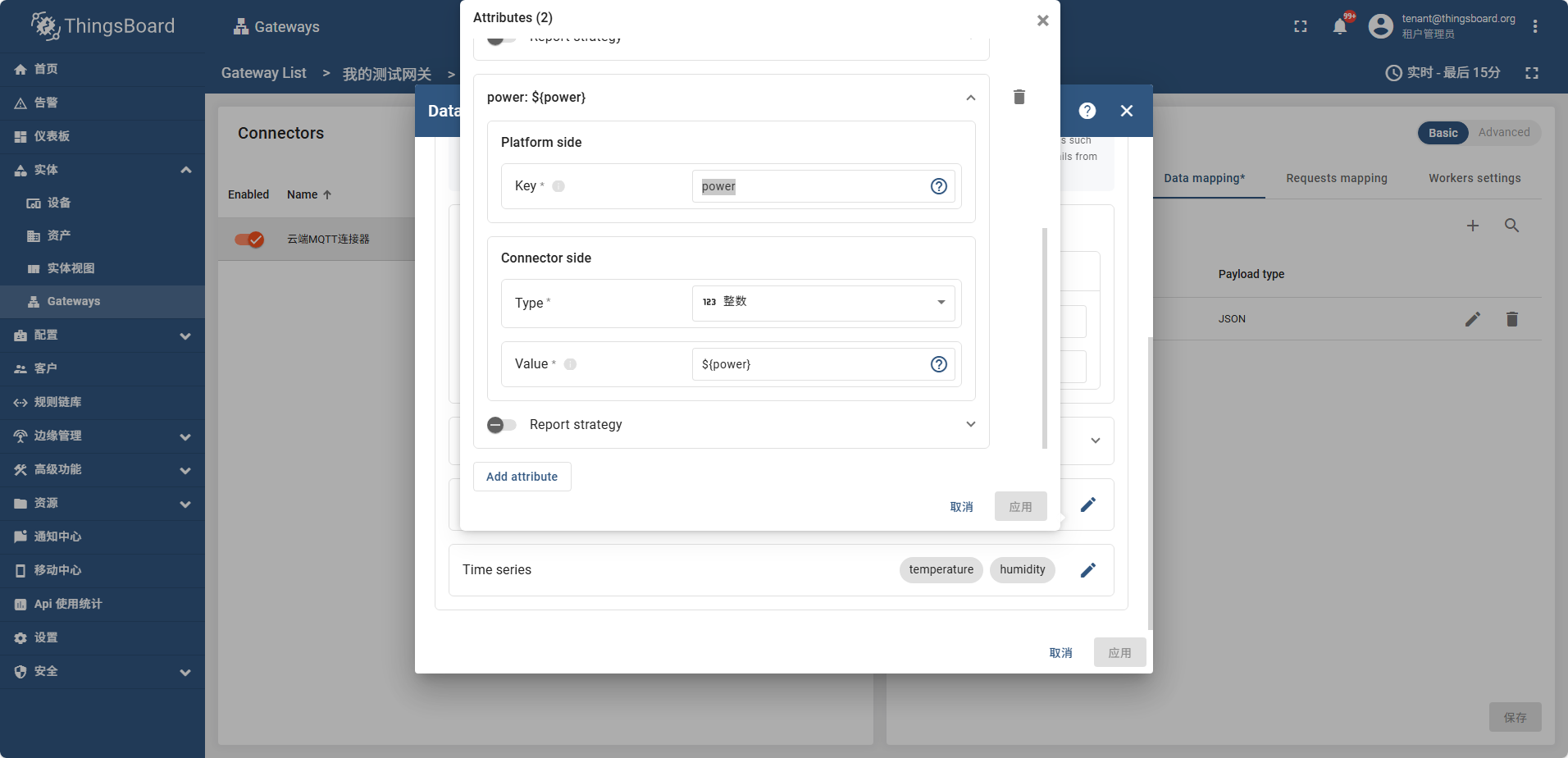
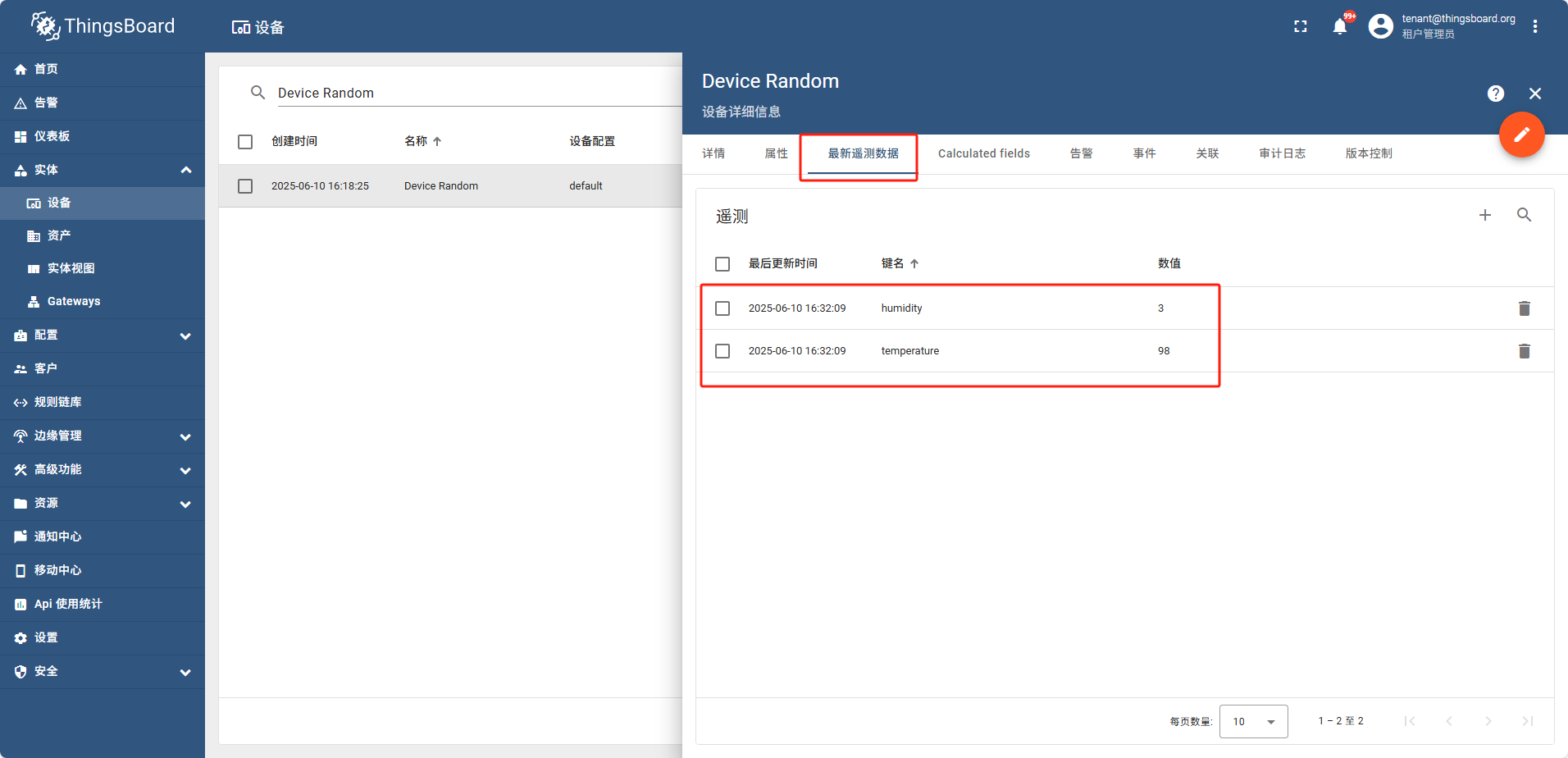
temperature humidity
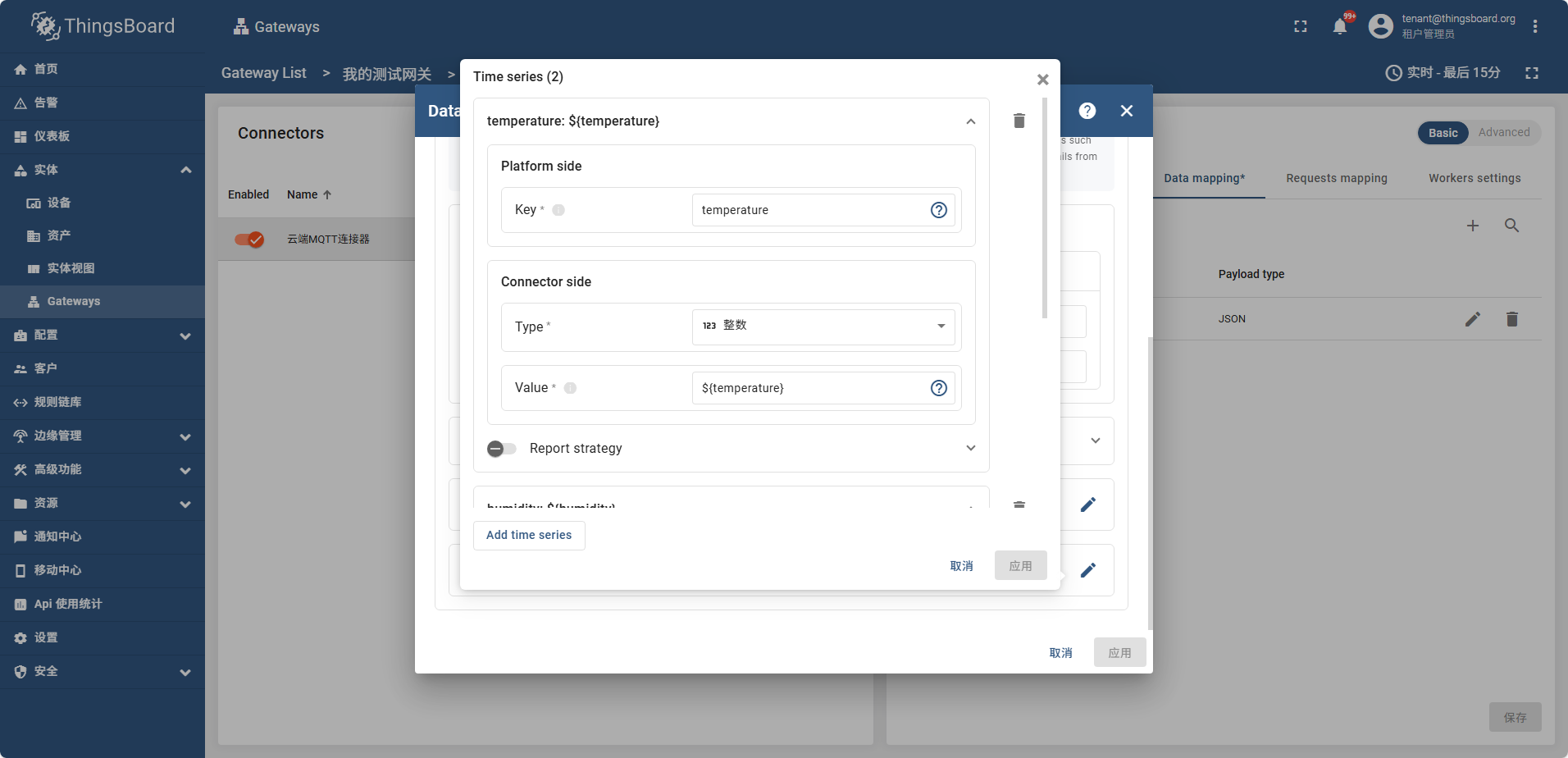
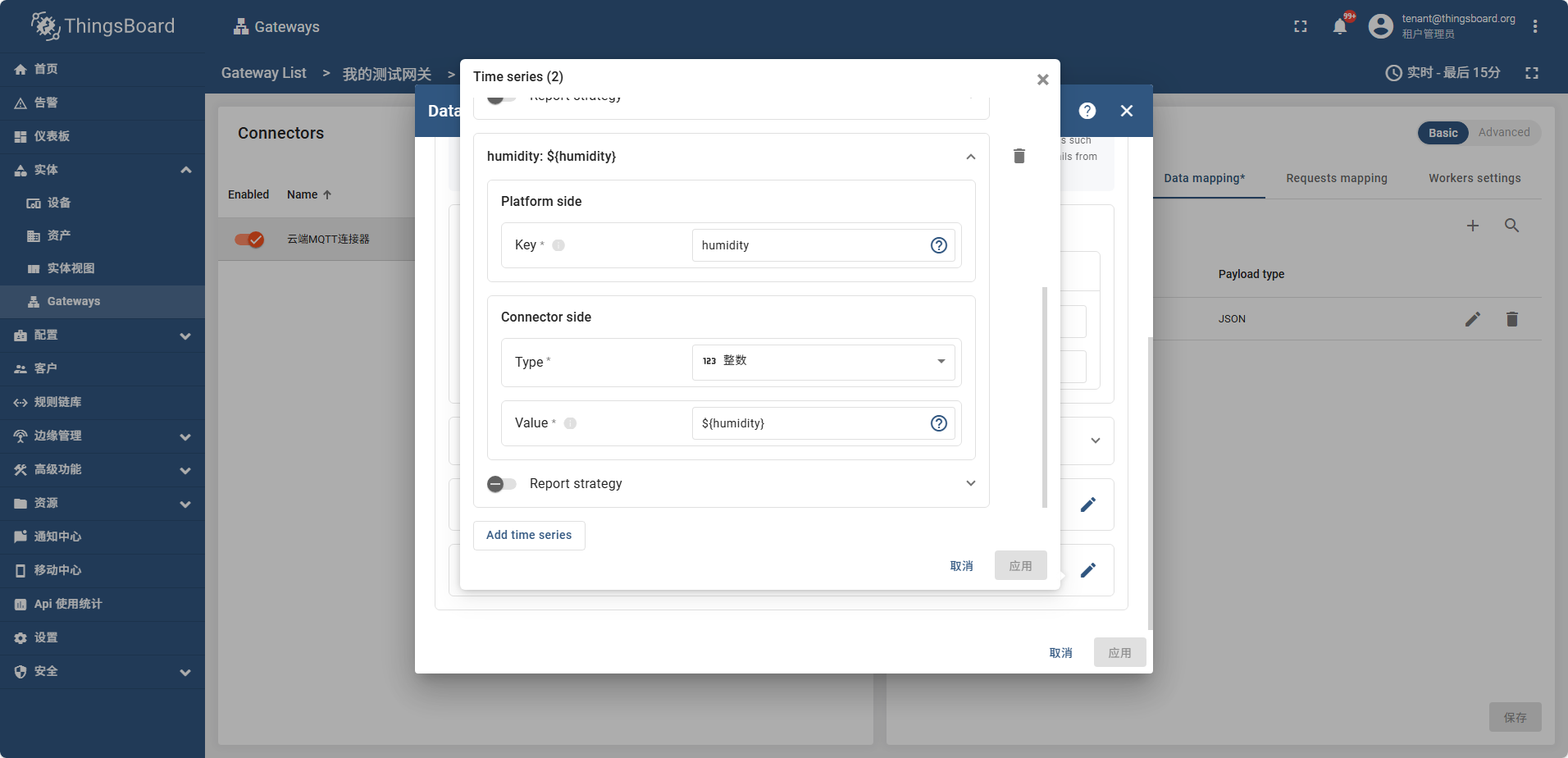
配置好属性后 打开网关信息页面
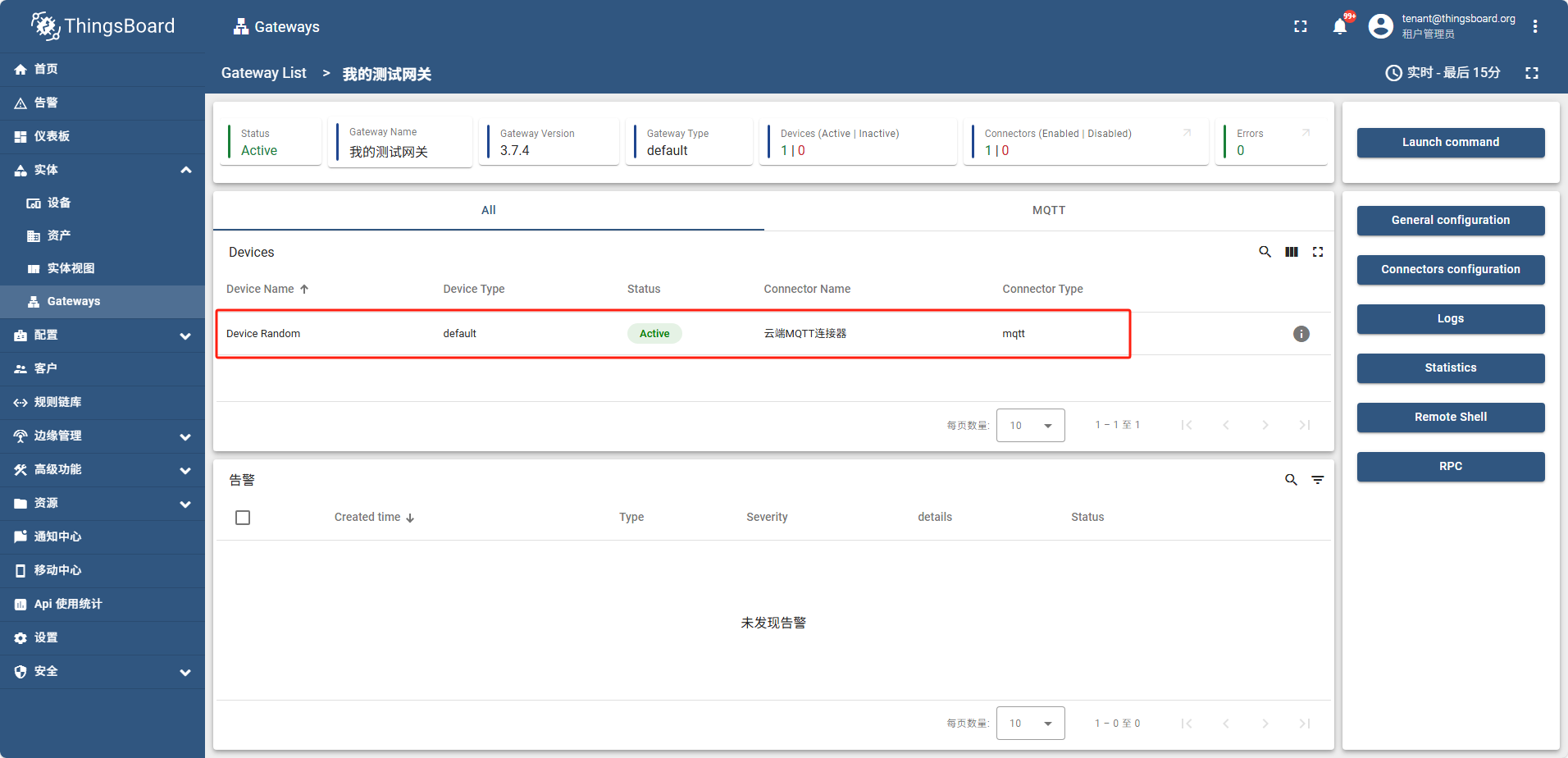
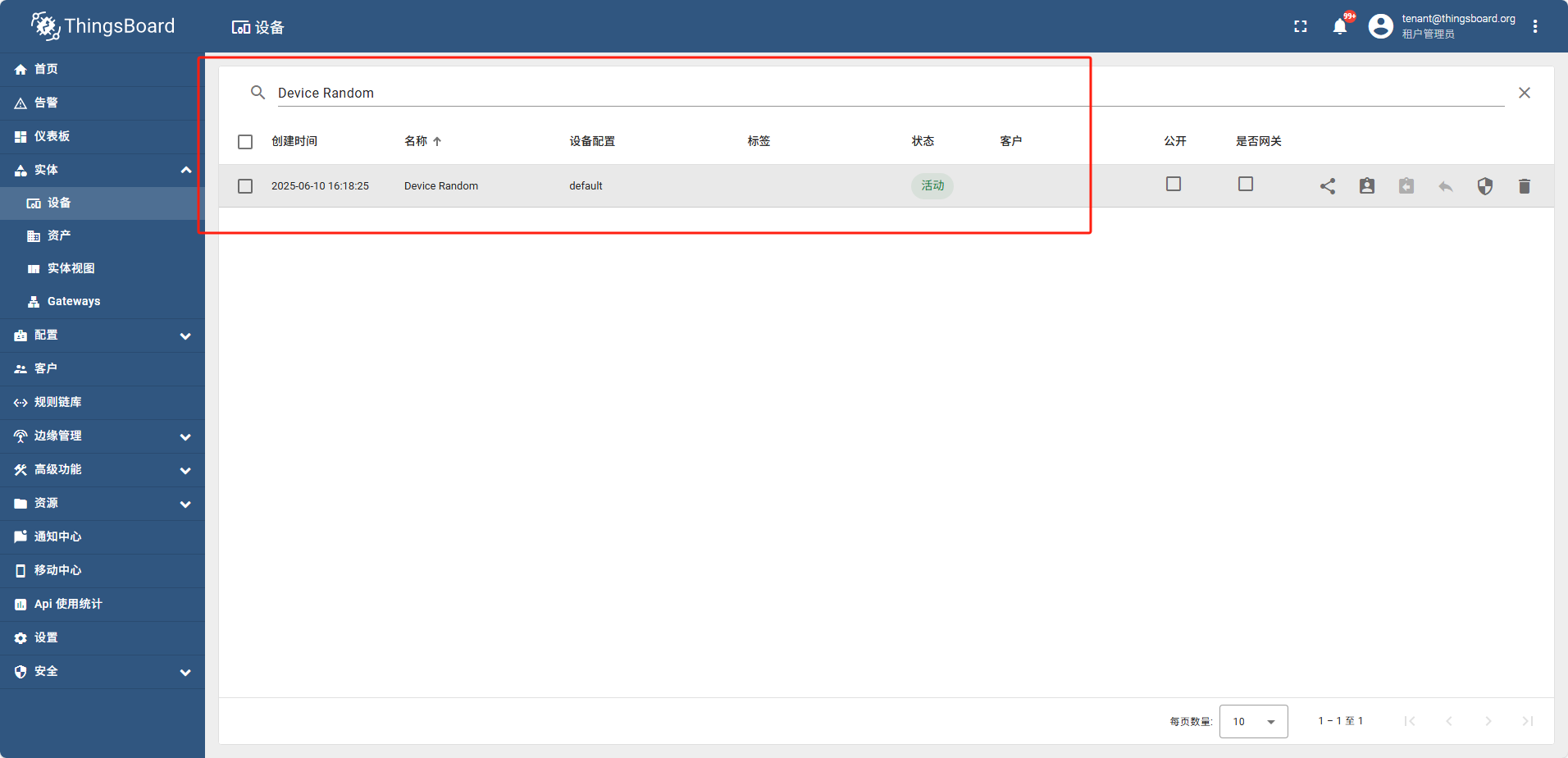
此时设备列表中也可以搜索到这个设备,并且属性tag页可以看到 temperature humidity
在遥测数据中可以看到